

Set up product scans for your Knowledge Base
Let Weav explore your product, capture screenshots, and suggest new or updated articles. Set up a safe test account, follow scan progress, and review the results.
Product scans help your Knowledge Base stay aligned with the app your customers use. Weav signs in with a test account, explores your product, takes screenshots, and drafts new articles or updates to existing guidance.
That supports both self-improvement (filling missing content) and self-healing (identifying guidance that no longer matches your product). Your team stays in control of what readers see.
Product scans create suggestions, not automatic publications. Review, edit, and publish the resulting articles in Suggestions. A scan does not publish them for you.
Before you start
You need:
- An owner or admin role in your Weav organization. Other teammates do not see Product scans in the sidebar.
- Your product's HTTPS sign-in URL, such as
https://app.example.com/login. - A dedicated test account with an email address, password, and realistic sample data.
- The exact sign-in and dependency hostnames your app needs, if it uses a hosted authentication provider.
Use a test account, not a real customer's account. Weav interacts with your app and may create, edit, or delete data. Give the account only the permissions and sample data you are comfortable letting a scan use. Avoid personal information and live billing data.
Set up your first product scan
- Open Knowledge Base → AI & sources → Product scans.
- Under Sign-in page URL, enter your product's own sign-in page. Do not start from an authentication provider's login URL.
- Under Test account, enter the account's email address and password.
- Complete Authentication if your app signs in or loads required resources through other hosts. See Configure hosted sign-in below.
- Optionally add Anything to focus on? instructions. For example: “Focus on reports and automations. Skip developer settings.”
- Select Scan. This saves your settings and starts the first scan.
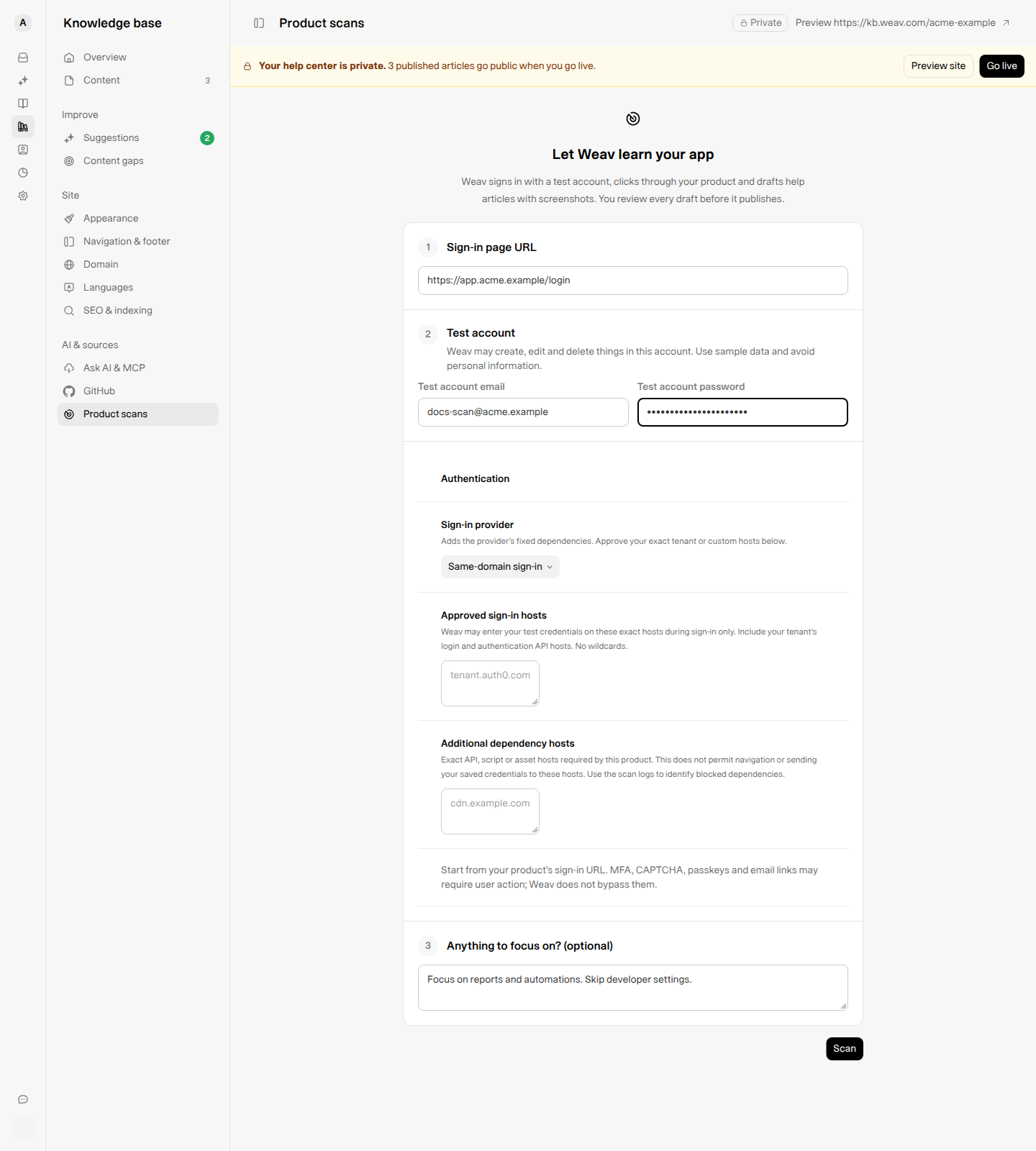
First-time setup in a fictional Acme workspace. The Scan button saves the configuration and starts a scan.
Start with one useful customer workflow and sample data that makes it easy to understand. You can expand coverage with Scan further after reviewing the first results.
Configure hosted sign-in
Keep Same-domain sign-in when your app handles sign-in on its own domain. If it uses a service such as Clerk, WorkOS / AuthKit, Auth0, Okta, Firebase, or Supabase, choose the matching Sign-in provider.
Choosing a provider adds its fixed dependencies. It does not approve every tenant or custom domain operated by that provider.
| Setting | What to enter | What it permits |
|---|---|---|
| Approved sign-in hosts | Exact tenant login and authentication API hostnames, such as tenant.auth0.com |
Weav may enter the test credentials on these hosts during sign-in only. |
| Additional dependency hosts | Required API, script, or asset hostnames, such as cdn.example.com |
The scan may load those resources. This does not authorize navigation to the host or sending saved credentials to it. |
Use hostnames only: no https://, paths, ports, or wildcards. Separate entries with commas or new lines. You can add up to 10 sign-in hosts and 15 dependency hosts.
Only approve hosts you recognize and trust. If a required resource is blocked, use View logs to identify the exact hostname rather than broadly expanding access.
Weav does not bypass sign-in protections. MFA, CAPTCHA, passkeys, and email-link sign-in may require user action and can prevent a scan from signing in. Check that your dedicated test account supports the sign-in flow before starting.
Edit scope, credentials, and scan depth
After setup, the page shows your saved configuration and scan history. Change the fields you need, then select Save. The confirmation is Product scan settings saved.
| Group | What you can change |
|---|---|
| Your app | Update the sign-in page. Optionally set Stay on to your product's domain; the sign-in page must belong to that domain. Product navigation uses that domain and its subdomains, with sign-in hosts approved separately. |
| Test account | Update the email or replace the password. A saved password is not displayed; leave the password field blank to keep it. |
| Authentication | Change the provider, approved sign-in hosts, or additional dependency hosts. |
| What to scan | Adjust Focus and Never complete keywords. |
Under Never complete, add comma-separated keywords for actions the scan should not finish. The built-in list covers sign out, password and email changes, account deletion, billing, and invites. These safeguards do not replace a restricted test account.
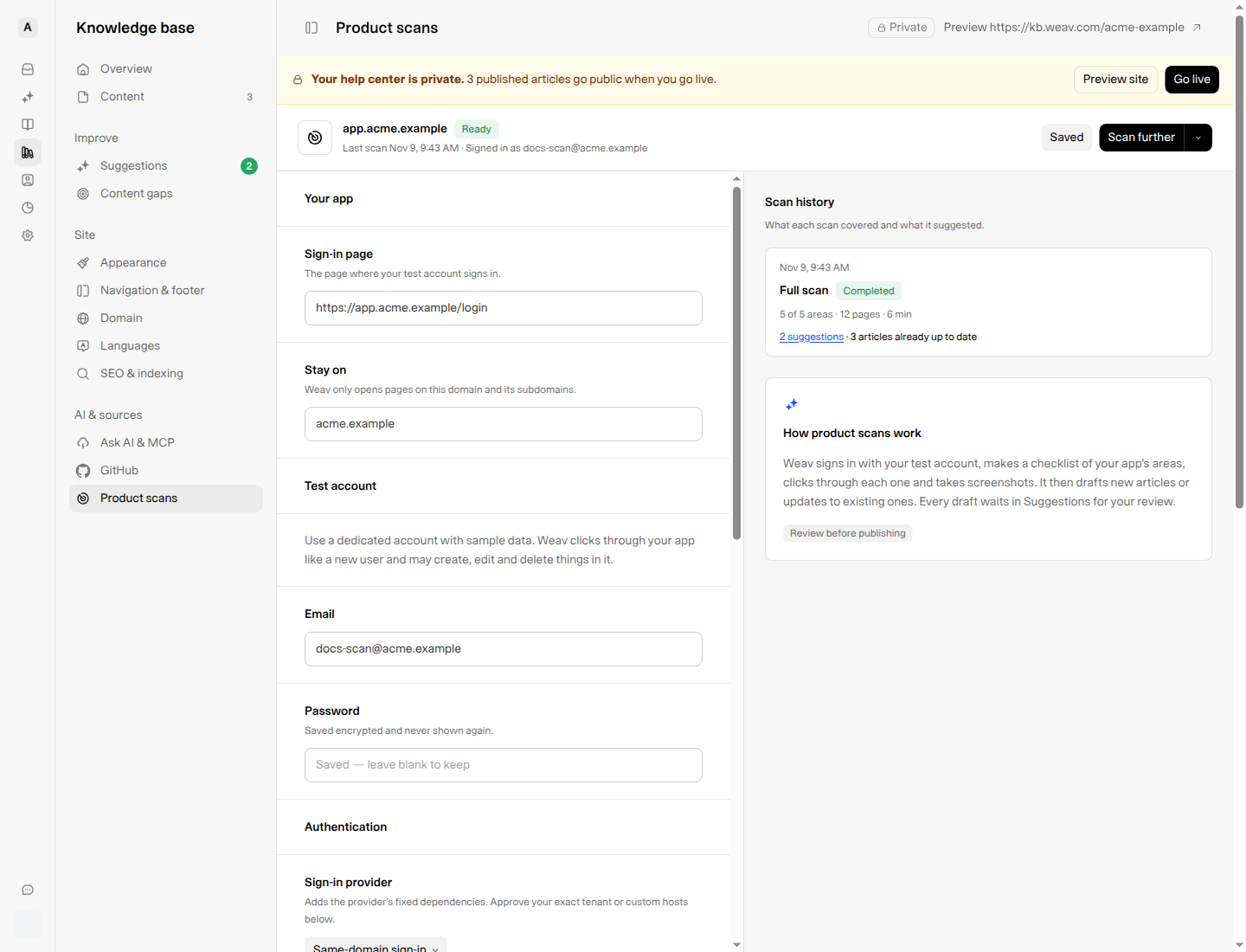
Saved configuration and example results. Scan history shows coverage, suggestions, and articles already up to date.
Start, continue, restart, or stop a scan
| Control | When to use it |
|---|---|
| Start scan | Start when settings are saved but there is no scan history yet. |
| Scan further | Continue exploring and deepen coverage using what earlier scans learned. |
| More scan options → Start over | Explore from the beginning instead of using earlier scan learning. Confirm Start over? to proceed. Earlier suggestions stay in Suggestions. |
| Stop scan | Request that a running scan stop after its current step. Confirm Stop this scan? to proceed. Suggestions already sent remain available. |
Save or discard unsaved settings before starting another scan. The start controls are disabled while changes are unsaved, and only one scan can run for the app at a time.
Follow live progress
During a scan, the Live progress card updates automatically. It shows:
- The current phase: starting the browser, signing in, exploring your app, or writing suggestions.
- The action count and latest activity.
- A checklist of product areas, including completed, skipped, and in-progress items.
- The latest screenshot, when one is available. Select it to open the full-size image.
The card also remains visible while a stopped scan finishes its current step. Automatic refreshes do not reset unsaved form changes.
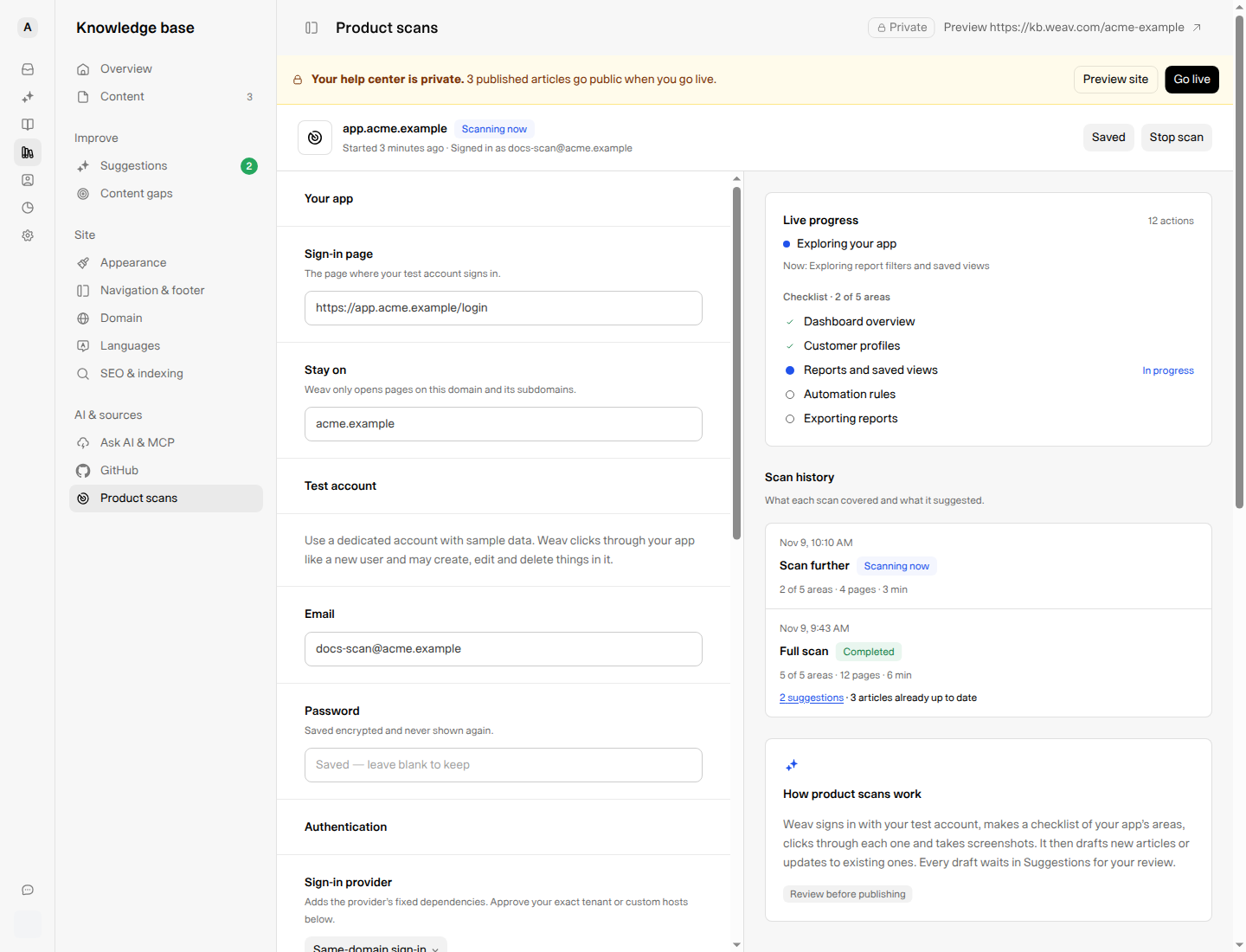
An example scan exploring reports. Live progress helps you see what has been covered and what is still in progress.
Review the suggested articles
Use Scan history to see what a scan covered, how many suggestions it created, and which articles were already up to date.
Then open Knowledge Base → Suggestions. Review proposed new articles and updates, check their instructions and screenshots, choose the right category, and publish only what is ready.
For the complete review workflow, see Review, edit, and publish Knowledge Base suggestions.
Check suggestions from one pass before expanding coverage. If something important was missed, update Focus, save the change, and select Scan further.
Troubleshoot a failed or incomplete scan
When a scan fails, select View logs beside that run in Scan history. The Scan logs dialog shows Why the scan failed and any recorded browser steps. Credentials and typed text are hidden.
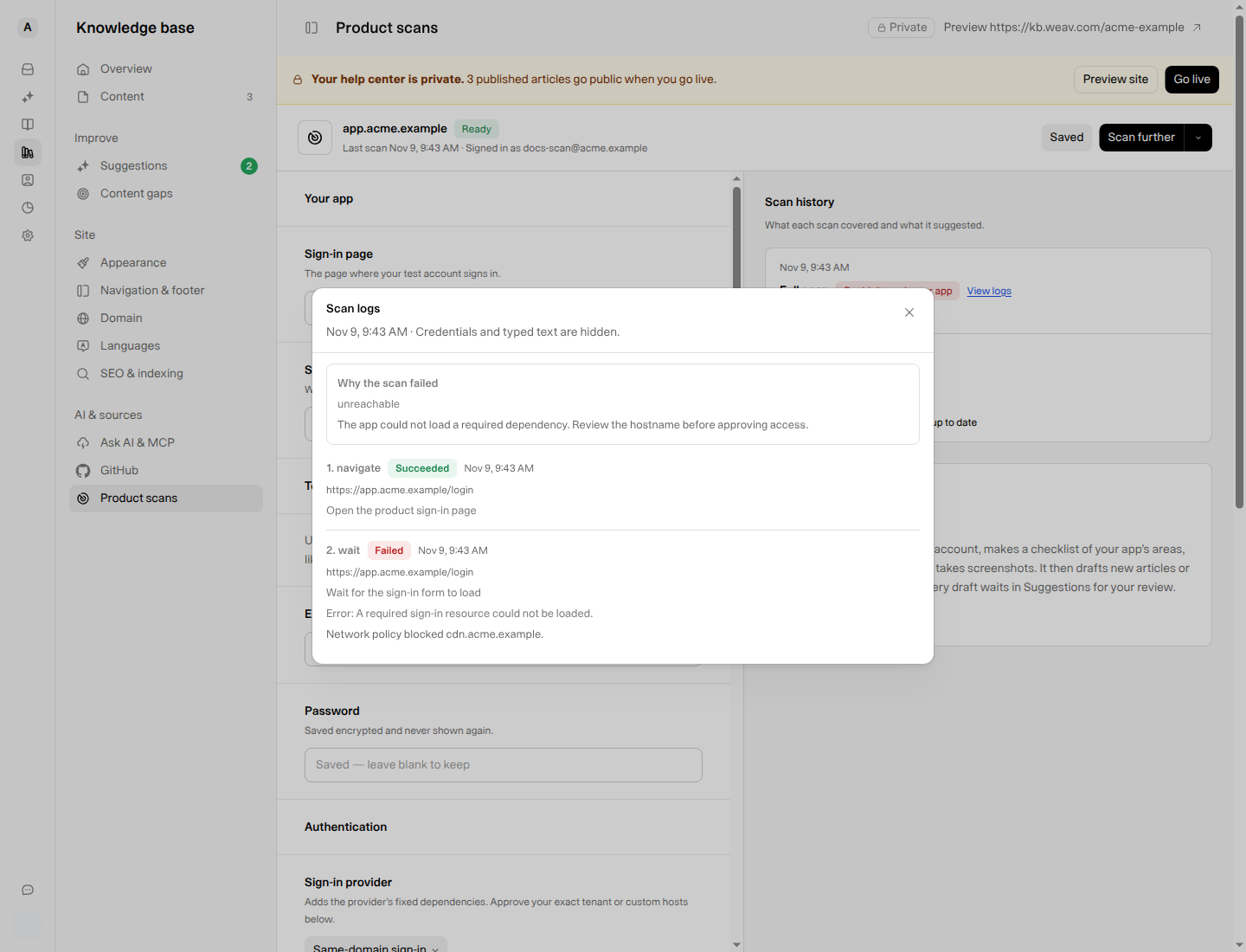
Example troubleshooting data—not a real scan failure. Review the hostname and approve it only if your product genuinely requires it.
| What you see | What to check |
|---|---|
| Product scans is missing | Confirm that you are an owner or admin in the correct Weav organization. |
| Couldn't sign in | Check the test email and password, approved sign-in hosts, and whether MFA, CAPTCHA, passkeys, or email links require user action. |
| A blocked host or failed dependency in the logs | Identify what the host does. Add a trusted login host under Approved sign-in hosts, or a required asset/API host under Additional dependency hosts. Do not add wildcards. |
| Couldn't reach your app or Blocked | Check that the HTTPS URL is reachable and that network or bot protections are not preventing access. Do not disable protections broadly. |
| No browser steps were recorded | The scan failed before taking an action. Check the failure explanation and sign-in configuration first. |
| Stopped at limit | The scan reached its configured limit. Review what it produced, then use Scan further for additional coverage. |
| Start controls are disabled | Save or discard unsaved changes, or wait for the active scan to finish stopping. |
If a scan cannot start after you have checked the settings, try again in a few minutes. Contact support if it continues, with the failure message and relevant log details—not the account password.
Frequently asked questions
Will a product scan publish articles automatically?
No. It creates suggestions that wait for review. GitHub documentation sync is a separate workflow that can update published articles directly.
Does saving settings start another scan?
The first-time Scan button saves and starts the initial scan. On the configured page, Save only saves settings; use Start scan or Scan further to run a scan.
Will stopping or restarting remove earlier suggestions?
No. Stopping leaves suggestions already sent in Suggestions. Start over resets what the scanner uses from earlier exploration, not the suggestions already created.
For an overview of setup and the other ways Weav keeps documentation useful, see the Knowledge Base getting-started guide.