

Connect GitHub to your Knowledge Base
Keep documentation aligned with your product. Connect GitHub, review product-change suggestions, and manage two-way documentation sync.
Connect GitHub to keep your Knowledge Base aligned with your product and documentation. Weav can turn product changes into suggestions for your team to review, sync articles with a documentation repository, or do both using separate repositories.
Choose the right GitHub workflow
| Your goal | Use this workflow | What happens to your articles? |
|---|---|---|
| Find missing or outdated guidance when your product changes | Product repositories | Weav analyzes merged pull requests and creates suggestions. Your team reviews and publishes them. |
| Keep Markdown documentation and Weav articles in sync | Documentation sync | Your connected documentation branch and published Knowledge Base content sync in both directions. GitHub changes can update published articles directly. |
Product monitoring helps your Knowledge Base improve by finding missing answers and heal by identifying guidance affected by product changes. It does not automatically publish those suggestions.
Documentation sync is different from a suggestion. Changes on the connected documentation branch can update published articles without a separate Suggestions review. Use pull requests and branch protections on that branch to control what gets merged.
You can use either workflow on its own. To use both, choose separate repositories: one repository cannot be both a product repository and the Knowledge Base content repository.
Before you start
- You must be an organization owner or admin to access Knowledge base → GitHub.
- Sign in to GitHub with an account that can access the app installation and has write access to every repository included in that installation. Limit the installation to the repositories you need.
- If your GitHub organization requires approval for app installations, ask a GitHub organization owner to approve the request.
Weav shares one GitHub connection between your Knowledge Base and Settings → Integrations. You do not need to connect twice.
Connect GitHub and choose repositories
- Open Knowledge base. Under AI & sources, select GitHub.
- Select Connect GitHub and complete authorization on GitHub.
- When you return to Weav, the GitHub connected—choose your repositories window opens.
- Select the Product repositories whose merged pull requests you want Weav to analyze.
- Optionally select one Knowledge Base content repository for documentation sync. Leave None selected if you only want product monitoring.
- Select Save. If you chose a content repository, continue with its branch, folder, and first-sync setup in Documentation sync.
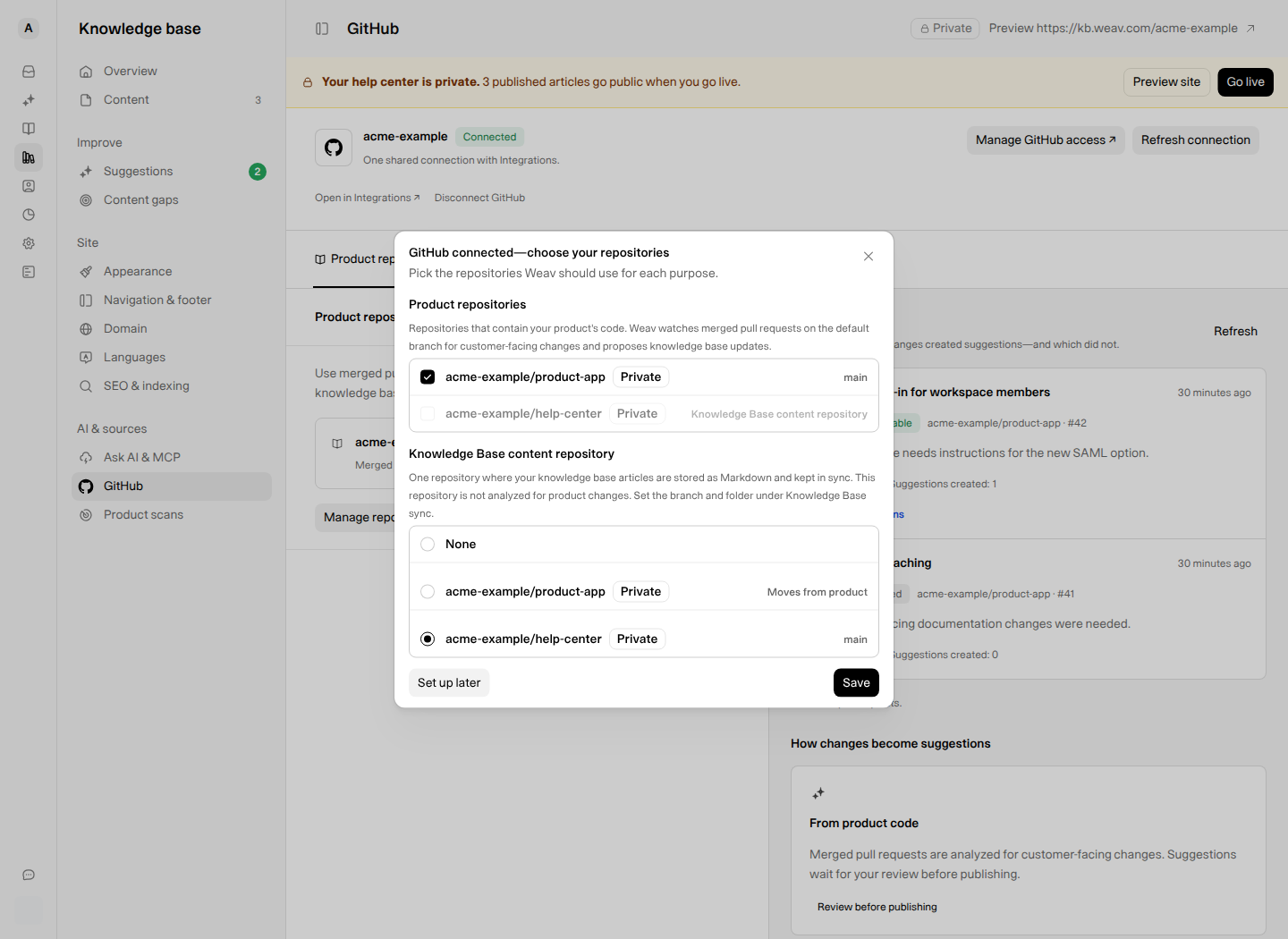
Example: the fictional Acme workspace uses separate product and documentation repositories. Your repository names and activity will differ.
Connecting GitHub alone does not start monitoring or documentation sync. You need to choose repositories, and documentation sync also requires you to confirm its first import or export. Choose Set up later if you are not ready.
If GitHub is already connected through Integrations, open the GitHub page in your Knowledge Base and configure the repositories there. Manage GitHub access ↗ opens the installation settings if you need to grant access to another repository.
Monitor product changes and review suggestions
Open the Product repositories tab. Each selected repository shows its default branch and a status such as Preparing repository, Monitoring, or Paused.
- Select Manage repositories to change which product repositories Weav watches.
- Select the repositories you want to monitor, then select Save.
- As pull requests are merged into those repositories' default branches, check Product activity for their results.
- When an entry shows Suggestion available, select Review suggestions. Review the proposed article or update, edit it as needed, and publish only when it is accurate.
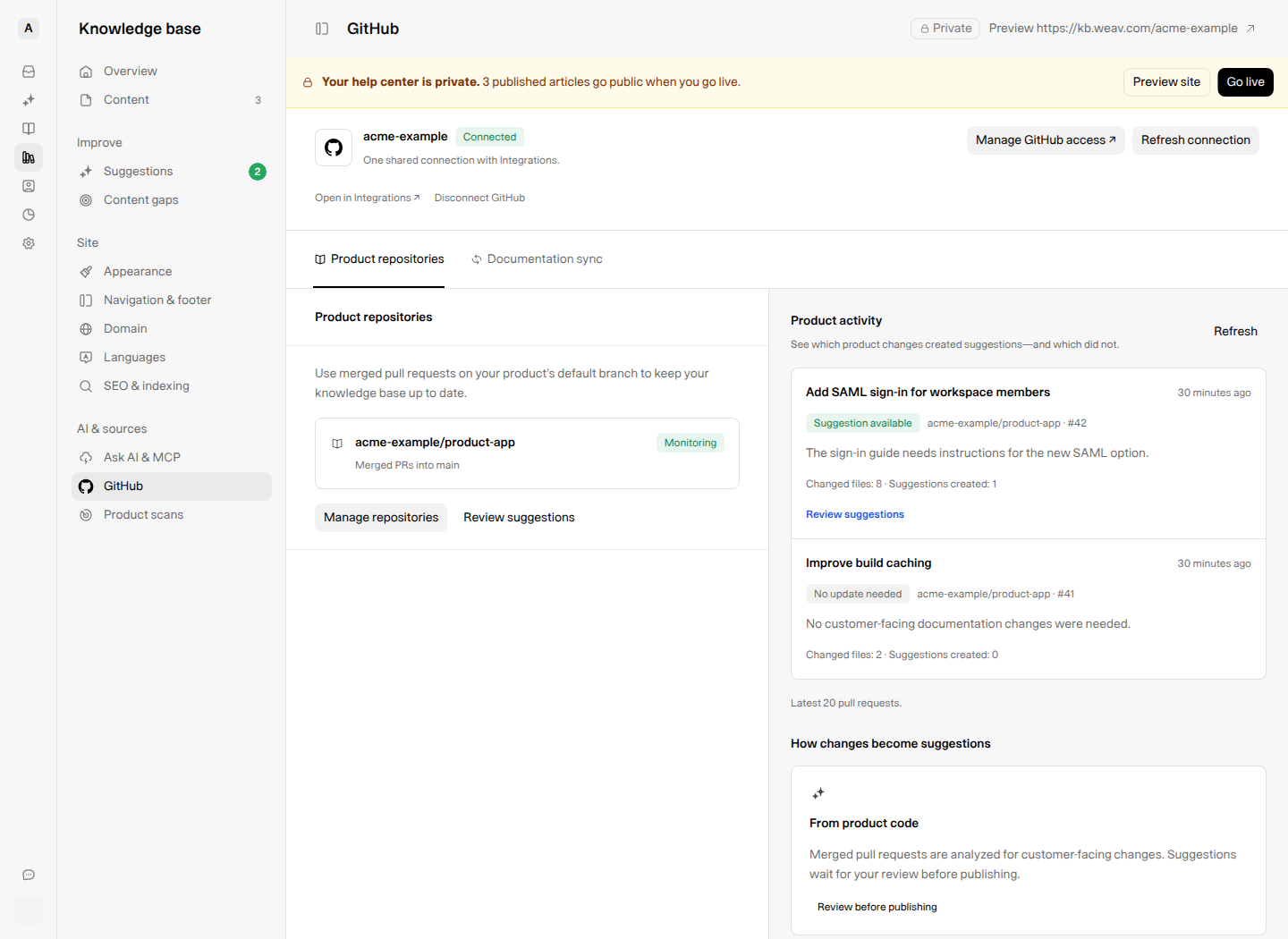
Not every code change needs a documentation change. No update needed means the analysis found no documentation update to propose; Processing means it is still being checked. If an analysis fails, the activity entry shows the error. Select Refresh to reload the feed.
The feed shows the latest 20 pull requests and refreshes automatically while an analysis is processing. Product-repository changes here do not change your documentation-sync configuration.
For the full review workflow, see Review, edit, and publish Knowledge Base suggestions.
Set up documentation sync
Use the Documentation sync tab when you want GitHub Markdown files and your Knowledge Base to stay aligned.
- Choose and Save your Knowledge Base content repository if you have not selected one yet.
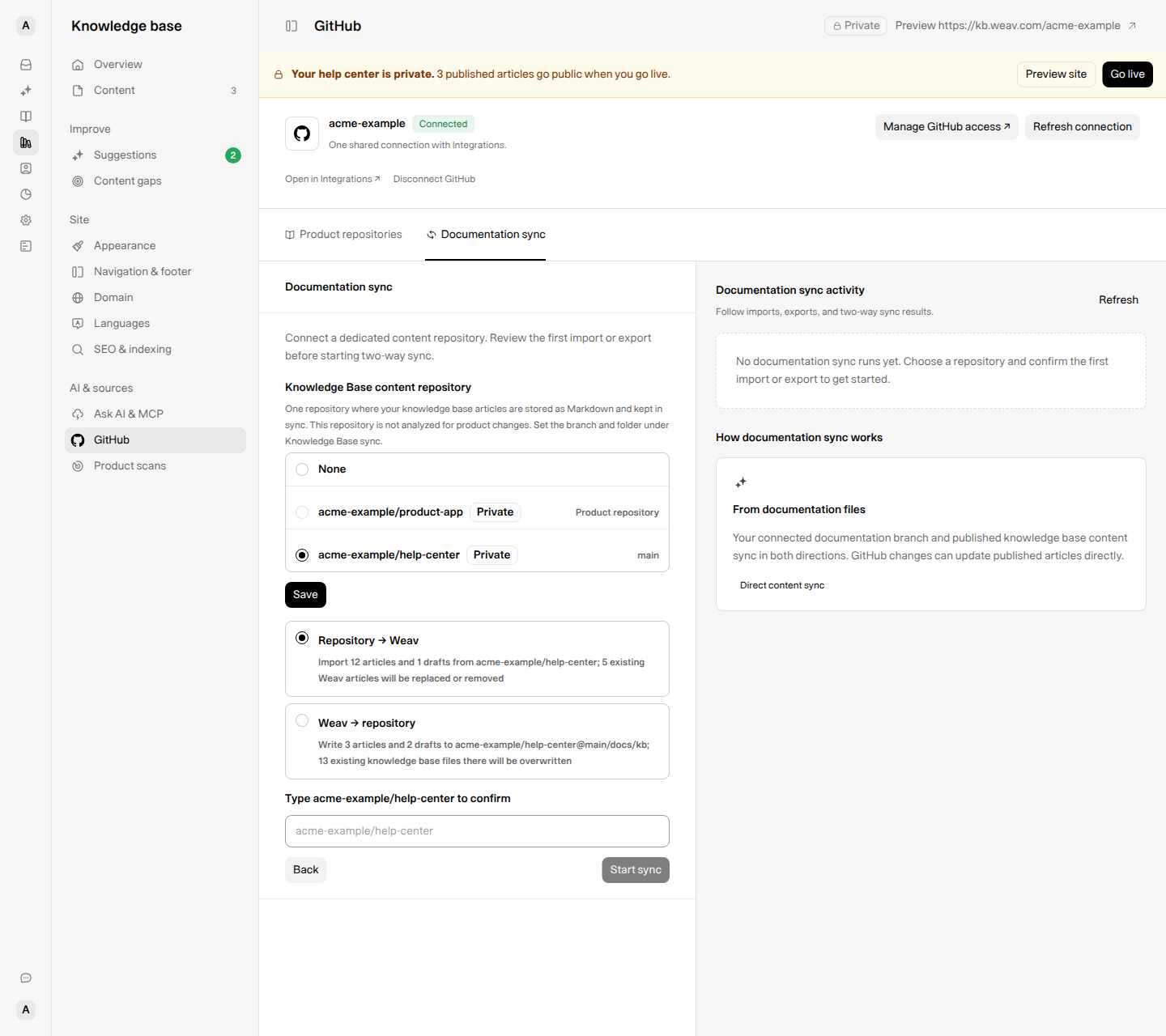
- In the sync setup, choose the repository and Branch. Set Path to the documentation folder, or leave it empty to use the repository root.
- Continue to the preview and choose the first-sync direction:
- Repository → Weav starts from the documentation in GitHub.
- Weav → repository starts from the articles already in Weav.
- Read the article and file counts carefully. If prompted, type the full repository name to confirm.
- Select Start sync only after checking the target and replacement warning.
The first sync can replace content. Importing from the repository can replace or remove existing Weav articles. Exporting from Weav can overwrite existing Knowledge Base files in the selected repository, branch, and folder. Back up content you need to keep and check the preview before starting.
Once configured, Documentation sync shows the repository, branch, path, status, and latest sync activity. The activity feed shows the latest 10 runs, including the direction, changed-file counts, and any errors.
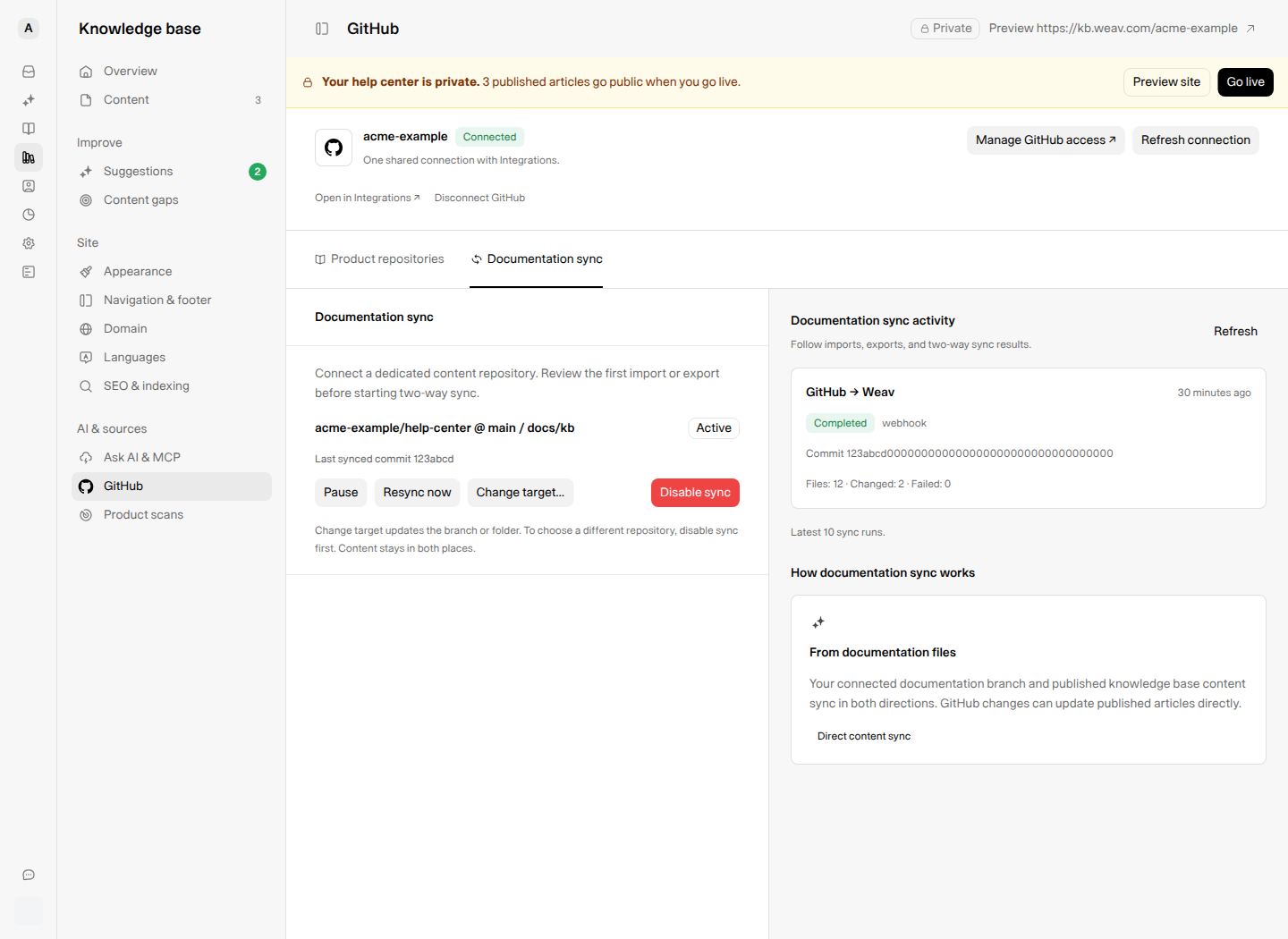
Selecting a repository here is not the same as importing an existing documentation site during initial Knowledge Base setup. This page manages ongoing GitHub monitoring and documentation sync. For the broader setup options, see Getting started with Weav's Knowledge Base.
Pause, retarget, or stop a workflow
| Action | What it does |
|---|---|
| Pause / Resume | Stops and restarts documentation syncing. |
| Resync now | Starts another documentation sync. It is unavailable while the initial sync is in progress. |
| Change target… | Changes the documentation branch or folder. It does not select a different repository, and is unavailable during the initial sync. |
| Remove a product repository | Stops monitoring that repository and dismisses its pending GitHub suggestions. Articles and GitHub files remain. |
| Disable sync | Stops documentation sync in both directions and clears its sync history and file tracking. Articles and files remain; product monitoring is not affected. |
| Disconnect GitHub | Disconnects GitHub for the whole workspace, including Integrations. It stops both workflows and dismisses pending GitHub suggestions. Articles and files remain. |
Weav asks for confirmation before removing product repositories, disabling documentation sync, or disconnecting GitHub. To use a different documentation repository, disable sync first, then select the new repository.
Troubleshooting
Why can I not see the GitHub page?
The page is available to organization owners and admins. Ask an owner or admin to connect and manage GitHub for your workspace.
Why is GitHub waiting for approval or missing a repository?
If you see Waiting for GitHub approval, ask your GitHub organization owner to approve the installation. Use Check access on GitHub if available, then Refresh connection and finish connecting if prompted.
For a missing repository, use Manage GitHub access ↗ to check the repositories included in the installation. Confirm your GitHub account has the required write access. If the connection needs attention, choose Reconnect GitHub; your repository choices are kept.
Why can I not select the same repository for both workflows?
A repository has one purpose at a time. Use separate product and documentation repositories, or remove it from its current workflow before assigning it to the other. If documentation sync is enabled, disable it before changing the content repository.
Why did a merged pull request not create a suggestion?
Check that the repository is selected and the pull request was merged into its default branch. Then check Product activity. A pull request may still be processing, may not need a documentation update, may have been skipped, or may show an analysis error.
What if documentation sync fails?
Check Documentation sync activity for the failed run and any file-specific errors. Completed with errors means some files failed even though the run finished. Check the connected repository, branch, path, and GitHub access before trying Resync now.
If Weav says GitHub is not configured for your workspace, contact support. If only the activity feed fails to load, use Try again; the loading error does not change your settings.