

Customize your Knowledge Base navigation and footer
Help readers find your product, support, and community. Set an announcement banner, up to three header links, a header button, and footer social links.
Help readers move between your Knowledge Base, product, and support. Use an announcement banner for timely updates, header links for important destinations, and footer icons for your website or community.
Open Knowledge Base → Site → Navigation & footer. The page has three sections—Announcement banner, Header, and Footer—with a saved-site preview on the right.
These controls change your public site's navigation, not the order of articles and categories in the documentation sidebar. Manage that content separately in Content.
Saving changes updates your site's navigation. If your Knowledge Base is live, visitors can see the saved banner, links, and button without an article-publishing step. Saving these settings does not publish draft articles or take a private Knowledge Base live.
Add an announcement banner
Use a banner to highlight a product update, planned maintenance, or another short announcement at the top of the site.
- Turn on Show banner.
- Enter your Message, up to 300 characters on one line. The counter below the field shows how much space remains.
- Choose Info, Warning, or Critical under Style.
- Optionally set Light color and Dark color under Custom colors.
- Choose whether Visitors can dismiss the message.
- Select Save when the announcement is ready.
The message supports bold text and links using Markdown. For example:
**Acme news:** [Updates](https://acme.example/new)
If you enable a banner without a message, the form shows Enter a message before enabling the banner. Add a message before saving.
Banner styles and colors
| Style | Default color | Typical use |
|---|---|---|
| Info | Blue, #2052EB |
General announcements and new features. |
| Warning | Amber, #B45309 |
Changes that may affect readers, such as planned maintenance. |
| Critical | Red, #B91C1C |
Urgent notices. |
For a custom color, enter six hex digits, with or without a leading #, such as #2052EB or 2052EB. Each empty color field uses the selected style's default. Setting a custom light color does not automatically change the dark color.
Check the message and its links in both themes so they remain easy to read.
Let visitors dismiss a message
With Visitors can dismiss enabled, the banner includes a close control. The browser remembers dismissal for that message, so it may stay hidden on later visits.
A changed message can appear again; changing only the style or colors does not reset a dismissal. Turn dismissal off if readers should not be able to close the announcement.
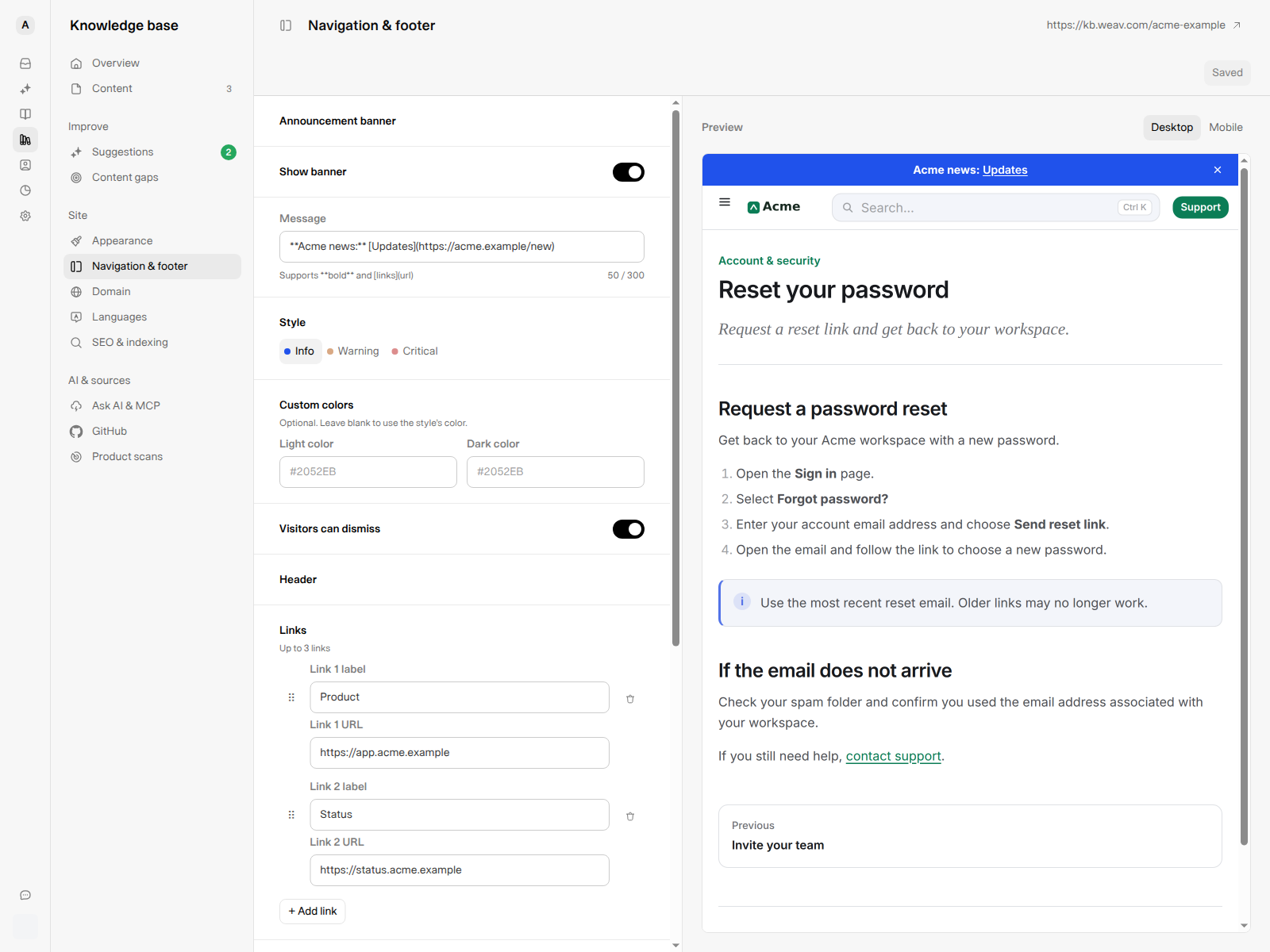
The preview shows the saved Acme announcement. The example message and destinations are fictional.
Add header links and a button
Header links
You can add up to three links, plus a separate optional button.
- Under Header → Links, select + Add link.
- Enter a label, up to 40 characters on one line.
- Enter the full destination URL, beginning with
https://orhttp://. - Drag the dotted handle to reorder links.
- Use the trash icon to remove a link.
After three links, + Add link is disabled. Remove one before adding another.
On phones, the regular header links move into the navigation menu. The separate button stays in the header.
Header button
Turn on Show button, then enter a Button label and Button URL. The label has the same 40-character, single-line limit, and the URL must begin with https:// or http://.
For example, use Contact support, Open app, or Start free trial for the action readers are most likely to need. Turn Show button off and save to remove it from the site.
Keep navigation focused. Give links clear, short labels such as Product or Status, and use the button for one primary action. Check the mobile preview before saving, especially when the button label is long.
Add footer social and website links
The Footer section adds icon links, not a free-form footer menu. Supported destinations are X, LinkedIn, Facebook, Instagram, YouTube, GitHub, Discord, and Website.
- Under Footer → Social links, select + Add social link.
- Choose a network or Website.
- Enter the full
https://orhttp://URL. - Repeat for the other destinations you want to show.
Each network can be added once. Networks already on the form disappear from the add menu, and only configured links appear on the site. Footer icons use the supported network order rather than a draggable order, and their links open in a new tab.
To remove a destination, select its trash icon and save. Saving replaces the site's social-link list with the list on this page; removed destinations do not remain in the footer.
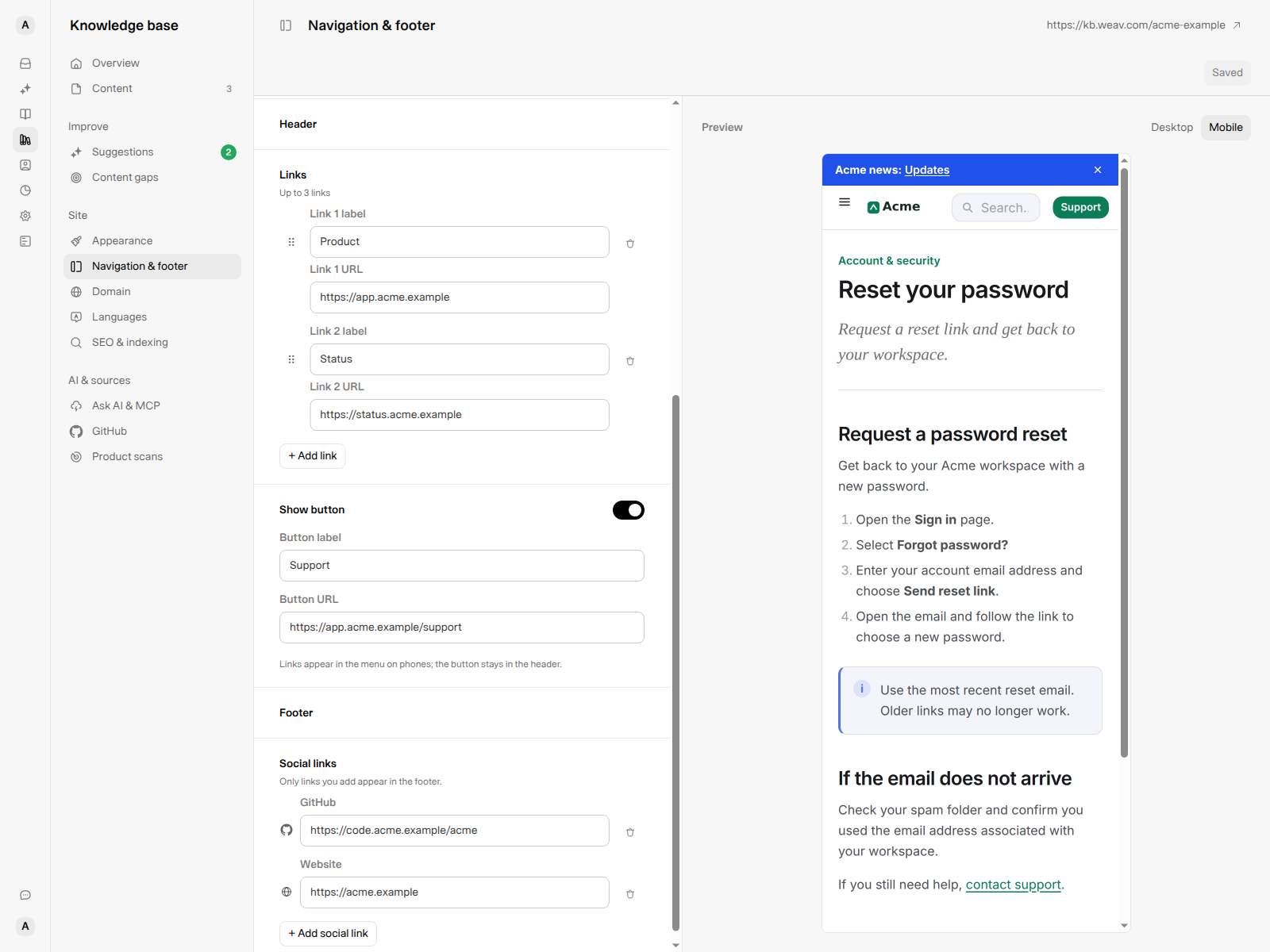
Header links and the button are separate controls. The footer contains only the destinations you add.
Check the layout
Use Desktop and Mobile above the preview to change its width. In mobile mode, open the navigation menu to check that the regular header links are easy to find, and confirm the primary button still fits in the header.
The preview shows saved settings, not pending edits. When you have unsaved changes, it says Showing your saved settings. The preview updates when you save. Switching between Desktop and Mobile does not apply your edits or save the form.
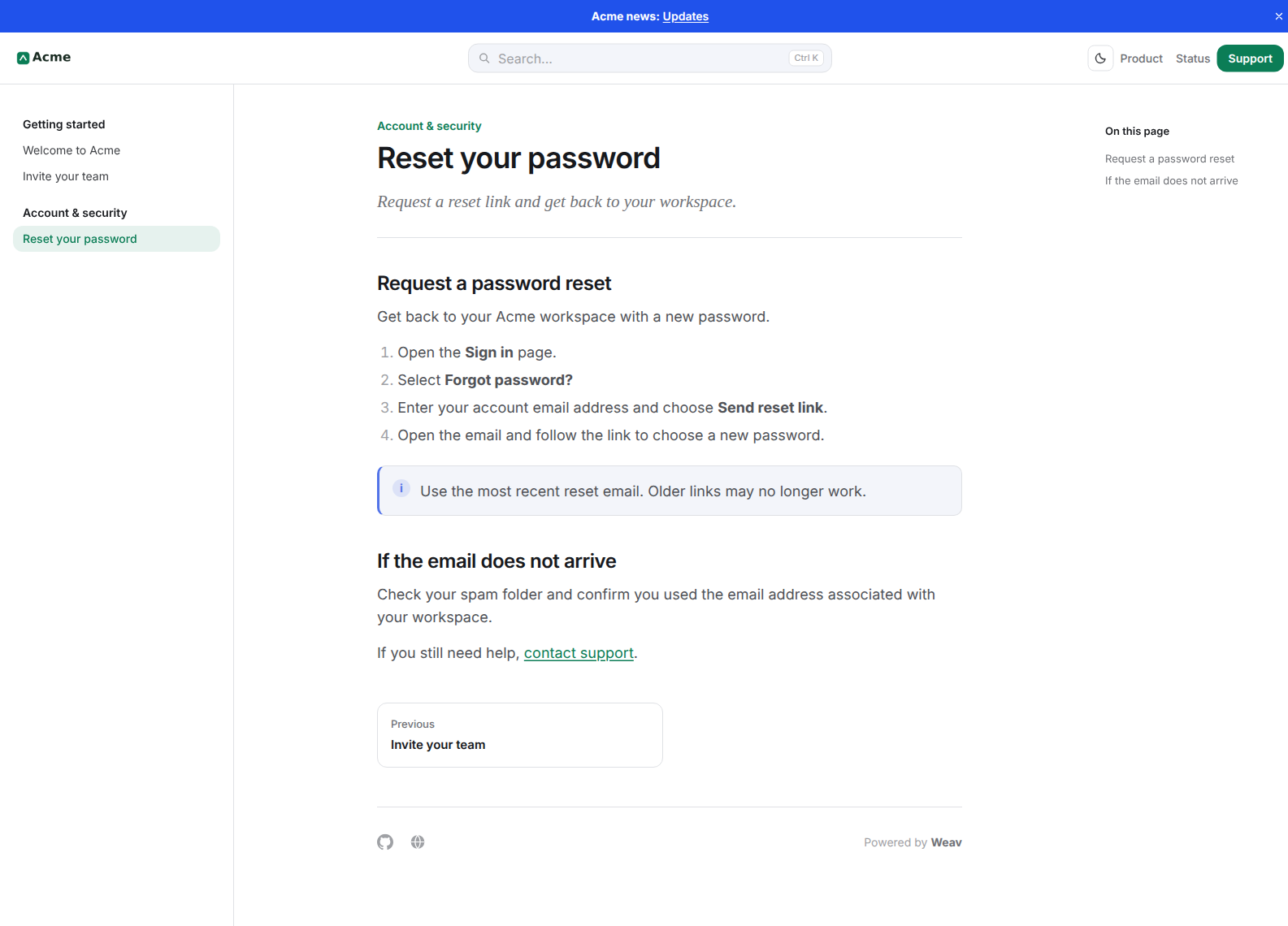
Save or discard your changes
After an edit, the top bar shows Unsaved changes, Discard, and Save.
- Select Save to apply the banner, header, and footer settings together. After Navigation settings saved., the button returns to Saved and the site preview reloads.
- Correct any validation errors before trying again. A failed save leaves the previously saved settings in place.
- Select Discard and confirm to restore the last saved settings without applying your pending edits. Leaving the page with unsaved changes also prompts you to confirm.
After saving, inspect the public site as a reader. Check the banner link, header destinations, button, and footer icons, including the mobile menu.
Frequently asked questions
Why are my new links missing from the preview?
Look for Unsaved changes and save the form. The preview uses the last saved settings. On a narrow screen, regular header links are inside the navigation menu rather than beside the logo.
Why can one reader see the banner while another cannot?
A visitor may have dismissed the current message in their browser. Check in a fresh browser session or update the message when you have a new announcement. Also confirm Show banner is enabled and the latest changes were saved.
Can I link directly to an email address or use a relative URL?
Header links, the button, and footer links require full HTTP or HTTPS web addresses. Use a support-page URL rather than mailto:, tel:, or a relative path such as /contact.
Where do I change the logo, accent color, or theme?
Use Site → Appearance. See Customize your Knowledge Base logo, colors, and theme.
For a complete setup overview, see Getting started with your Knowledge Base.