
Go live with your Knowledge Base
Choose when your Knowledge Base becomes public. Understand article status, private previews, and the final Go live confirmation before sharing your site.
Choose when your Knowledge Base is ready for readers. In Weav, publishing an article and taking your Knowledge Base live are separate steps: you can prepare and review published content while the site is still private, then make it public when you are ready.
This guide explains the visibility indicators, private preview links, and the final Go live confirmation.
Published does not always mean public
An article's status controls whether it is published. Your Knowledge Base's live status controls whether people can browse the public site without preview access.
| Article status | Knowledge Base status | What readers can access |
|---|---|---|
| Draft | Private or live | Not included in the normal public site or whole-site preview. A separate draft-article preview can be shared for review. |
| Published | Private | Available through the private site preview, but not ordinary public access. |
| Published | Live | Available on the public Knowledge Base. |
Publish prepares the article; Go live opens the site. Taking your Knowledge Base live does not publish draft articles, draft translations, or pending suggestions. Those still need their own review and publication.
Check whether your Knowledge Base is private
Open Knowledge Base → Overview. Before launch, the header shows Private · not live yet, with Preview site and Go live buttons.
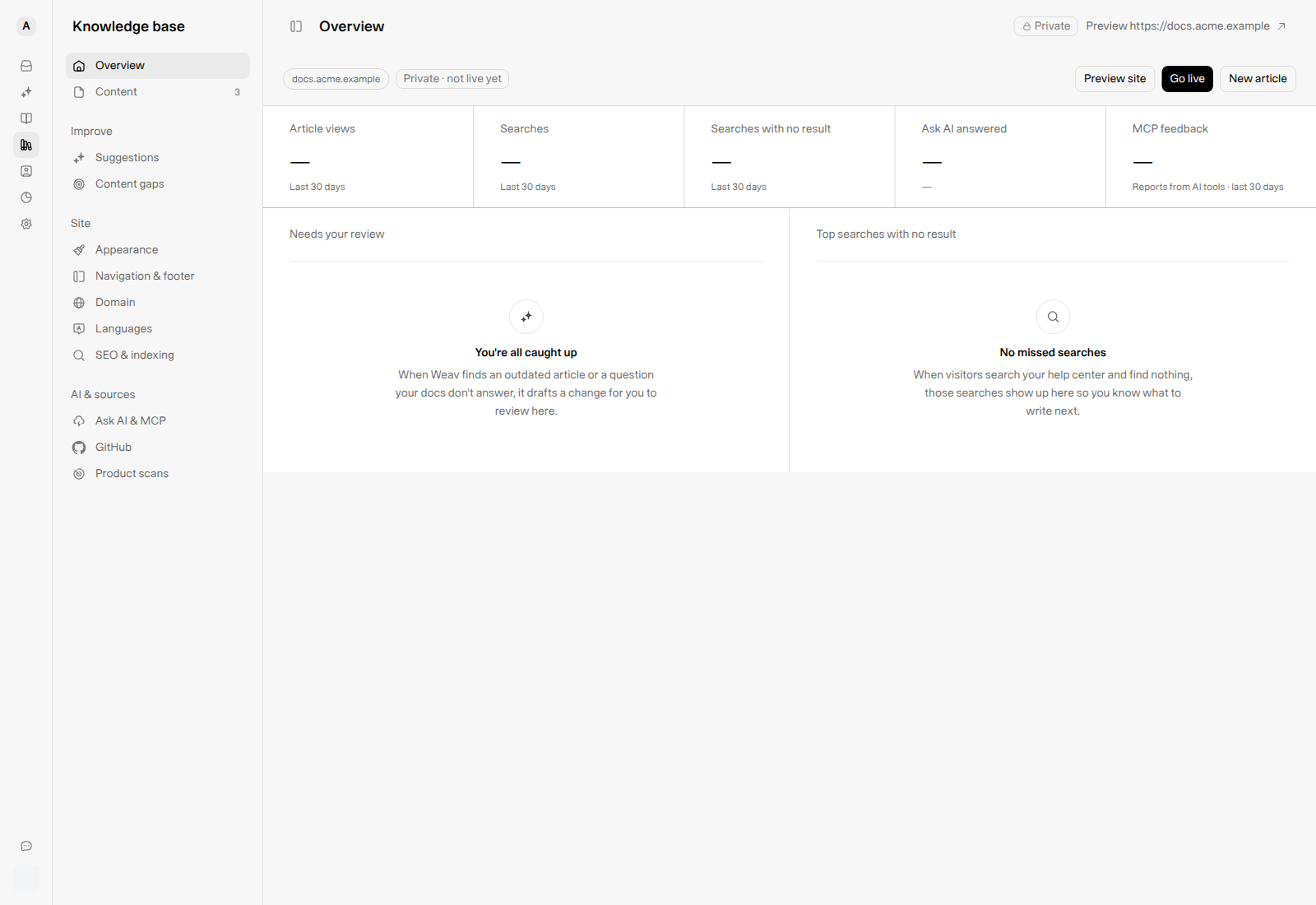
Other Knowledge Base pages show a notice: Your help center is private. It explains that published articles go public when you go live and may show the published-article count. Use Preview site to review the site or Go live to open the confirmation dialog.
The top-bar site link also opens the private preview while the site is private. Its Private label is shown on wider screens; a hidden label on a narrow screen does not mean the site has gone live.
Check an individual article
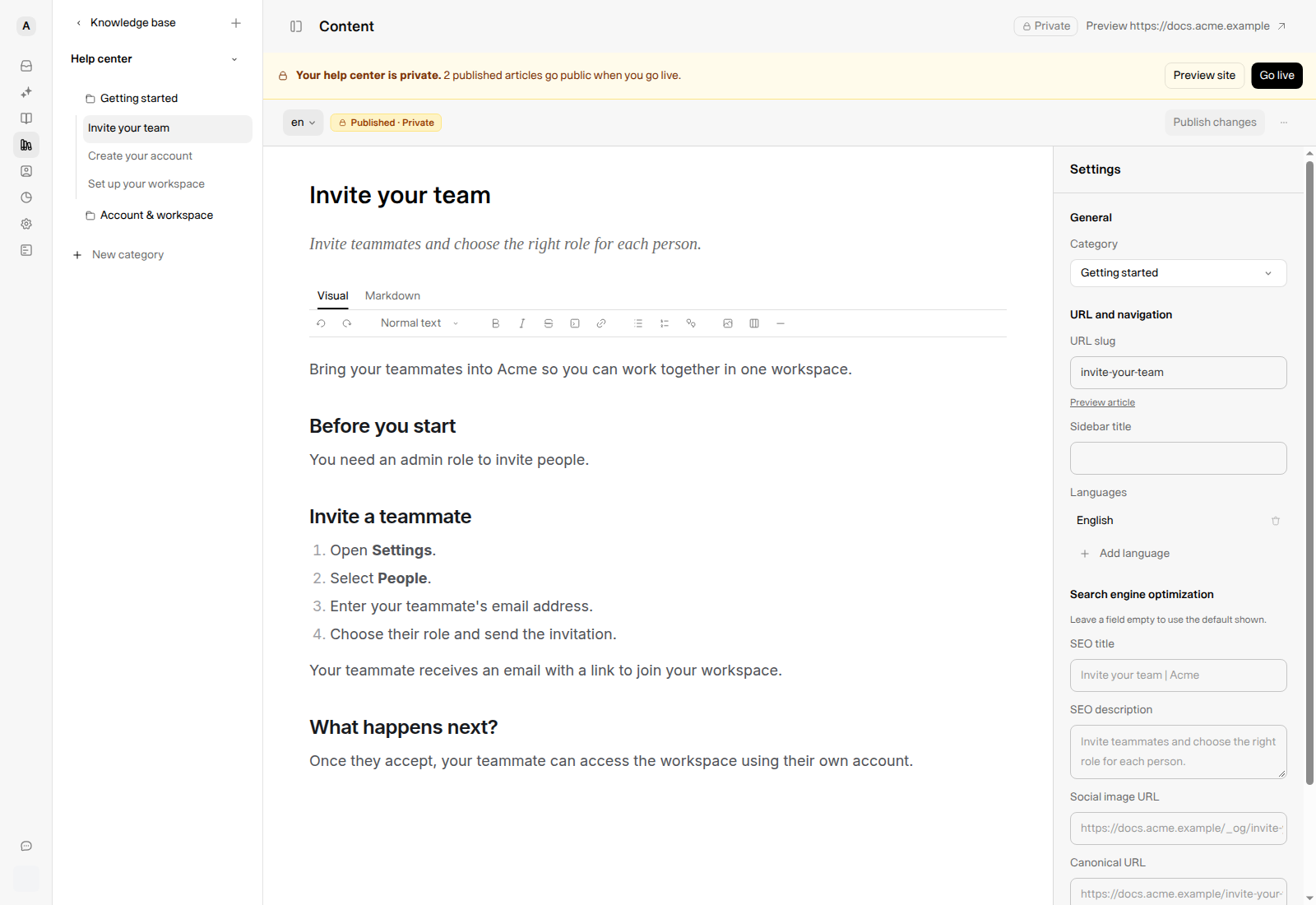
Open a published article in Content. While the Knowledge Base is private, its status reads Published · Private rather than the normal green Published badge.
Hover over or focus the badge to see why: the article is published, but the site is still private. The explanation includes a Go live shortcut.
If you publish an article before launch, the confirmation also reminds you that your help center is still private. You do not need to publish the article again after taking the site live.
Review the private site before launch
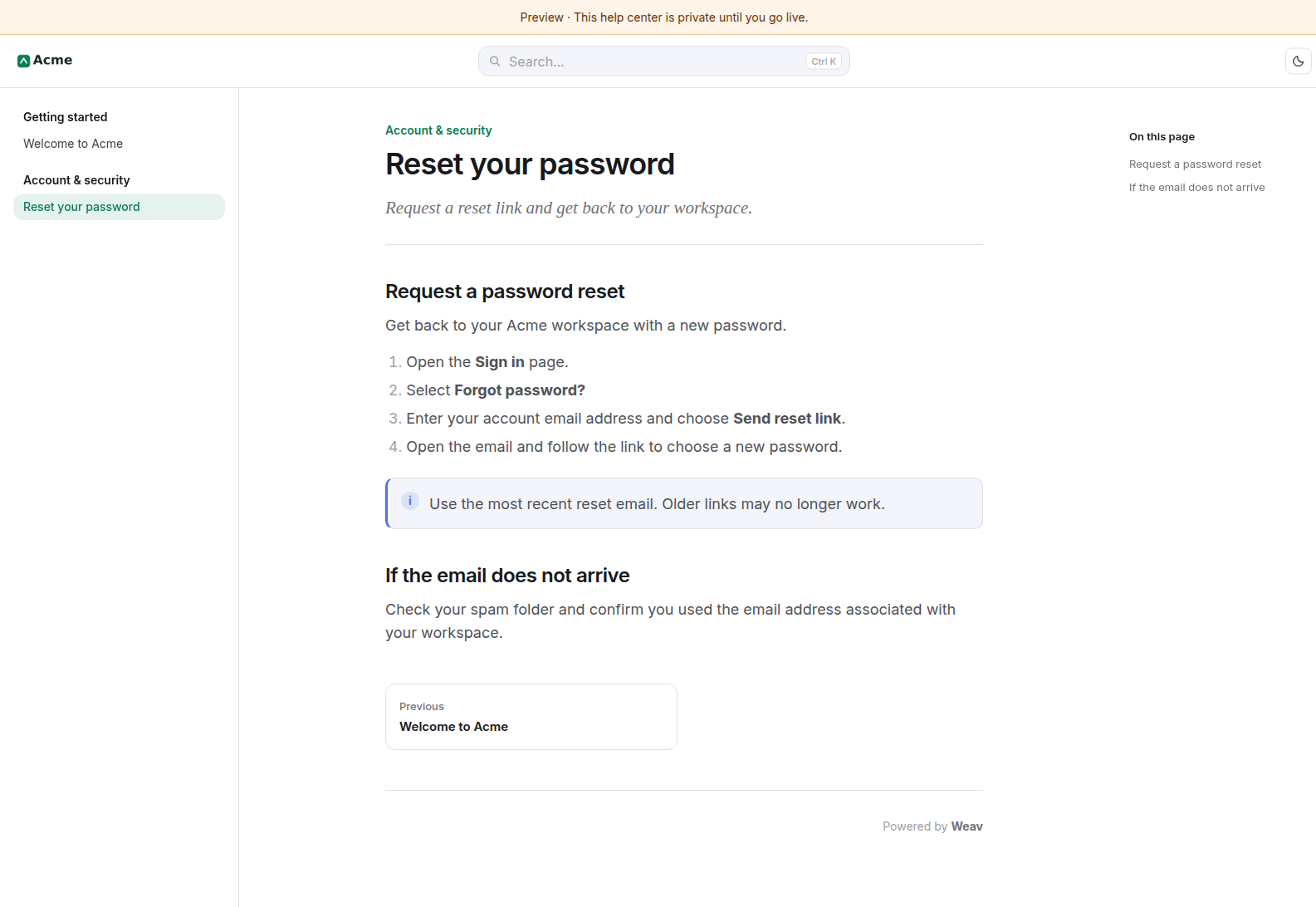
Select Preview site from Overview or the private-site notice. The preview opens in another tab and shows your published content with this banner:
Preview · This help center is private until you go live.
Review the navigation, article formatting, images, links, and mobile layout before sharing the public address. If an article is missing, check whether it is still a draft or a pending suggestion.
Share preview links only with trusted reviewers. Anyone with a working preview link can view the content it grants access to. A private site preview is not a password-protected customer portal. An individual draft article's preview link is separate and can expose that draft for review even though it is not published.
A quick launch checklist
- Publish the articles you want readers to see. Leave unfinished articles and suggestions unpublished. Publish at least one useful article so readers have something to open.
- Review your branding and navigation. Confirm that logos, support links, footer destinations, and any announcement banner are ready.
- Check the destination. Use the site address shown in the app and the Go live confirmation, whether it is your hosted address or a configured custom domain.
- Review search visibility. Decide how you want search engines and AI crawlers to discover your public documentation.
- Finish the first build. If Weav is still importing or creating your starting articles, wait until it completes.
For branding instructions, see Customize your Knowledge Base logo, colors, and theme. For indexing and metadata, see Manage SEO and discoverability for your Knowledge Base.
Take your Knowledge Base live
- Open Knowledge Base → Overview and select Go live. You can also use a Go live shortcut in the private-site notice or article badge explanation.
- Read the Go live? dialog. Check the full site address and confirm that the published content is ready for public readers.
- Select Go live in the dialog to confirm. Select Cancel instead if you are not ready.
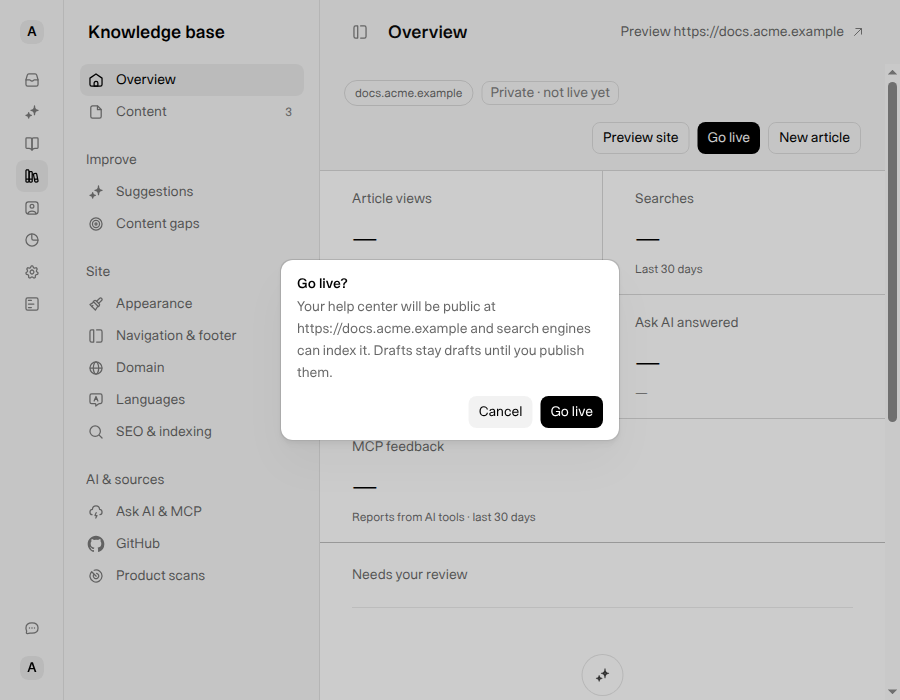
While the request runs, the button reads Going live…. After a successful launch, the dialog closes, the private indicators disappear, and published articles show the normal Published badge. The app also celebrates the launch, unless reduced motion is enabled.
Going live makes the site publicly accessible. It does not guarantee that Google or another search engine has indexed it. Your SEO settings and each search engine's own crawling and indexing determine discoverability.
Once the site is live, publishing another article makes that article available publicly. You do not need to take the whole site live again for each new article.
Check the public address in a fresh private or incognito window. Use the normal site address, not a preview link. Your usual browser may already have preview access, so seeing the site there alone is not proof that public readers can reach it.
Troubleshoot visibility and launch issues
My article says Published, but other people cannot open it
Check the site's live status, not just the article badge. If the site is private, use the preview for review and take the site live when it is ready. Then check the normal site address in a fresh browser session.
My draft is missing from the site preview
The whole-site preview shows published content, not every saved draft. Use the individual article's Preview control to review a draft, or publish it when it is ready. Going live does not change its draft status.
I cannot find Go live while the first articles are being built
Weav hides the private-site notice and Go live controls while the initial build is pending or running. Instead, it shows build progress with View progress. Wait for the build to finish; a launch attempt during a build can return Your knowledge base is still being built.
If another launch attempt fails, review the error and check the current site status before retrying.
Why does an old preview tab still say the site is private?
The preview checks for the site becoming live, but an old tab may not have refreshed yet. Reload it, or open the normal site address in a fresh private window to check public access.
Does turning off search indexing make a live site private?
No. Search indexing settings influence discoverability; they are not access control. A live Knowledge Base can still be opened directly even when indexing is disabled.
For a broader setup overview, see Getting started with your Knowledge Base.