

Import your docs from GitHub into your Knowledge Base
Move your existing GitHub documentation into Weav. Preview articles and categories, review imported content, and safely switch to two-way documentation sync.
Bring your existing GitHub documentation into Weav without starting again from a blank page. Weav reads your Markdown and MDX files, builds sections and categories, imports the articles, and prepares a pull request to move the repository into its two-way documentation-sync layout.
This guide covers the My docs are in GitHub setup option. For ongoing sync controls and the separate product-code monitoring workflow, see Connect GitHub to your Knowledge Base.
Before you start
Have the following ready:
- Administrator access to your Weav workspace and permission to authorize the Weav GitHub App for the documentation repository.
- The correct docs repository and folder. For example, the fictional Acme team keeps its documentation in
acme-example/help-center, underdocs. - A plan for the old documentation site. Importing articles and merging the later restructure pull request are separate steps. The pull request can remove files your current documentation build needs.
- A review of sensitive content. A private GitHub repository does not automatically make imported articles private in Weav.
Use a documentation repository, not one already connected to Weav as a product-code repository. If documentation sync is already configured for a different repository, branch, or folder, review that connection first rather than trying to replace it through this setup flow.
1. Choose the GitHub starting option
During Knowledge Base setup, choose My docs are in GitHub. You can also find the setup chooser on Knowledge Base → Overview when the Knowledge Base is empty.
On the Overview chooser, select the option and then Continue →. During sign-up, selecting the starting option takes you to its details screen.
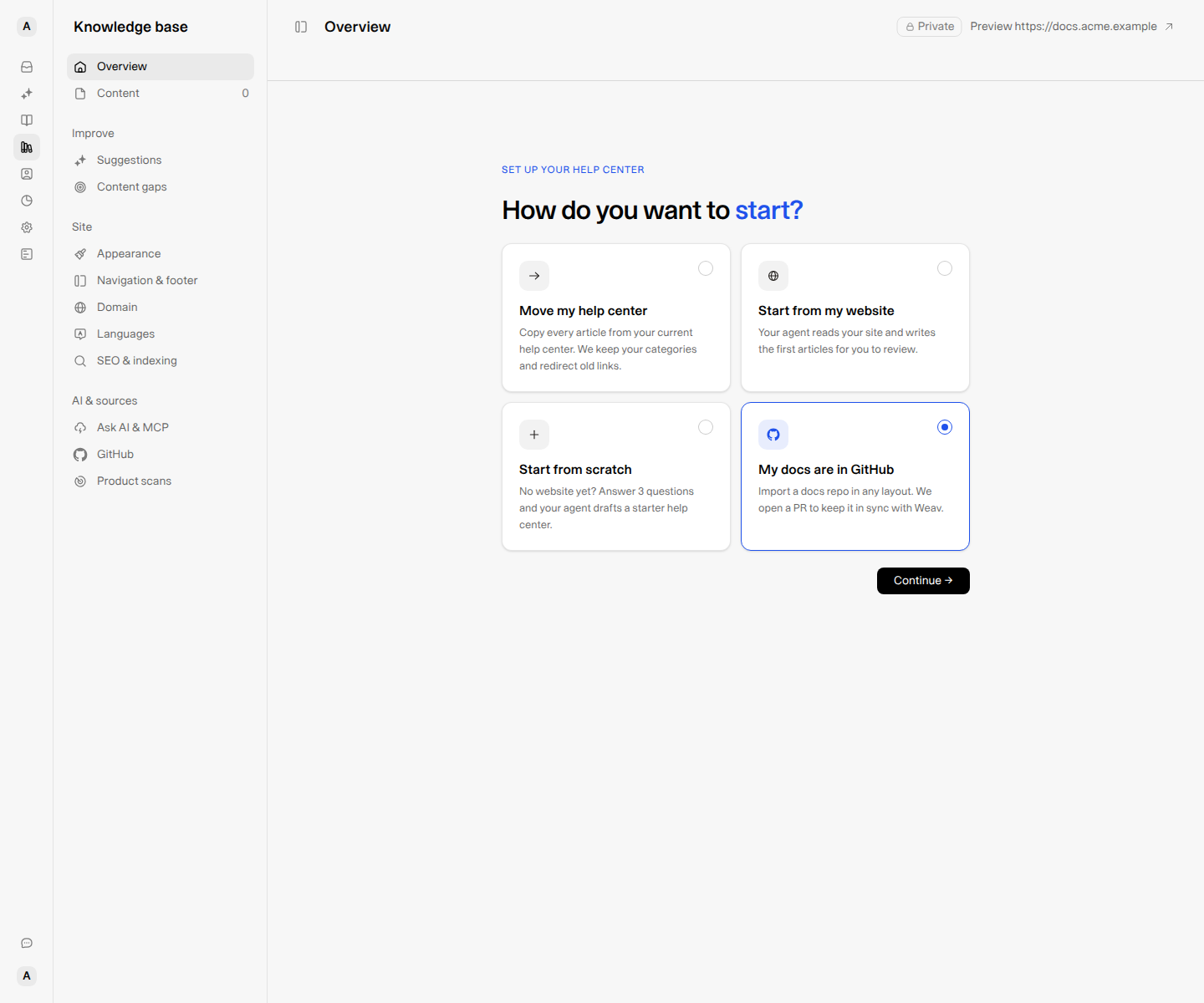
If your content is not in GitHub, use the help-center migration, website, or start-from-scratch option instead. You do not need to create a repository just to use Weav.
2. Give Weav access and choose your repository
- Select Connect GitHub if no connection exists, then authorize the Weav GitHub App for the repositories you intend to use.
- If GitHub is already connected but your repository is missing, use Update access on GitHub and include the docs repository.
- Choose the repository from Docs repository.
- If the documentation is in a subfolder, enter its repository-relative path in Docs folder (optional), such as
docs. Leave it empty to use the repository root.
The folder path can be up to 200 characters and cannot contain ... The import reads the repository's default branch; this setup screen does not offer a branch picker.
The access note mentions both docs and product repositories because they can share one GitHub connection. You only need a product repository if you also want product-code monitoring; that is not a prerequisite for importing documentation.
3. Preview the structure before importing
Select Preview to inspect what Weav discovers. This optional preview does not start an import or configure documentation sync. If you connected GitHub in the previous step, that authorization already exists—it is not undone by leaving the preview.
The preview shows:
- The number of articles, categories, and sections found.
- A count of skipped files.
- The sections and their categories, with article counts in each category.
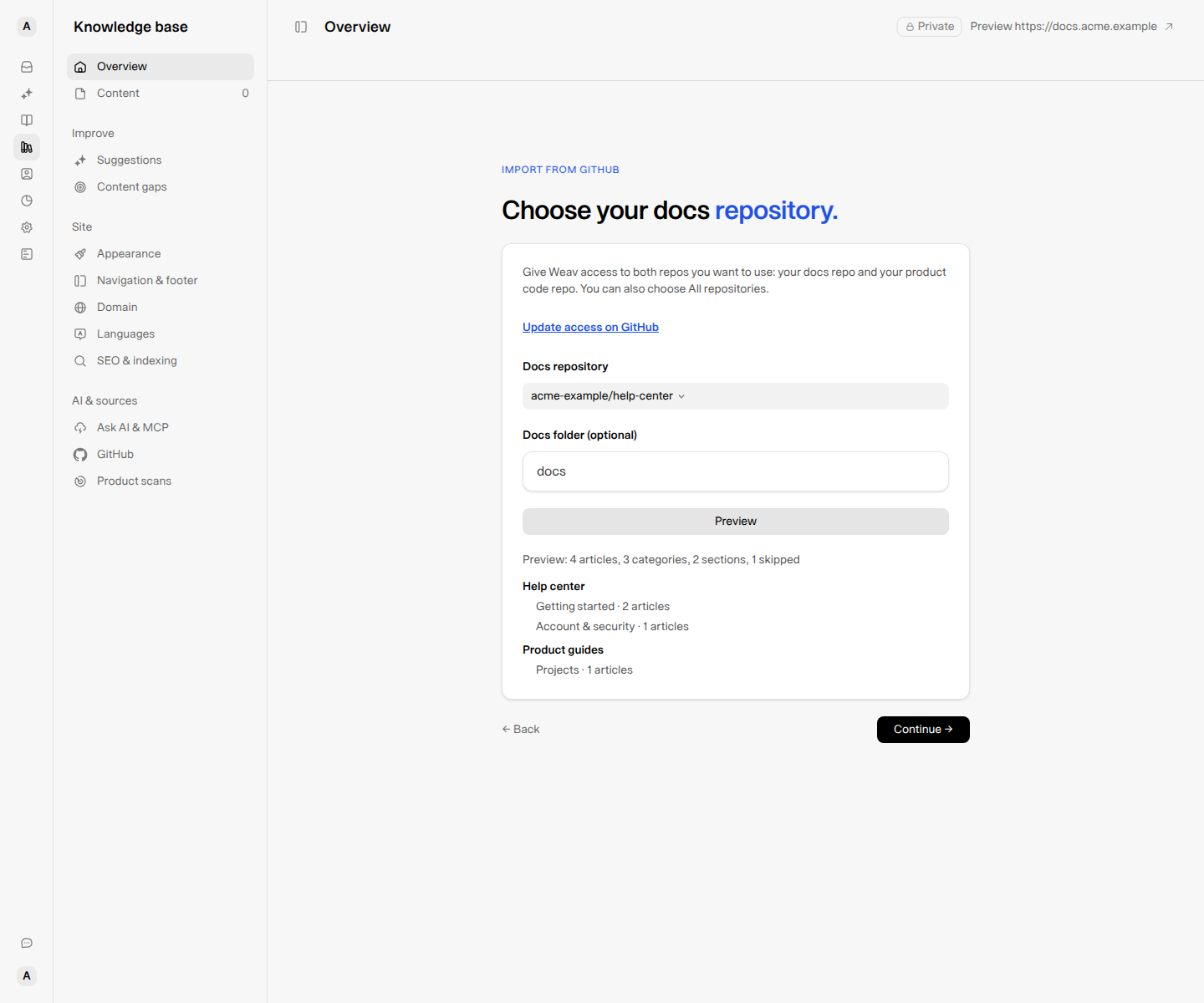
Weav imports up to 500 articles in this flow. If the preview says Showing first 500 articles, review your folder scope before proceeding. A file being discovered is not a guarantee it will import successfully; review the actual import results too.
How Weav recognizes your existing layout
Weav looks for navigation files such as:
docs.jsonormint.json.- GitBook's
SUMMARY.md. - MkDocs'
mkdocs.ymlnavigation.
When those are not available, it uses the folder structure and category metadata such as _category_.json to organize the content. This is an import of your existing documentation, not a request for an AI agent to write replacement articles.
Treat the preview as a scope check. Confirm that the repository, folder, sections, and article counts match the documentation you intend to bring over. Correct the source or folder choice before starting a large import.
4. Start the import and review the results
When the selection is correct:
- During sign-up, select Import my GitHub docs.
- From an empty Knowledge Base Overview, select Continue → on the repository details screen.
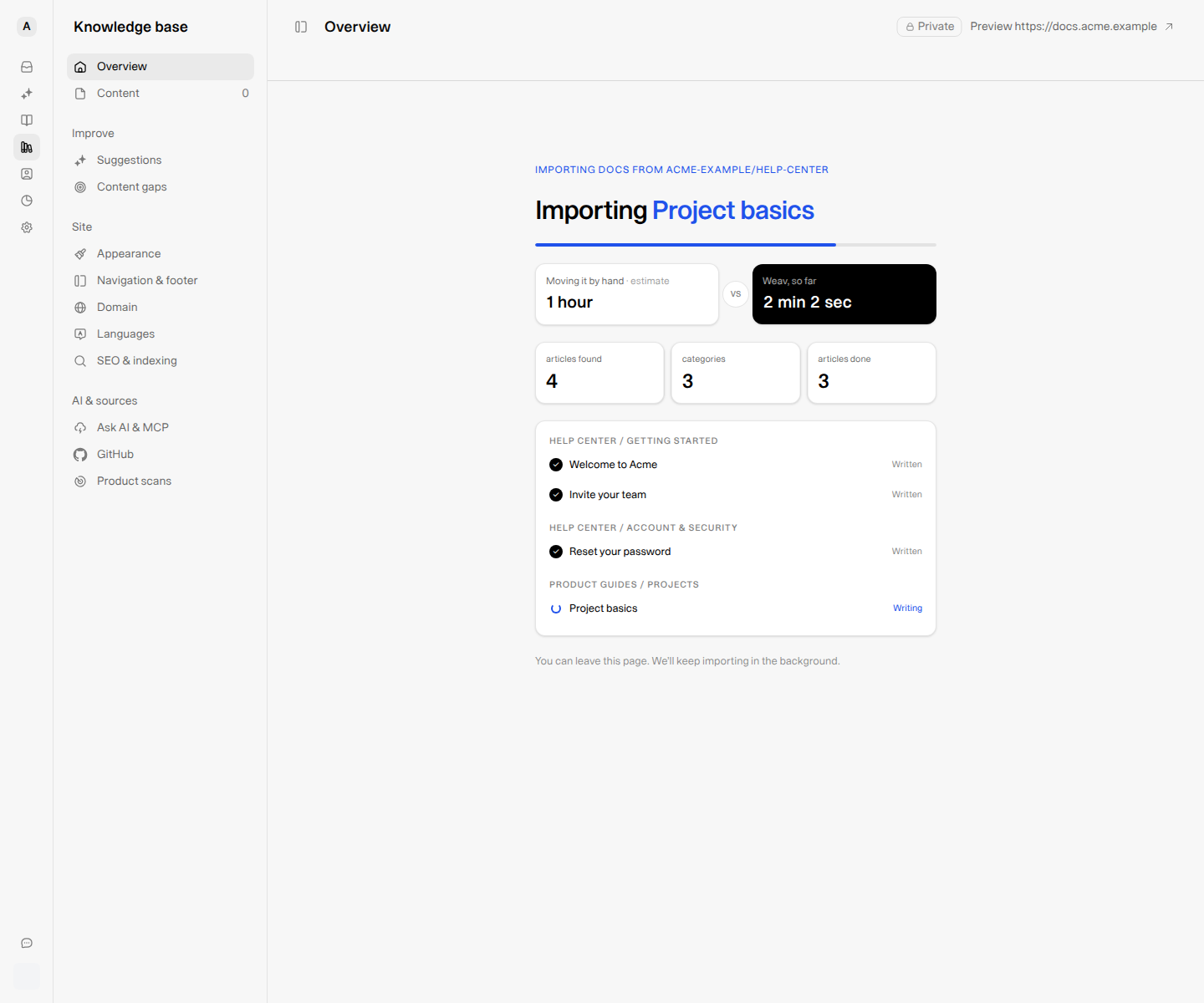
Weav imports the articles in the background. The progress screen shows discovered articles, their groups, and their current results. Review failed items and any conversion notes rather than assuming every file succeeded.
Published articles and drafts
Imported articles are normally published in Weav. An article is imported as a draft when its frontmatter marks it as draft or hidden, or its path contains a drafts/ folder.
Frontmatter is the settings block at the top of a Markdown file. For example:
---
title: Internal rollout notes
draft: true
---
After the import, check the article statuses in Knowledge Base → Content, especially if the repository includes internal notes or unfinished documentation.
Published is not the same as public. A private Knowledge Base stays private until you take it live. If the site is already live, imported published articles may be publicly available immediately. Review sensitive files before importing; do not rely on the repository's privacy setting to protect them.
Images and special components
Weav attempts to bring supported images into its article storage. Check the resulting images and links, particularly if your source uses unusual asset paths or a custom build system.
Supported documentation syntax—including Docusaurus callouts, GitBook hints, tabs and steppers, and MkDocs admonitions—is converted into Weav's native documentation blocks.
Not every source component can be reproduced:
- MDX import and export statements are removed from the article content.
- Unrecognized JSX or Liquid components may appear as plain text rather than interactive components.
- Affected articles can show a note beginning Shown as plain text:. The restructure pull request also lists affected files.
Open the imported articles, replace unsupported components when needed, and check code blocks, tables, navigation, and cross-links. See Write and edit articles in your Knowledge Base.
5. Review the restructure pull request
After the import completes with at least one successfully imported article, Weav prepares a pull request titled Move docs to Weav's layout against the repository's default branch.
The pull request moves documentation into the structure Weav uses for synchronization. Its description lists imported articles by category and components that were shown as plain text. It also proposes removing successfully imported source files and old documentation configuration files.
Find its View pull request link on Knowledge Base → GitHub. Until the pull request is merged, documentation sync remains paused.
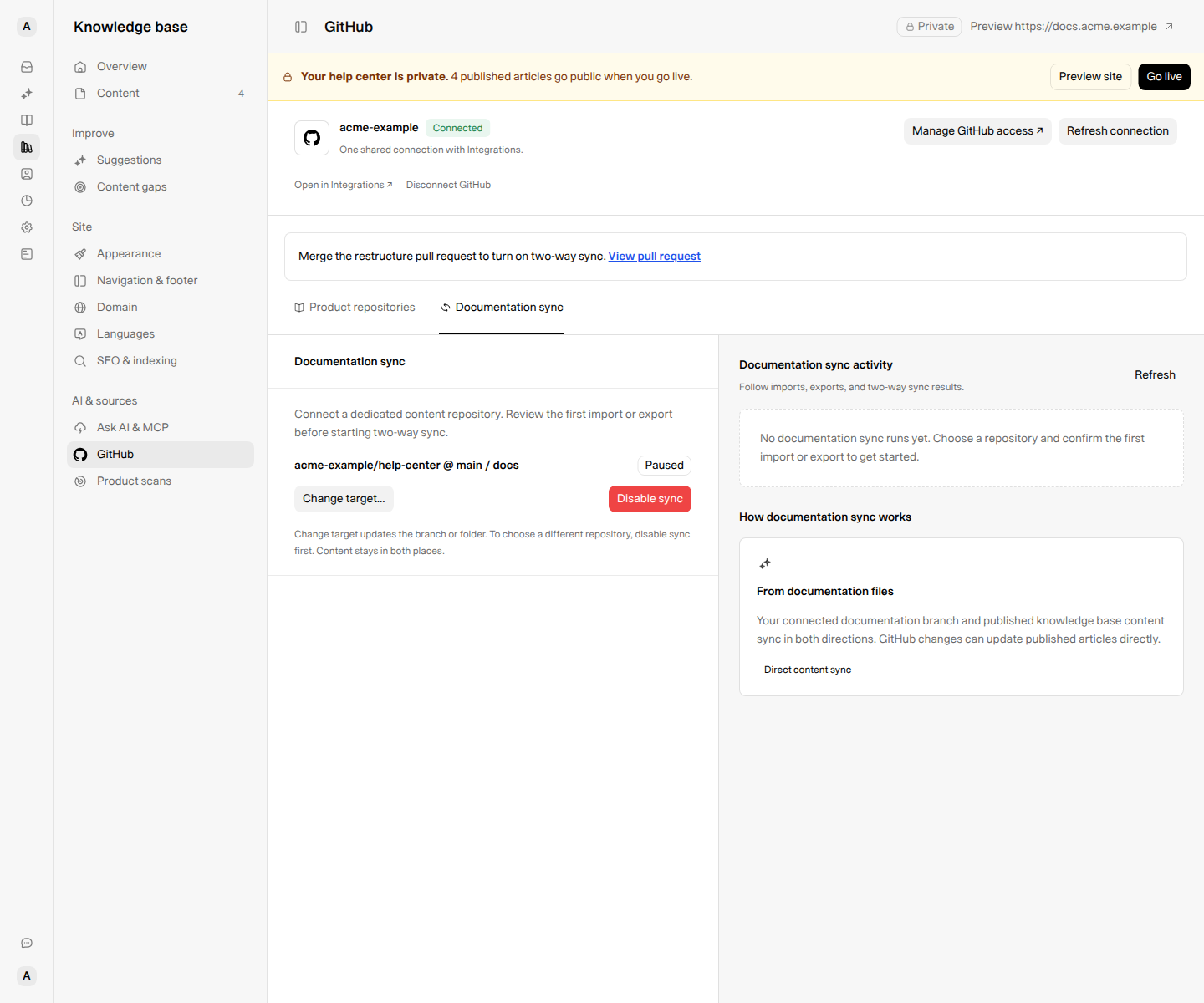
Do not merge as a routine import confirmation. The restructure pull request removes old documentation-tool files and can stop your existing docs site from building. Review the complete diff and coordinate the cutover first. Weav's guidance is to merge after your help center is live on Weav. Make article corrections in Weav, not inside this pull request: managed content is rewritten from Weav when it merges, so edits made only in the pull request can be overwritten.
Your imported articles are already in Weav before the pull request is merged. Use that time to review the content, resolve unsupported blocks, check navigation, and prepare your launch. See Go live with your Knowledge Base.
6. Understand what merging enables
When GitHub reports that the restructure pull request was merged, Weav schedules an export of its managed documentation to the connected repository. This starts the transition into two-way documentation sync.
After sync is active, changes to the connected branch and folder can update published articles directly. They do not need to pass through Knowledge Base Suggestions first. Apply your normal review process and branch protections to that documentation branch, and review sync activity after the merge.
This differs from product-code monitoring, which analyzes changes in a product repository and creates suggestions for your team to review. Use Connect GitHub to your Knowledge Base for ongoing management, pausing sync, activity, and changing targets.
Troubleshoot GitHub imports
| Message or situation | What to check or do |
|---|---|
| Your repository is missing from Docs repository. | Use Update access on GitHub and include it in the Weav GitHub App installation. Confirm you are using the intended GitHub account or organization. |
| Could not read the selected GitHub repository. | Check app access, the repository's default branch, and the folder path. Try the preview again after correcting access or scope. |
| This repository is already connected as a product repository. | Choose a docs repository instead. If you need to change a repository's purpose, review the existing connection before disconnecting anything. |
| Disable the current documentation sync before importing a different GitHub target. | Review the existing repository, branch, and folder on Knowledge Base → GitHub. Do not disable a working connection without planning the change. |
| No articles are found, or an article fails. | Check that the selected scope contains supported documentation files. Review the per-article result; individual source files exceeding the importer's 2 MiB limit cannot be imported. |
| Weav could not open the pull request because it needs Pull requests: Read & write access. | Approve that permission for the Weav GitHub App, then select Retry. |
| We couldn't open the pull request. Please try again. | Review the GitHub connection, then use Try again on the GitHub page. Imported articles do not need to be thrown away just because pull-request creation failed. |
| The restructure pull request was closed without merging. | Sync stays paused. When ready, select Open a new PR on Knowledge Base → GitHub and review the replacement before merging. |
Before you finish
- Check imported article counts, failures, and conversion notes.
- Confirm drafts and sensitive content have the intended visibility.
- Review images, internal links, categories, and the public-site preview.
- Coordinate the old site's cutover before merging the restructure pull request.
- Once sync is active, review repository changes as potential published-documentation changes—not as pending suggestions.