

Set up a custom domain for your Knowledge Base
Use a branded address for your Knowledge Base. Connect a subdomain, root domain, or subpath, verify DNS and HTTPS, and keep your public links working.
Give your Knowledge Base a branded address that readers recognize. Weav supports a subdomain, a root domain, or a subpath on your existing website.
A custom domain is optional. You can keep using the hosted address shown in your workspace. Connecting a domain changes the address—not your articles' publication status or whether the Knowledge Base is public.
Choose the right address
| Option | Fictional example | What you need |
|---|---|---|
| Subdomain | help.acme.example |
Access to your domain's DNS settings to add the CNAME record shown by Weav. |
| Root domain, also called an apex domain | acme.example |
Access to DNS settings to configure the A records shown for @ and www. |
| Subpath, a folder on your website | acme.example/help |
Control of your website's server or hosting configuration to set up a reverse proxy. |
For most teams with an existing website, a subdomain is the simplest separate address. Choose a subpath when you want documentation under the same website address and can configure its routing.
Check existing website routing before changing DNS. Pointing a root domain's @ and www records to your Knowledge Base can replace where your main website loads. Use a subdomain or subpath if you want to keep that website in place. Have your domain administrator review conflicting records, and leave unrelated records, such as email records, unchanged.
Add your address in Weav
- Open Knowledge Base → Site → Domain.
- Enter your address in Domain address, after the
https://prefix. Include the folder if you want a subpath. - Select Add domain.
- After Domain saved., follow the DNS configuration or Proxy setup instructions that appear.
You can paste a full URL; Weav normalizes the saved address. Use an actual domain you control, not an IP address or localhost. For a subpath, choose a simple lowercase path such as /help or /support/docs; Weav normalizes paths to lowercase and supports letters, numbers, and hyphens within path segments.
If your Knowledge Base is still in its initial setup, finish the starting setup on Overview before opening the other site settings.
Use the records from your own workspace. All addresses, provider names, DNS targets, and IP addresses in these screenshots are fictional examples. Do not copy their values into a real DNS zone. Copy the Name and Value shown on your own Domain page instead.
Connect a subdomain
For a subdomain, Weav shows one CNAME record under DNS configuration.
- Open the DNS settings for the domain you control.
- Add or update the record to match Weav's Type, Name, and Value.
- Save the record at your DNS provider.
- Return to Weav and select the refresh control, Check status.
For a simple subdomain such as help.acme.example, the record name is help. Use the name Weav actually displays, especially for nested subdomains. Select a record's Name or Value to copy it; a Click to copy tooltip appears on hover.
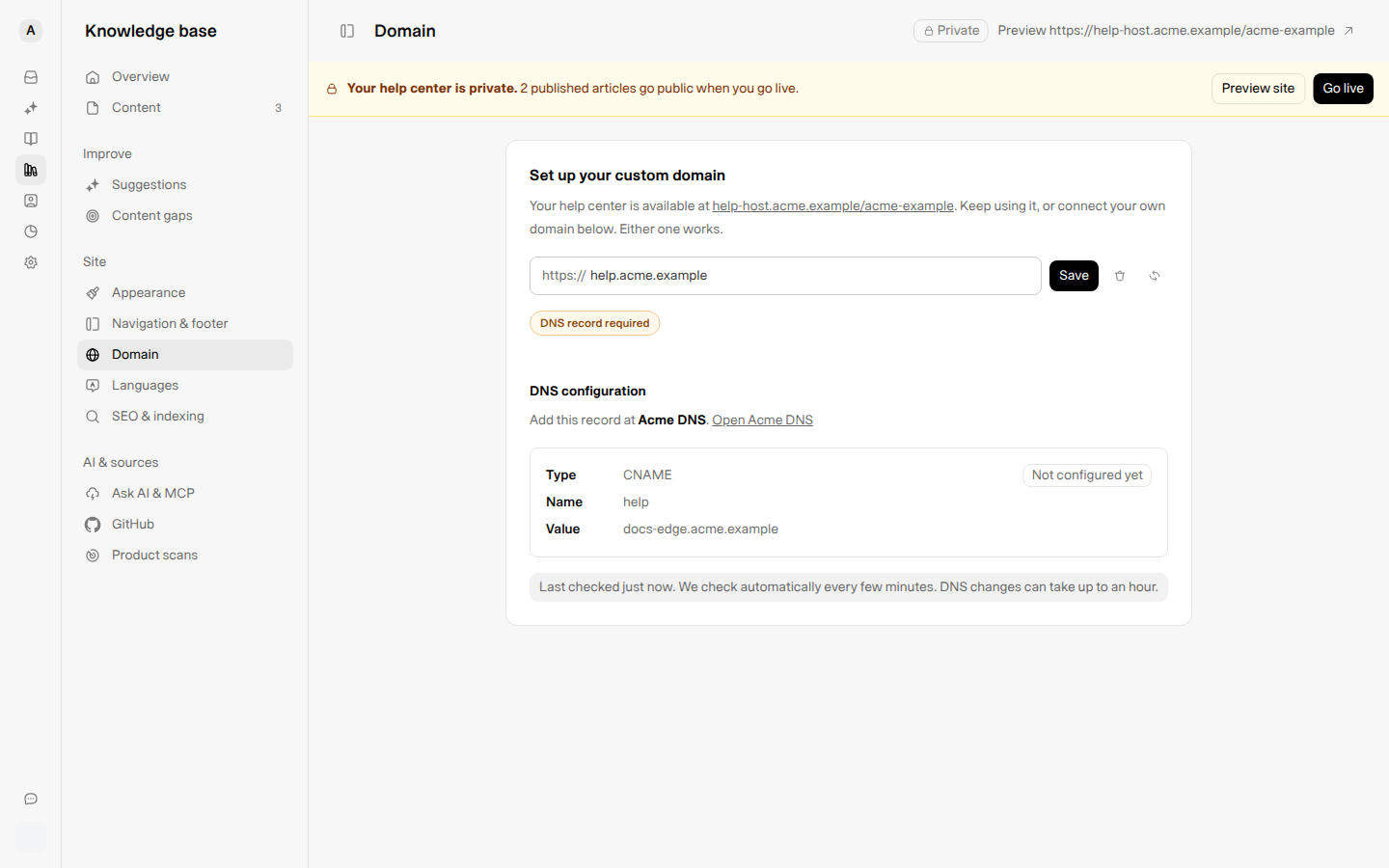
The example target is not a usable Weav DNS target. Your workspace supplies the correct value.
Optional DNS-provider guidance
When available, Weav identifies your DNS provider and offers an Open link. Some providers also support Set up automatically in a new tab. Follow that provider's setup flow, or use the manual records on the page.
These options do not appear for every provider. If provider detection is unavailable, you can still configure the listed records manually.
If the page identifies Cloudflare as your DNS provider, follow its instruction to set the record's proxy status to DNS only—the grey cloud. Do not use a proxied record for this direct-domain setup.
Connect a root domain
For a root domain, Weav shows two A records:
@for the root address.wwwfor the corresponding www address.
Copy each record's value from Weav and configure both at your DNS provider. The cards check the records separately:
| Record status | What to do |
|---|---|
| Not configured yet | Add the missing record, then allow time for DNS to update. |
| Doesn't match | Compare the Current value with the required Value and correct the record. |
| Configured successfully | The record matches the expected configuration. |
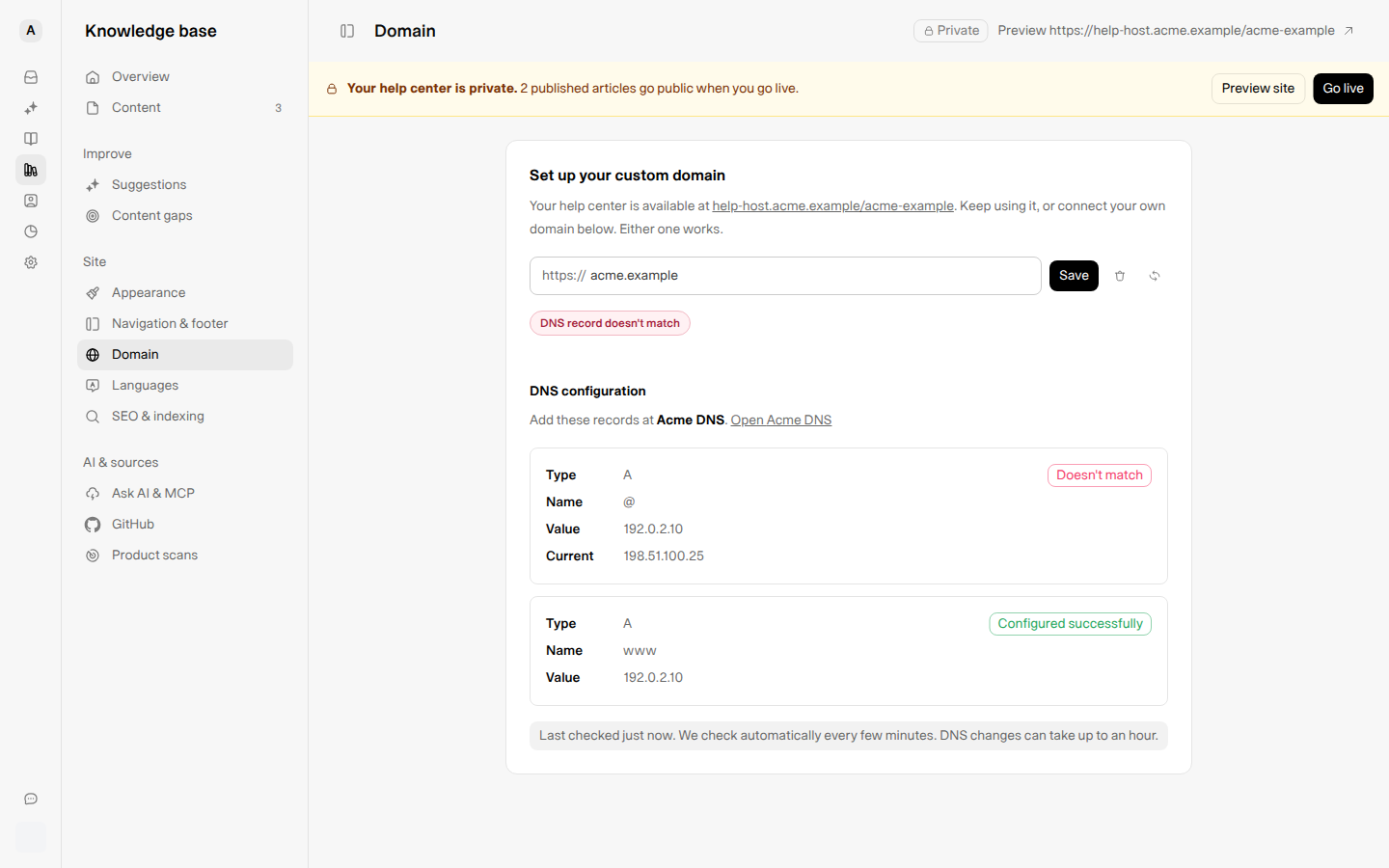
Record checks are independent. The root @ record determines whether the overall setup moves on to securing HTTPS, so inspect the www card too.
Put your Knowledge Base under a website path
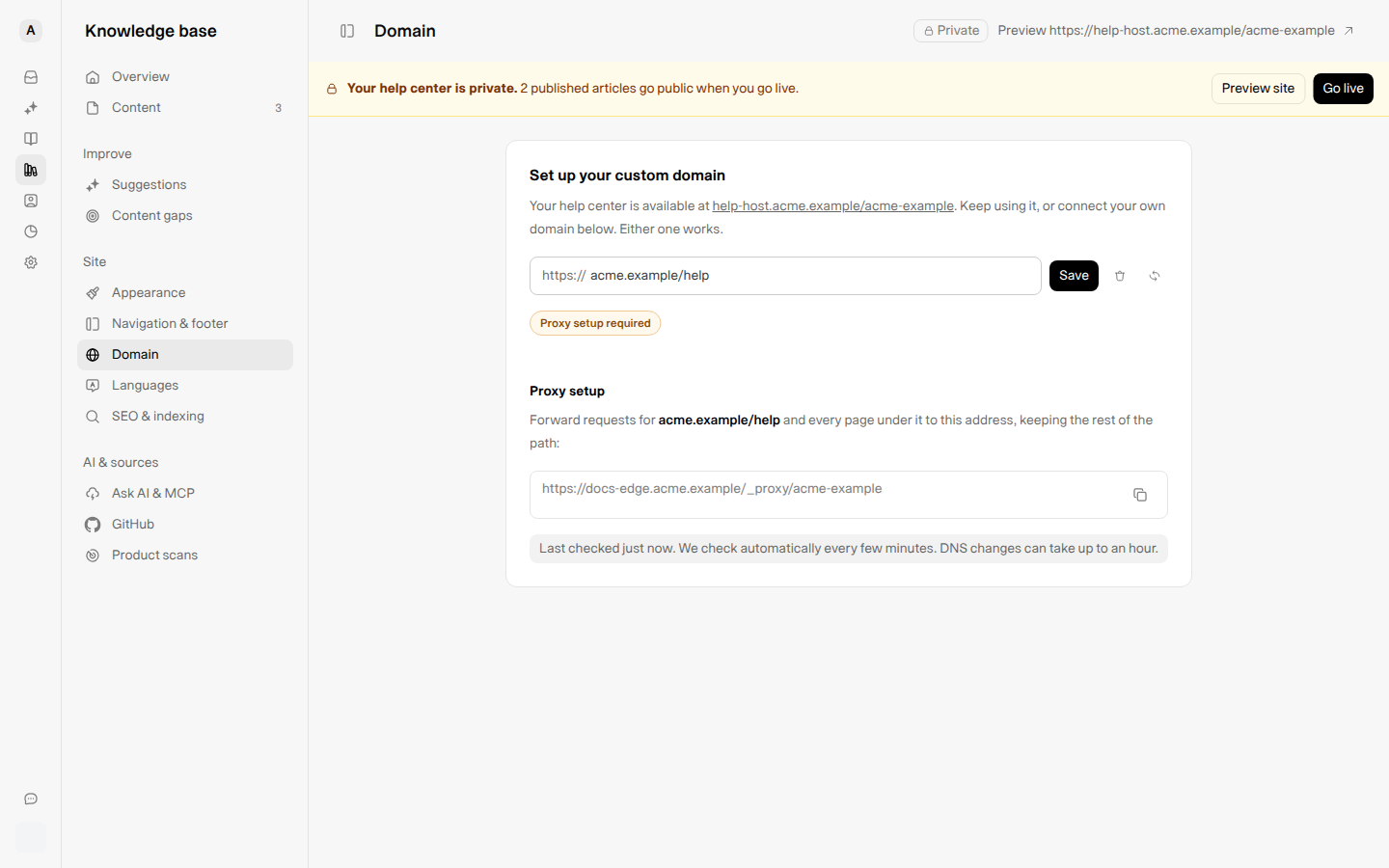
If you save an address such as acme.example/help, the page shows Proxy setup instead of DNS records.
- Copy the proxy target shown by Weav.
- Ask your website administrator to configure a reverse proxy for the chosen path and every page beneath it.
- Forward requests to the provided target while keeping the remaining path and query string.
- Return to Weav and select Check status.
For example, a request to /help/reset-your-password should reach the copied proxy target with /reset-your-password appended. This is a reverse proxy, not a redirect to a different website: readers should stay on your chosen website address.
Weav does not configure your website's routing just because you save a subpath. Your website remains responsible for serving HTTPS on its own address and forwarding the documentation requests correctly. Once the domain connection is active, private previews use the subpath too. Make sure your proxy forwards preview routes as well as ordinary article pages.
Understand connection status and HTTPS
| Domain status | Meaning and next step |
|---|---|
| DNS record required / DNS records required | Add the record or records shown on the page. |
| DNS record doesn't match | Correct the record that points to another value. |
| Securing with HTTPS | DNS is verified and HTTPS is being prepared. This usually takes a few minutes. |
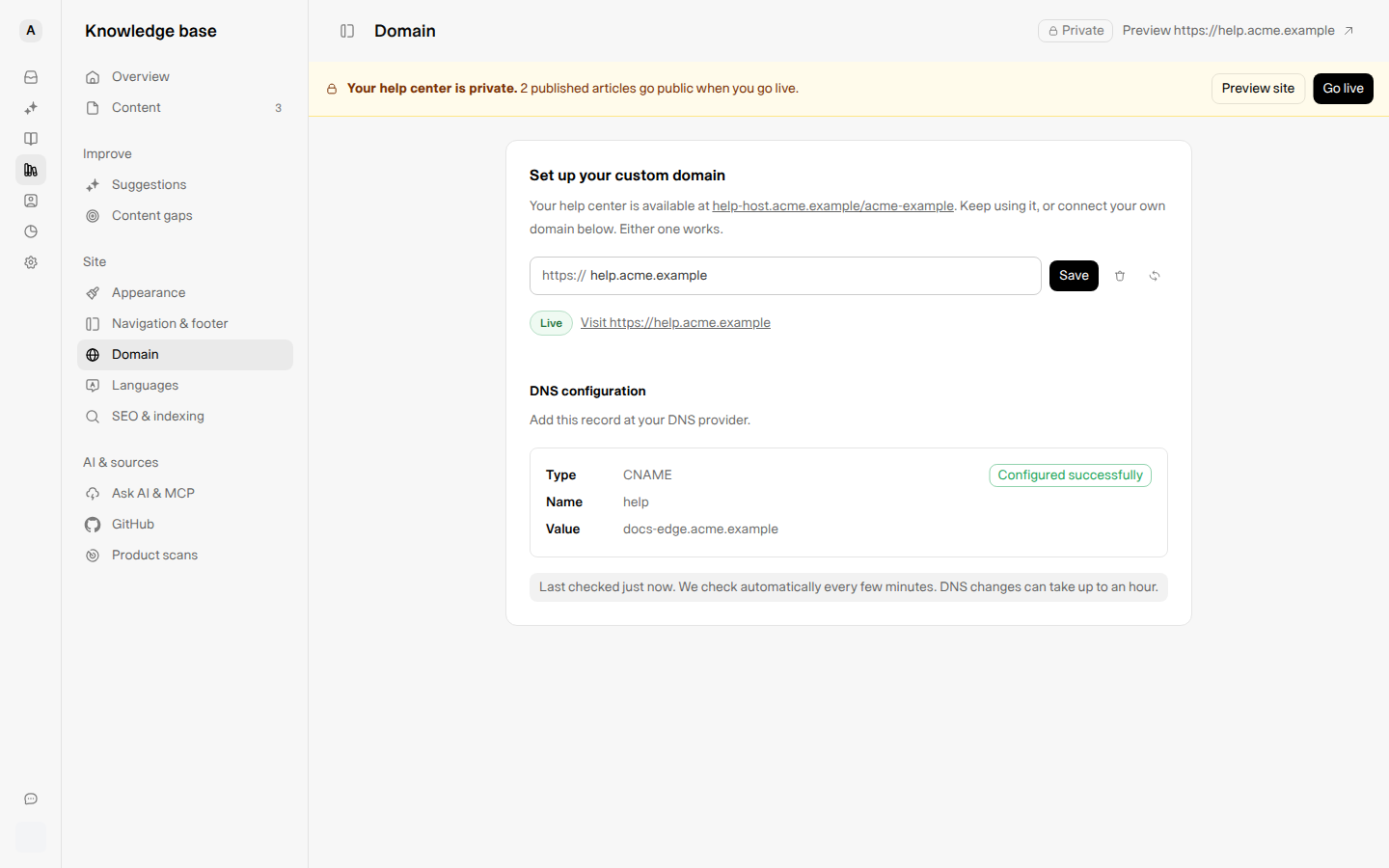
| Live | The domain connection is ready. Use Visit to check the destination. |
| Not reachable | Check that your DNS records or subpath proxy are still in place. |
| Proxy setup required | Configure your website's reverse proxy for the saved subpath. |
The footer shows when the domain was last checked. Weav checks automatically every few minutes. The page advises allowing up to an hour for DNS changes; actual timing depends on your DNS provider and caching. Use Check status after updating records or routing. Manual checks are limited to 10 per minute.
A Live domain is not the same as a live Knowledge Base. Domain status describes the address connection. If your site still shows Private, use its preview for review and choose Go live only when the published content is ready. Connecting a domain does not publish drafts or pending suggestions.
See Go live with your Knowledge Base for the publication and site-visibility checks.
Change or remove a domain safely
To change the address, edit Domain address and select Save. The button is available after you change the field. Follow the updated records or proxy target for the new address, and check its status before sharing it.
Changing an existing connection replaces the saved domain configuration. Plan the change with your website administrator rather than assuming both addresses will keep working automatically.
To remove the connection:
- Select the trash control, Remove domain.
- Read the confirmation: Your help center will stop loading there.
- Select Remove only when you are ready to disconnect that address.
Removing the connection does not delete your articles. Your hosted address remains the fallback, subject to the Knowledge Base's private/live status. Review any DNS records or proxy rules you previously added; do not assume disconnecting the domain removes them from your provider.
When both the custom-domain connection and the Knowledge Base are live, the app explains that visitors to the hosted address are sent to the custom domain automatically.
Troubleshoot a custom-domain connection
The DNS record looks correct, but Weav has not detected it
Confirm that you changed the authoritative DNS zone for the intended domain, copied the current value from Weav, and used the correct record name. If the page shows Current, compare it with Value. Allow propagation time, then check again.
HTTPS is still being prepared
Wait a few minutes after DNS is verified, then check status again. Avoid repeatedly changing correct records while HTTPS is provisioning.
The address works, but readers still cannot see articles
Check the Knowledge Base's private/live status and the articles' draft/published status separately from the domain connection. Test the normal public address in a fresh private browser window, not only in a browser that already has preview access.
A subpath shows my main website or a 404
Check that the proxy handles the saved path and nested pages, forwards to the exact target Weav provides, and preserves the remaining path. For a private site, preview routes must pass through the proxy too.
Weav cannot save or check the connection
Review any field error, including whether the domain is already connected to another organization. If the page reports a temporary connection or status-check problem, wait a few minutes and retry. Do not delete correct DNS records just because a check failed temporarily.
For indexing, metadata, and canonical URLs after launch, see Manage SEO and discoverability for your Knowledge Base.