

Set up Ask AI and MCP for your Knowledge Base
Help readers get cited answers in search and use your published documentation inside their AI tools. Configure Ask AI, support handoff, and the public MCP server.
Help readers find answers in two places: directly in your Knowledge Base search, and inside the AI tools they already use.
Ask AI turns a reader's question into a short answer grounded in your published articles, with source links. The public MCP server lets compatible tools search and read those articles without making readers sign in to Weav.
Use Knowledge Base → AI & sources → Ask AI & MCP to manage both features. Settings are on the left, with a reader-facing preview on the right.
This is your public documentation MCP server—not the Weav workspace MCP. It gives readers access to published documentation and a way to report problems. It cannot manage your workspace or edit and publish articles. Do not add your Weav organization API token to this public connection.
Choose how readers get answers
| Feature | Where readers use it | What it does |
|---|---|---|
| Ask AI in search | Your Knowledge Base search | Answers questions from published articles and links to its sources. |
| Public MCP server | Compatible clients such as Claude, ChatGPT, Cursor, and VS Code | Gives an AI tool search and page-reading tools for your published documentation, plus a problem-reporting tool. |
The switches are independent. Turning off Ask AI does not turn off the MCP server, and readers can still use ordinary search without Ask AI.
Enabling these features does not publish your Knowledge Base or its drafts. Your Knowledge Base must be live and contain published articles for public readers to use them. Settings previews remain useful while you prepare to launch.
Turn on Ask AI in search
- Open Ask AI & MCP.
- Turn on Ask AI in search.
- Choose an Answering agent:
- Automatic (first active agent) uses your first active agent.
- Select a named active agent if you want a particular agent to answer.
- Choose whether to Offer chat with support.
- Select Save at the top of the page.
Ask AI uses the selected agent's name and tone, but its answers on your public Knowledge Base are restricted to your published articles. Choosing an agent does not expose that agent's separate training sources to readers.
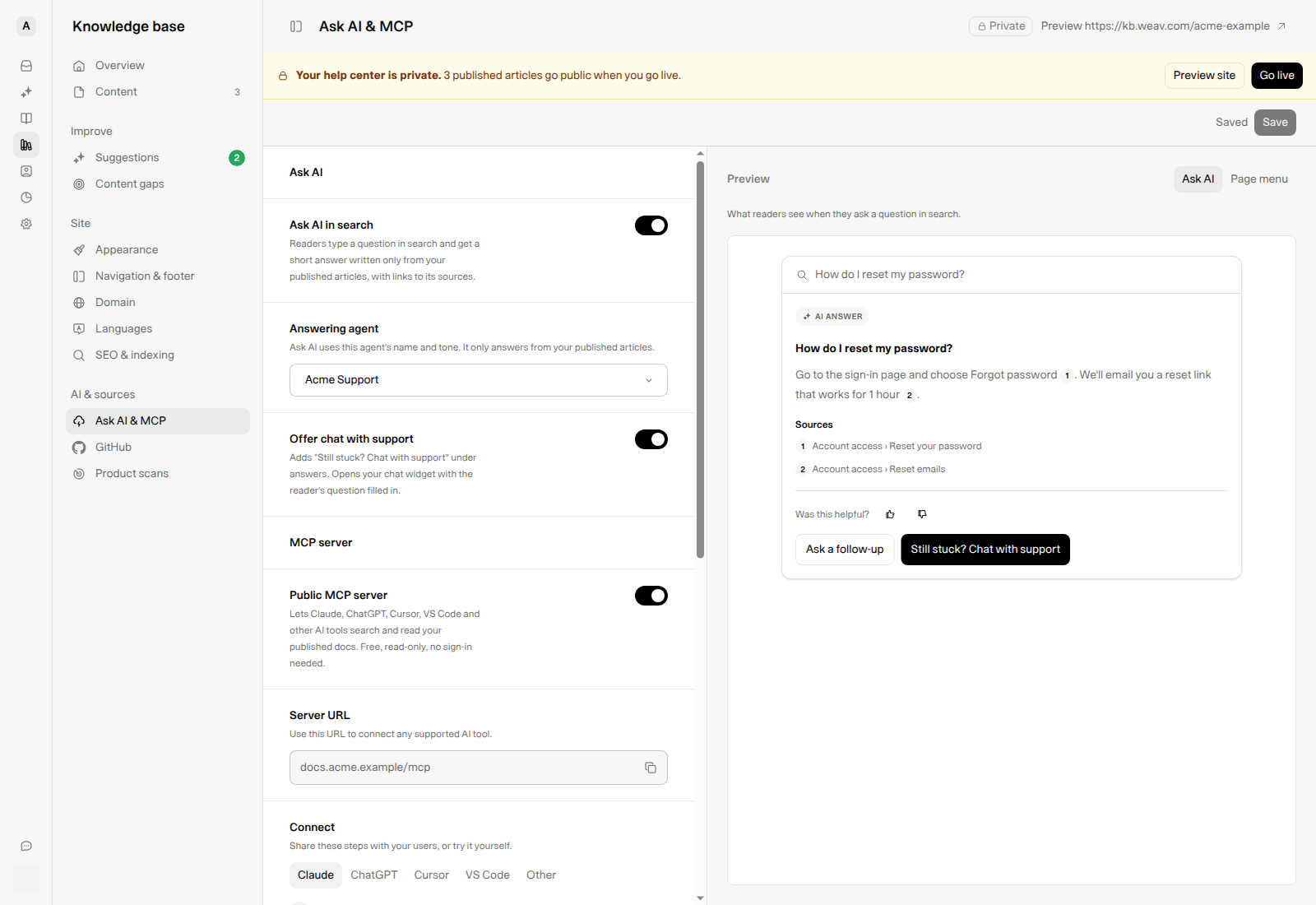
The preview uses an illustrative password-reset example. It is not a live answer generated from your articles or a statement of your product's password policy.
If no answering agent is active
Weav shows Ask AI needs an active agent to answer. Until you turn one on, readers only see search results. Select Go to agents and activate an appropriate agent, then return to these settings.
If a previously selected agent is turned off, Weav can fall back to the first active agent. The page identifies this as Turned-off agent (using automatic) and shows which active agent is being used. Choose another agent if you want explicit control.
Offer a support handoff
Turn on Offer chat with support to add Still stuck? Chat with support beneath answers. The button opens your chat widget with the reader's question filled in.
This requires the chat widget to be enabled for the Knowledge Base. The switch only controls this handoff button; it does not enable or disable the chat bubble itself.
Check the Ask AI preview
In the Preview panel, select Ask AI. When enabled with an active agent, the example shows:
- An AI ANSWER with numbered citations and source links.
- Was this helpful? feedback controls.
- Ask a follow-up.
- Still stuck? Chat with support, when both the handoff option and chat widget are enabled.
If Ask AI is off or no answering agent is active, the preview shows search only. After saving, check your actual Knowledge Base with a question that your published articles answer; the settings preview alone is not a live quality test.
Write clear, complete articles before tuning the answering agent. If the answer is missing from your published documentation, changing the agent's tone will not supply the missing facts.
Enable the public MCP server
MCP, or Model Context Protocol, lets AI clients use tools supplied by another service. Weav's public documentation server makes your published Knowledge Base available to compatible clients over Streamable HTTP.
- Turn on Public MCP server.
- Select Save to apply the setting.
- Copy the Server URL using its copy button.
- Under Connect, choose the client you want to connect and follow the displayed instructions.
Use the generated URL rather than constructing one from your Knowledge Base address. Readers do not need a Weav account or an organization API token for this public server. Their chosen AI client may still require its own account, supported plan, or administrator permission to add a connector.
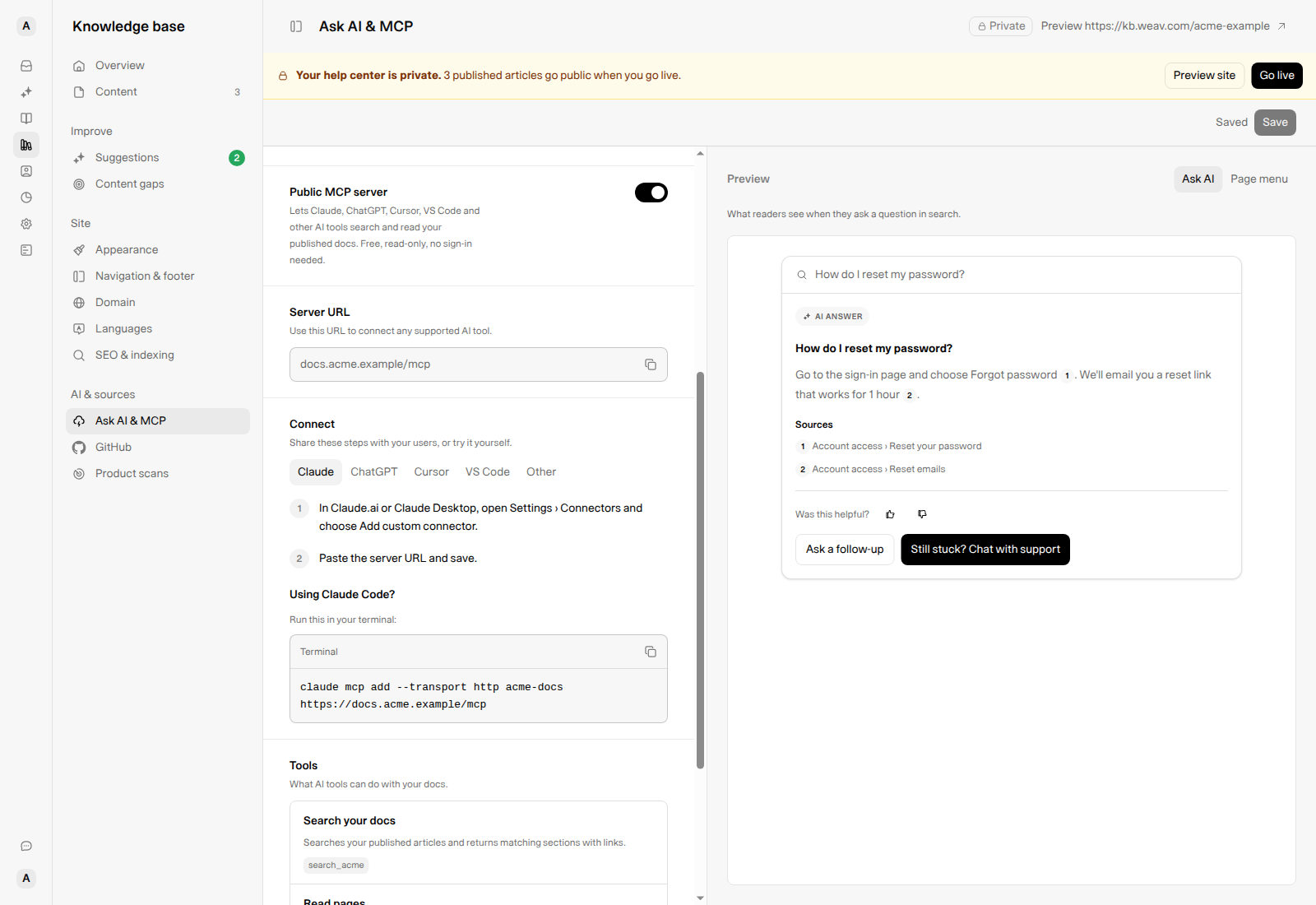
Copy the URL or command from your own settings. The Acme address in this screenshot is fictional.
Connect Claude, ChatGPT, Cursor, VS Code, or another client
The Connect selector shows client-specific instructions:
| Client | What Weav provides |
|---|---|
| Claude | Steps for adding a custom connector in Claude, plus a generated terminal command for Claude Code. Copy the command from the Terminal box. |
| ChatGPT | Steps for creating a connector with Developer mode and No authentication. Available settings can vary by ChatGPT account and workspace permissions. |
| Cursor | Add to Cursor, or a generated configuration for ~/.cursor/mcp.json. |
| VS Code | Add to VS Code, or a generated configuration for .vscode/mcp.json. |
| Other | The server URL for a client that supports Streamable HTTP, with no authentication. |
Use each configuration block's copy button rather than retyping the URL or tool configuration. For Cursor and VS Code, confirm the installation in the client when prompted. If you already have an MCP configuration file, merge the supplied server entry rather than replace unrelated server settings.
After connecting, ask the client to find an article and open one of the returned source links. The MCP server supplies documentation; how the client uses it in an answer depends on that client.
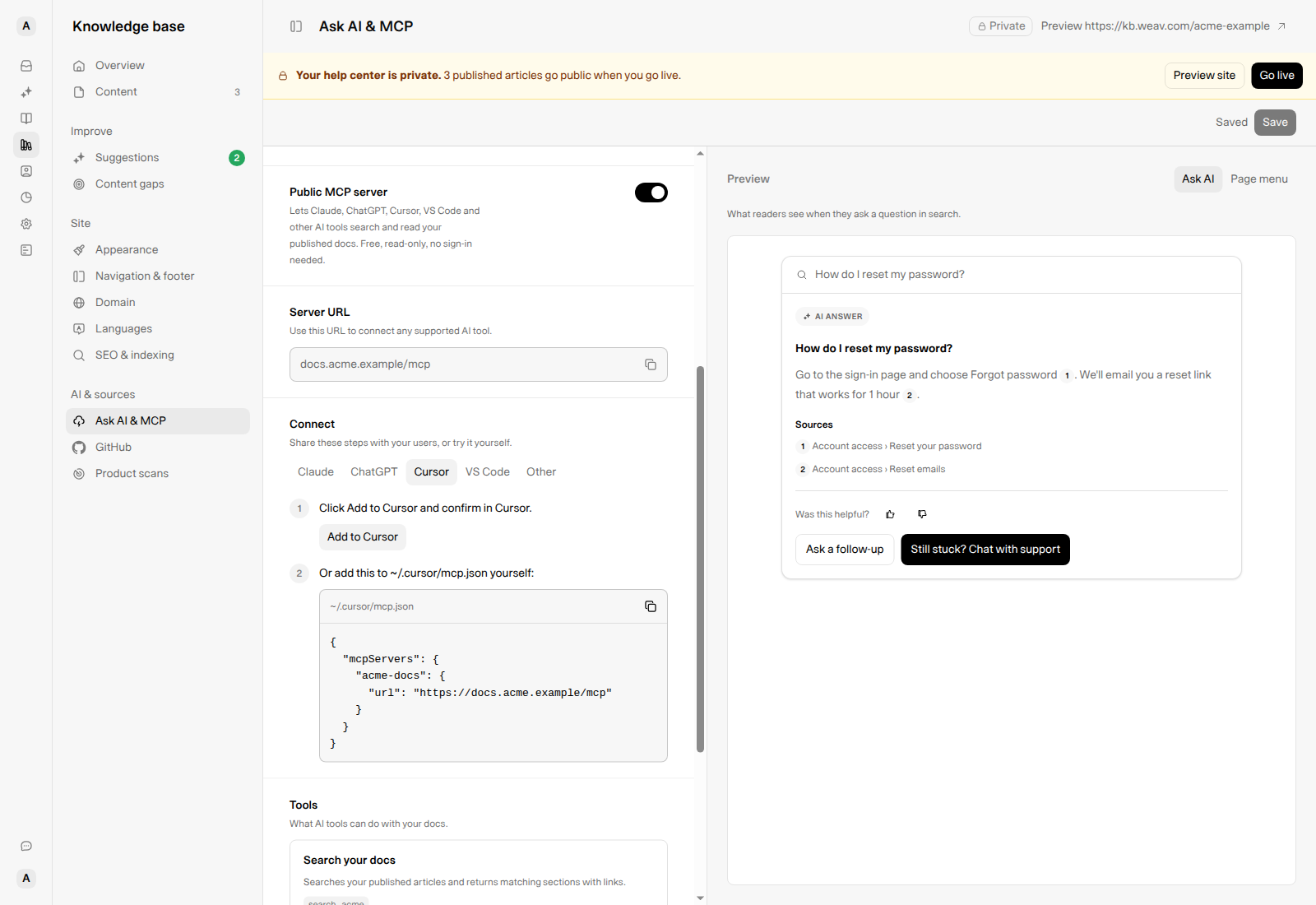
Use the displayed instructions for your client. Menu names and connector availability are controlled by that client and may change.
Understand the public MCP tools
| Tool | What it lets an AI client do |
|---|---|
| Search your docs | Search published articles and retrieve matching sections with links. |
| Read pages | Explore documentation like files, using operations such as ls, cat, and grep to find exact details. |
| Report a problem | Submit feedback about documentation that is incorrect, outdated, confusing, or missing. Reports feed into Content gaps. |
Search and reading do not edit your articles. Report a problem submits feedback; it does not directly rewrite or publish documentation. This supports your self-improving and self-healing Knowledge Base by turning reader-tool feedback into something your team can investigate and review.
See Find and fill content gaps in your Knowledge Base for the follow-up workflow, and Review, edit, and publish Knowledge Base suggestions before publishing a proposed answer.
Show readers the article page menu
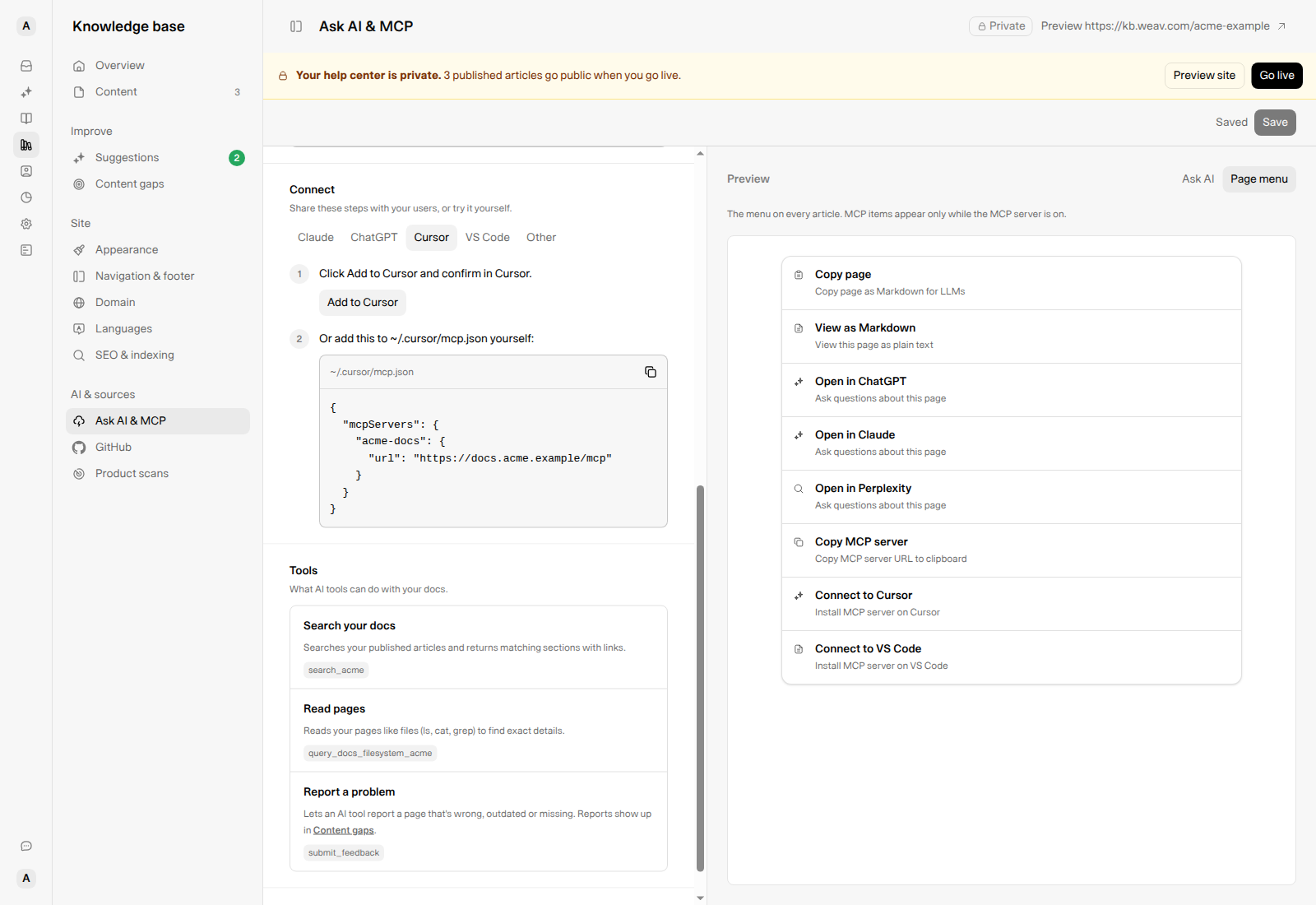
Select Page menu in the Preview panel to see the actions available on an article, including:
- Copy page and View as Markdown.
- Open in ChatGPT, Open in Claude, and Open in Perplexity.
- While MCP is enabled: Copy MCP server, Connect to Cursor, and Connect to VS Code.
The Open in actions and the MCP connection actions are different: opening an article in an AI tool is not the same as installing your documentation MCP server.
Save changes or turn a feature off
Changing a setting shows Unsaved changes. Select Save to apply it; the page confirms Ask AI & MCP saved. Select Discard if you want to return to the last saved settings.
Turning off Ask AI in search leaves readers with ordinary search results.
Turning off Public MCP server opens Turn off the MCP server? Select Turn off to confirm, then Save to apply the change. Cancel keeps it on.
Disabling the public MCP server breaks existing client connections. The MCP connection actions also disappear from article menus. Tell readers who rely on the server before turning it off.
If an MCP client cannot connect
Check that your Knowledge Base is live, Public MCP server is enabled and saved, and you copied the Server URL from your own settings. Use a client that supports Streamable HTTP and choose No authentication for this public documentation server.
If the client does not offer custom connectors, check that client's account and workspace permissions. Do not substitute an organization API token or a private preview link.
Review answer quality and feedback
On the Knowledge Base Overview, check:
- Ask AI answered: the share of Ask AI questions that received an answer, alongside the question count. The helpful percentage is based on helpful and not-helpful votes, not on every question.
- MCP feedback: problem reports from AI tools in the last 30 days.
Use these alongside Content gaps to find missing answers and guidance that needs clarification. Keep reviewing the underlying articles: enabling AI access does not make inaccurate documentation accurate.
For the full capabilities and launch overview, see Getting started with your Knowledge Base.