

SEO overview
Help people and AI tools discover your published documentation. Configure indexing, search snippets, social images, ownership verification, and AI content preferences.
Make your published Knowledge Base easier to discover in search engines, recognize when shared, and use in AI tools. Weav brings search indexing, social previews, ownership verification, and AI content preferences together in SEO & indexing.
Go to Knowledge Base → Site → SEO & indexing. Settings are on the left. On the right, use the status box and the Google, Social card, and AI files previews to check your work.
Discoverability is not publication. Your Knowledge Base must be live and its articles published before public readers can use them. Turning on search indexing does not publish drafts or take a private Knowledge Base live.
Set up search indexing
- Turn on Show in search results if you want search engines to list your public documentation.
- Write a Site description that explains who the Knowledge Base helps and what readers can find.
- Add ownership verification codes if you use Google Search Console, Bing Webmaster Tools, or Yandex Webmaster.
- Copy your Sitemap URL and submit it through the search-engine tools you use.
- Select Save.
The Site description can contain up to 300 characters and must be a single line. Keep it specific and readable. For example, "Product guides, troubleshooting, and setup help for Acme customers."
Where the Site description is used
The Site description describes your whole help center to search engines and AI tools, including your llms.txt and agents.md files. Your homepage also uses it in search results and link previews, unless the homepage article has its own SEO description. If the homepage article has one, that article's description is used instead.
The Google preview updates as you edit. It is an illustration, not a live search result or a promise that Google will use the exact title and description shown.
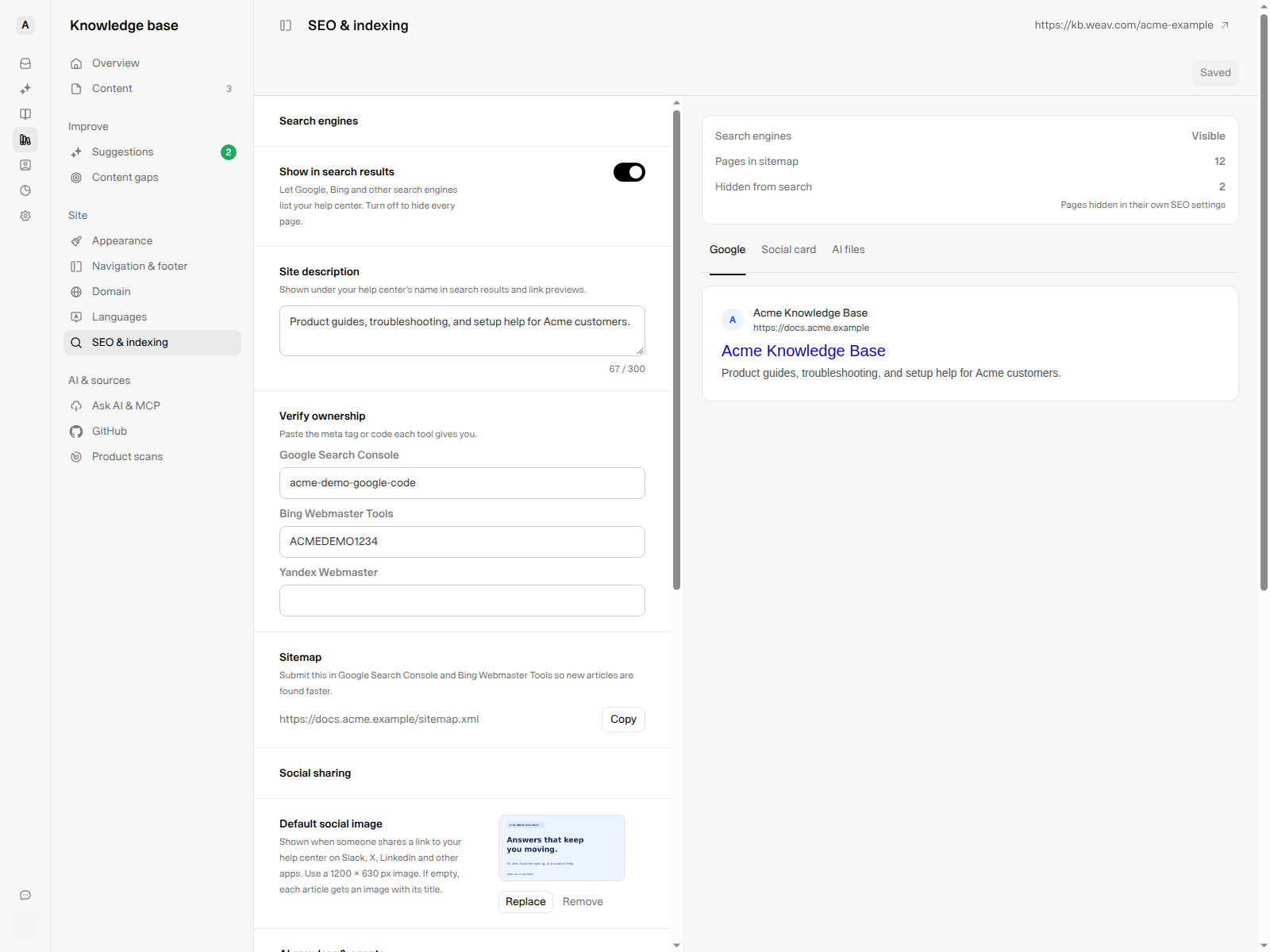
Example settings in a fictional Acme workspace. Save changes before checking the public site.
Read the indexing status correctly
The status box reflects saved settings, while previews can reflect edits you have not saved yet.
| Status row | What it means |
|---|---|
| Search engines: Visible / Hidden | Whether the saved site-wide indexing setting is on or off. It does not report Google's actual indexing status. |
| Pages in sitemap | Published article-language pages eligible for the sitemap. When site-wide indexing is off, this shows Not listed. |
| Hidden from search | Published article-language pages excluded by their own Hide from search engines setting or a custom Canonical URL. |
Counts are based on published article language versions, so they can differ from your number of article topics. Drafts are not included. A custom canonical excludes a page from Weav's sitemap, but it is not the same as adding a noindex instruction.
Use the status box to check configuration, then use your search engine's webmaster tools to see whether pages have actually been crawled and indexed.
Verify site ownership and submit the sitemap
Under Verify ownership, paste the code or full verification meta tag provided by:
- Google Search Console
- Bing Webmaster Tools
- Yandex Webmaster
When you leave a field, Weav extracts the verification code from a pasted meta tag. Save the settings, then complete verification with that provider. Adding a code in Weav does not itself finish the provider's verification process.
The Sitemap row provides a Copy button. Use that generated address rather than guessing a path, especially if your Knowledge Base uses a custom domain or sits under a path on your main website.
Submitting a sitemap helps discovery; it does not guarantee indexing or a particular ranking.
Set a default social image
In Social sharing, use Default social image to choose the image used when your Knowledge Base is shared in messaging and social apps.
- Recommended dimensions: 1200 × 630 pixels.
- Supported formats: PNG, JPEG, GIF, or WebP.
- Maximum upload size: 5 MB.
- Select Upload to choose an image, Replace to choose another, or Remove to clear it.
- Select Save to apply the change. Choosing a file alone does not save it.
If an article has its own Social image URL, that image takes precedence. Otherwise Weav uses the default social image; if neither is set, it generates an article image with the article's title.
Select Social card in the preview to see the site image, address, name, and description together. This is a site-level illustration, not the preview of every article's individual metadata. If you have no default image, it shows a placeholder and explains the generated article-image fallback.
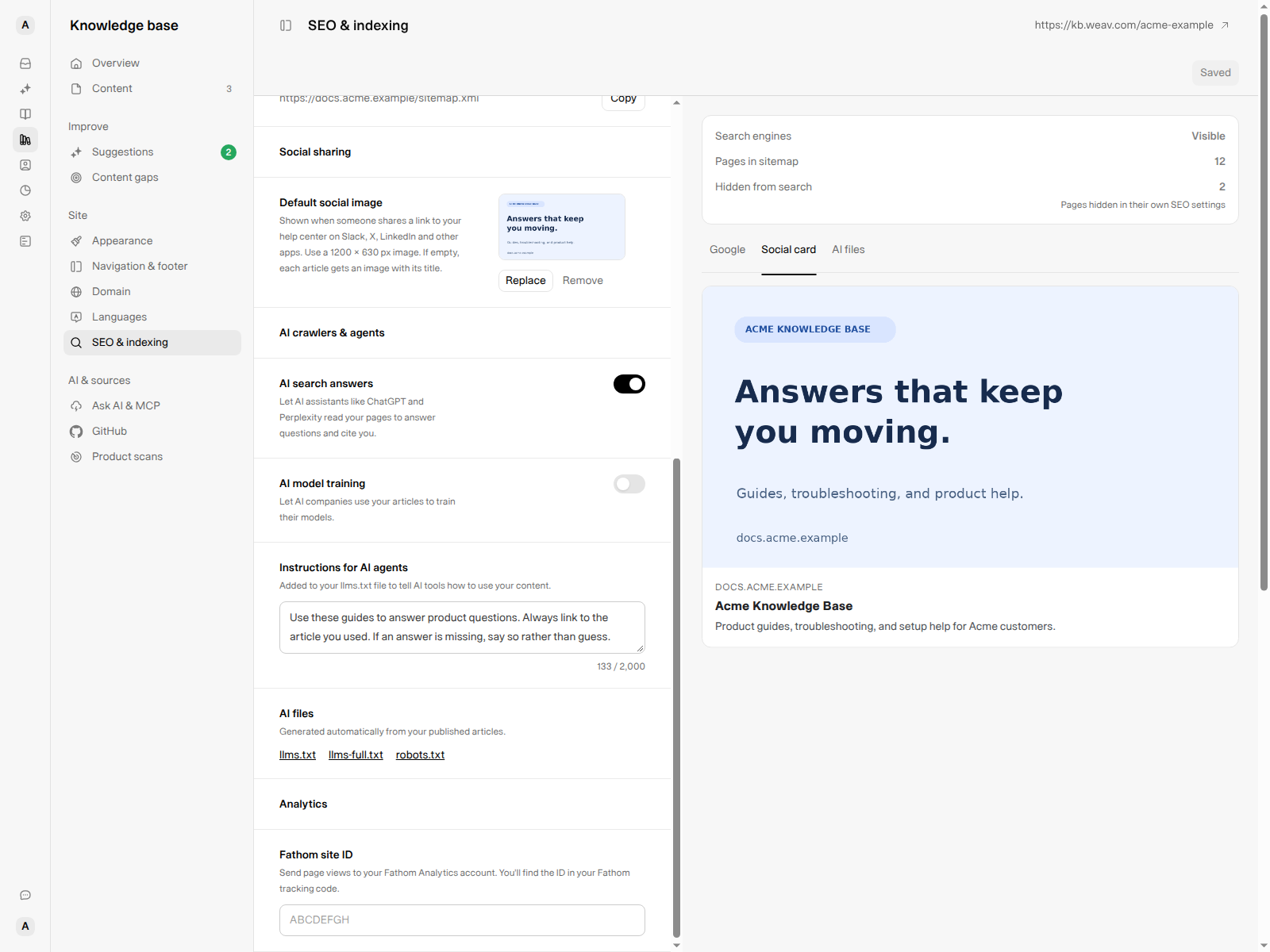
The example image is 1200 × 630 pixels. Check that important text remains readable at small preview sizes.
Social platforms can cache previews, and search engines can choose different snippets. After saving, check the actual published page before assuming that a stale third-party preview means your settings were not saved.
Review each article's SEO settings
Site-wide defaults are useful, but individual articles need clear, topic-specific metadata. In Content, open an article and find Search engine optimization in its details panel.
| Field | How to use it |
|---|---|
| SEO title | Write a descriptive title for search and social previews. This is separate from the article's visible heading and URL slug. |
| SEO description | Summarize the answer or task the article covers. If left empty, the editor shows an excerpt or content-based default. |
| Social image URL | Use an article-specific image instead of the site-wide fallback. |
| Canonical URL | Identify a preferred version of duplicated content. Normally leave it empty so Weav uses the article's own public URL. |
| Hide from search engines | Add noindex for this article language version and exclude it from the sitemap. |
Review the selected language version when editing these fields. Save and publish through the article's normal workflow when the changes are ready.
Use custom canonicals deliberately. Setting a Canonical URL causes that article-language page to be left out of Weav's sitemap and counted under Hidden from search. Do not paste the article's own URL into this field just to "turn on" canonical links—Weav already generates its normal canonical automatically.
Understand public article addresses
Weav builds article addresses from your public site, language, section, and article slug. Categories organize navigation but do not add a category segment to the article URL.
For a fictional site at https://docs.acme.example with English as its default language:
| Article placement | Example address |
|---|---|
| Default language, first section | https://docs.acme.example/reset-password |
| Default language, another section named Guides | https://docs.acme.example/guides/export-reports |
| French version in that Guides section | https://docs.acme.example/fr/guides/export-reports |
The default language does not need a language prefix. The first section does not need a section prefix; additional sections use theirs. On a hosted address, your organization path comes before these segments. On a subpath setup, your site's base path comes first.
Copy an article's actual public address rather than constructing it yourself. Prefer stable slugs and check shared links when you reorganize sections or change your domain.
Choose AI crawler and agent preferences
Under AI crawlers & agents, choose how you want third-party AI services to use your published documentation:
| Setting | Purpose |
|---|---|
| AI search answers | Express whether AI assistants may use the pages to answer questions and cite your documentation. |
| AI model training | Express whether AI companies may use the articles to train models. |
| Instructions for AI agents | Add guidance such as "Always link to the article you used." The limit is 2,000 characters. |
Weav includes these usage preferences in Content-Signal directives. The search preference follows Show in search results; the AI search-answer and model-training preferences are controlled separately.
AI search answers is not the Ask AI switch. It communicates a preference to outside AI services. It does not enable or disable your on-site Ask AI feature or public MCP server. Configure those under Ask AI & MCP.
Check the generated AI files
The AI files links open files generated from your published documentation:
- llms.txt: an AI-readable documentation index with site information, instructions, and article links.
- llms-full.txt: a fuller text representation of published documentation.
- robots.txt: crawler directives and, when indexing is enabled, the sitemap reference.
Use the AI files preview to inspect the robots.txt output and the beginning of llms.txt. The preview is not the full documentation export. Use the links in the settings to inspect the actual files after saving.
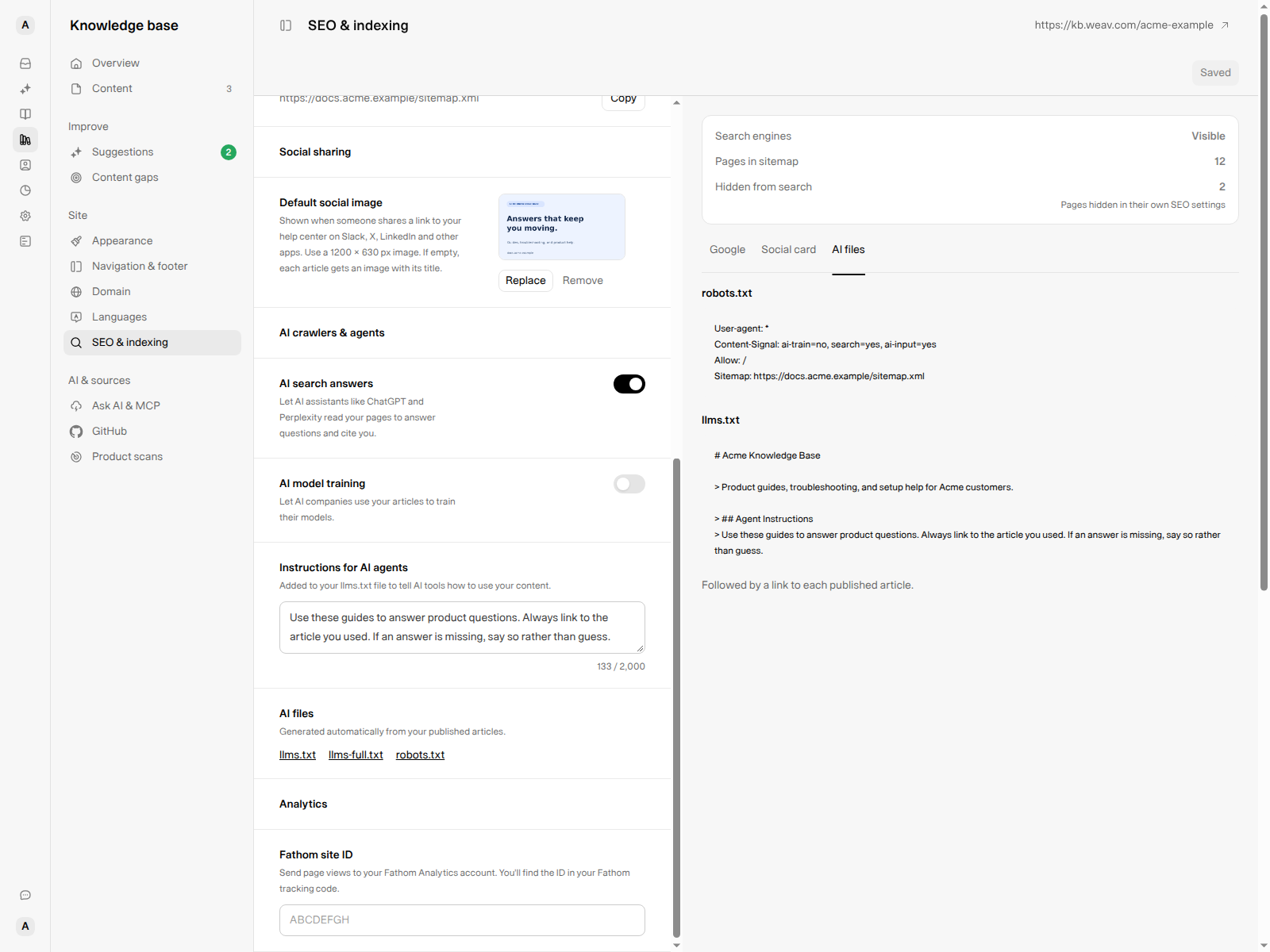
These preferences communicate how you want content used. They do not install an MCP connection or publish additional articles.
Hide the site from search without confusing it with privacy
To request that search engines stop listing the Knowledge Base:
- Turn off Show in search results.
- In Hide your help center from search engines?, select Hide from search.
- Select Save to apply the change. Cancel leaves the switch on.
Weav marks pages noindex and removes the sitemap reference from its generated robots.txt. The Google preview changes to Hidden from search results. Existing listings may remain until search engines revisit and process the change; there is no guaranteed removal time.
The status box's Hidden from search count still describes article-level exclusions. It is not a count of every page affected by the site-wide switch.
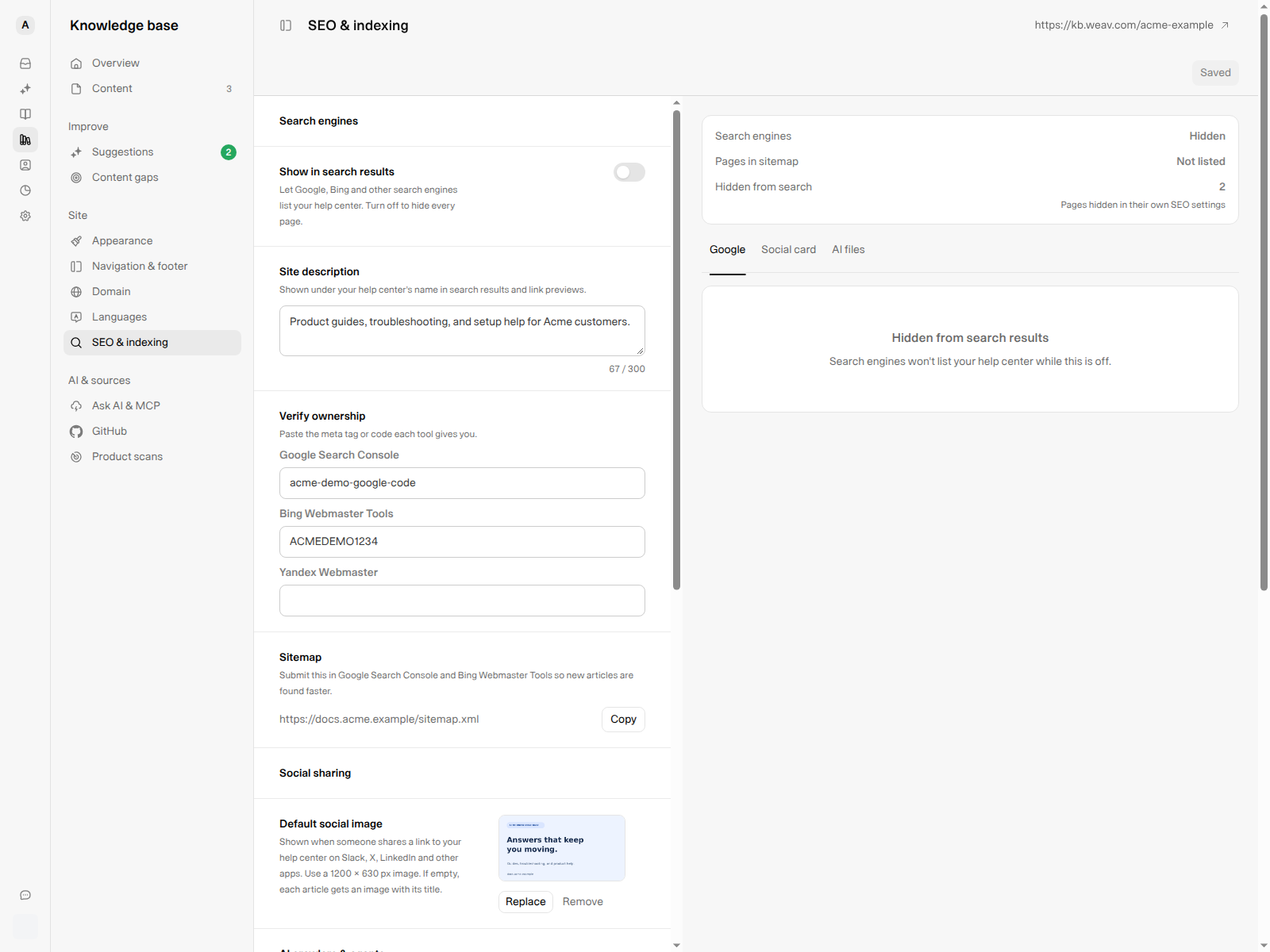
Search and AI preferences are not access controls. A public article can still be opened through its address even when it is marked noindex. Crawler preferences and AI instructions also do not guarantee compliance by every third party or removal of previously collected content. Do not publish sensitive information and rely on SEO settings to keep it private.
Fathom Analytics
Under Analytics, enter your Fathom site ID from your Fathom tracking code. Use the 4–16 character letters-and-numbers ID, not an API key or the entire script tag, then select Save.
This sends page views to your configured Fathom account. It is separate from Weav's Knowledge Base Overview metrics.
Save and check the result
Changes show Unsaved changes at the top of the page. Select Save; Weav confirms SEO settings saved. Select Discard to return to saved values, including clearing an image choice you have not saved.
Before you finish, check:
- The Knowledge Base is live and the intended articles are published.
- Site-wide indexing and article-level exclusions match your intent.
- Site and article descriptions are useful rather than repeated keywords.
- Ownership verification and your sitemap are checked in the relevant provider's tools.
- Social and AI file previews reflect the settings you meant to save.
If you imported an existing help center, review any imported SEO values before launch rather than assuming they are the right defaults. For the broader setup and capabilities overview, see Getting started with your Knowledge Base.