

Organize articles and categories in your Knowledge Base
Make your Knowledge Base easy to browse. Arrange articles and categories, move content to the right section, and manage navigation without accidentally publishing drafts or deleting useful guidance.
Make your Knowledge Base easier to browse by putting related guidance together and arranging it in the order readers need it. Use Weav's Content sidebar to organize sections, categories, and articles without rewriting the articles themselves.
This guide covers drag-and-drop ordering, keyboard controls, moving articles, names, and safe cleanup.
Understand the content structure
Go to Knowledge Base → Content. The sidebar groups your articles into:
| Level | Purpose | Example |
|---|---|---|
| Section | A top-level area of your Knowledge Base. Use the section picker above the content tree to change areas. | Help center or Product guides. |
| Category | A group of related articles within a section. | Getting started or Account & security. |
| Article | An individual guide, explanation, or answer. | Invite your team or Reset your password. |
Uncategorized means an article has no category. When your Knowledge Base uses sections, categories and articles that have no section appear under the first section in your section list. There is no separate "Unsectioned" area. These are different states, not extra levels of nested categories.
The Content sidebar includes drafts. A yellow dot marks a draft article; hover over it or focus it to see This article is a draft. Public navigation shows eligible published content, so it will not necessarily match the staff sidebar one for one.
Organization changes save separately from article drafts. Reordering and moving items apply when you complete the action; there is no extra Save draft step for the sidebar. These changes can affect navigation on a live site, but they do not publish a draft article or take a private Knowledge Base live.
Reorder articles with drag and drop
- Open the section and category containing the article.
- Hover over its row to reveal the six-dot drag handle on the left.
- Press and hold the handle, then drag up or down.
- Watch the blue insertion line. It shows whether the article will land before or after the target row.
- Release to apply the new order.
A copy of the article label follows the pointer while you drag. Use the handle rather than the article title: selecting the title opens the article instead of picking it up.
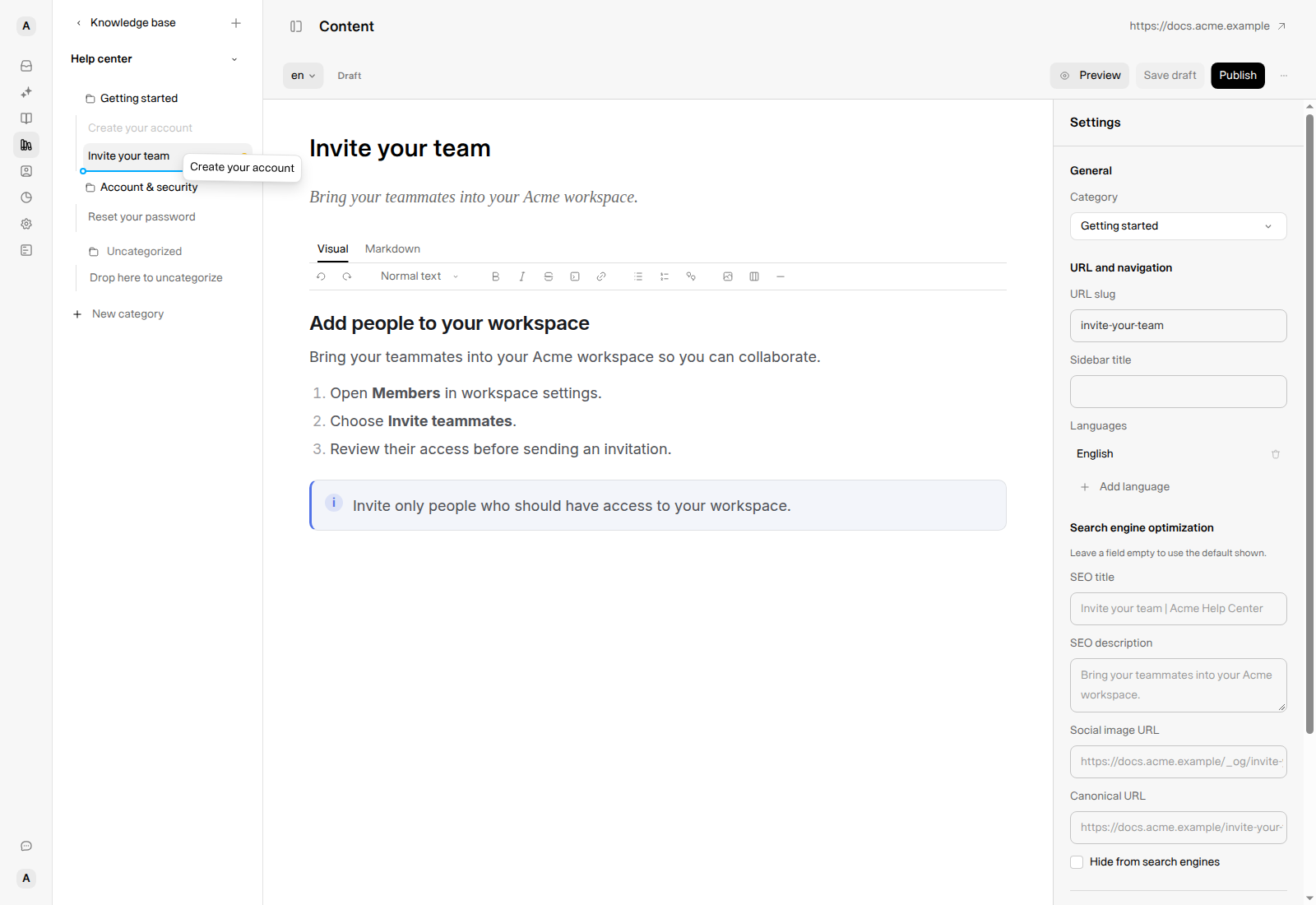
This illustration shows a drag in progress. It was canceled without saving a new order.
Move to another category in the same section
You can drag an article:
- Over an article in another category to choose a position before or after it.
- Over a category heading to append it to that category.
- Over a collapsed category heading and pause briefly to expand it, then choose a position inside it.
- Into Uncategorized to remove its category assignment.
The highlighted category or blue insertion line identifies the destination. Moving to a different category preserves the article's content and publication status.
Reorder categories
- Hover over a category heading and find its drag handle in the left margin.
- Drag the category above or below another category in the same section.
- Use the blue line to choose the position, then release.
The category moves as a group; you do not need to move each article separately. Category dragging does not move categories between sections. Use Manage sections to change the order of the sections themselves.
Use the keyboard instead of dragging
- Press Tab until the article or category drag handle has focus. Handles become visible when focused.
- Press Space to pick up the item.
- Use the arrow keys to move it to a new position in the visible list.
- Press Space again to drop and save it, or Esc to cancel the drag.
Use the article's Move to menu for a destination in another section rather than trying to drag through the section picker.
Add and rename categories
Create a category
- Choose the section where the category belongs.
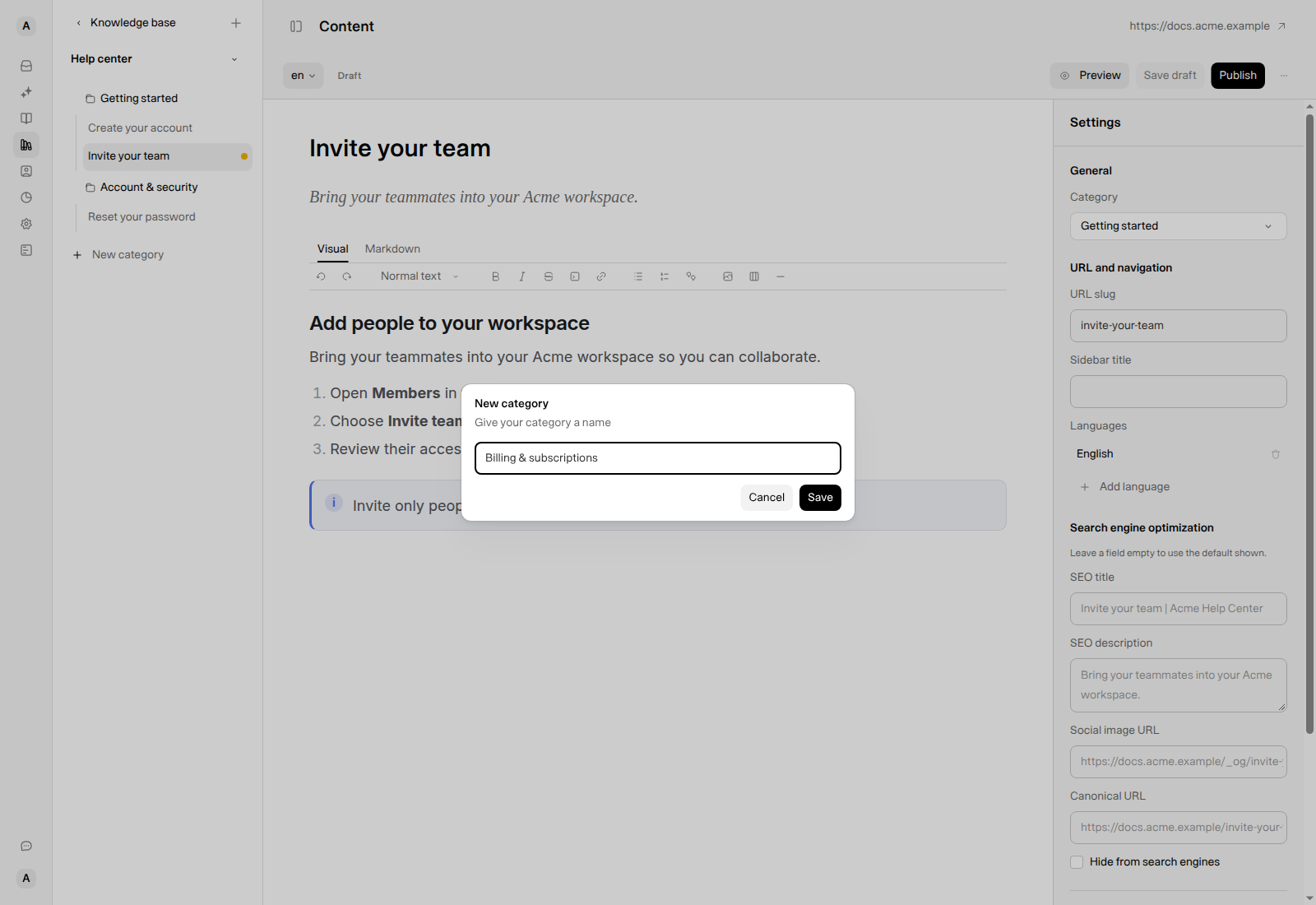
- Select New category at the bottom of the content tree.
- Enter a clear name in Category name.
- Select Save or press Enter.
The category is created in the section you are viewing. A name made only of spaces is not valid; if creation fails, the error appears in the dialog so you can correct it.
Select Cancel or press Esc to close the dialog without creating anything.
Rename a category
Hover over the category, open Category actions (···), and choose Rename. Edit the inline name, then press Enter or leave the field to save it. Renaming the display name does not regenerate its existing URL slug.
The same category menu includes New article and Delete. For creating and formatting an article, see Write and edit articles in your Knowledge Base.
Choose a category for a new article
When you start a new article, the category picker lists the categories in the section you are adding to, plus + New category.
- If the section already has an Uncategorized category (for example, one created when you moved an article into a section with no categories), the picker shows that category once and selects it by default. The article is saved into that existing category.
- If the section has no Uncategorized category, the picker shows a single Uncategorized option, which saves the article without a category.
Move an article to another section
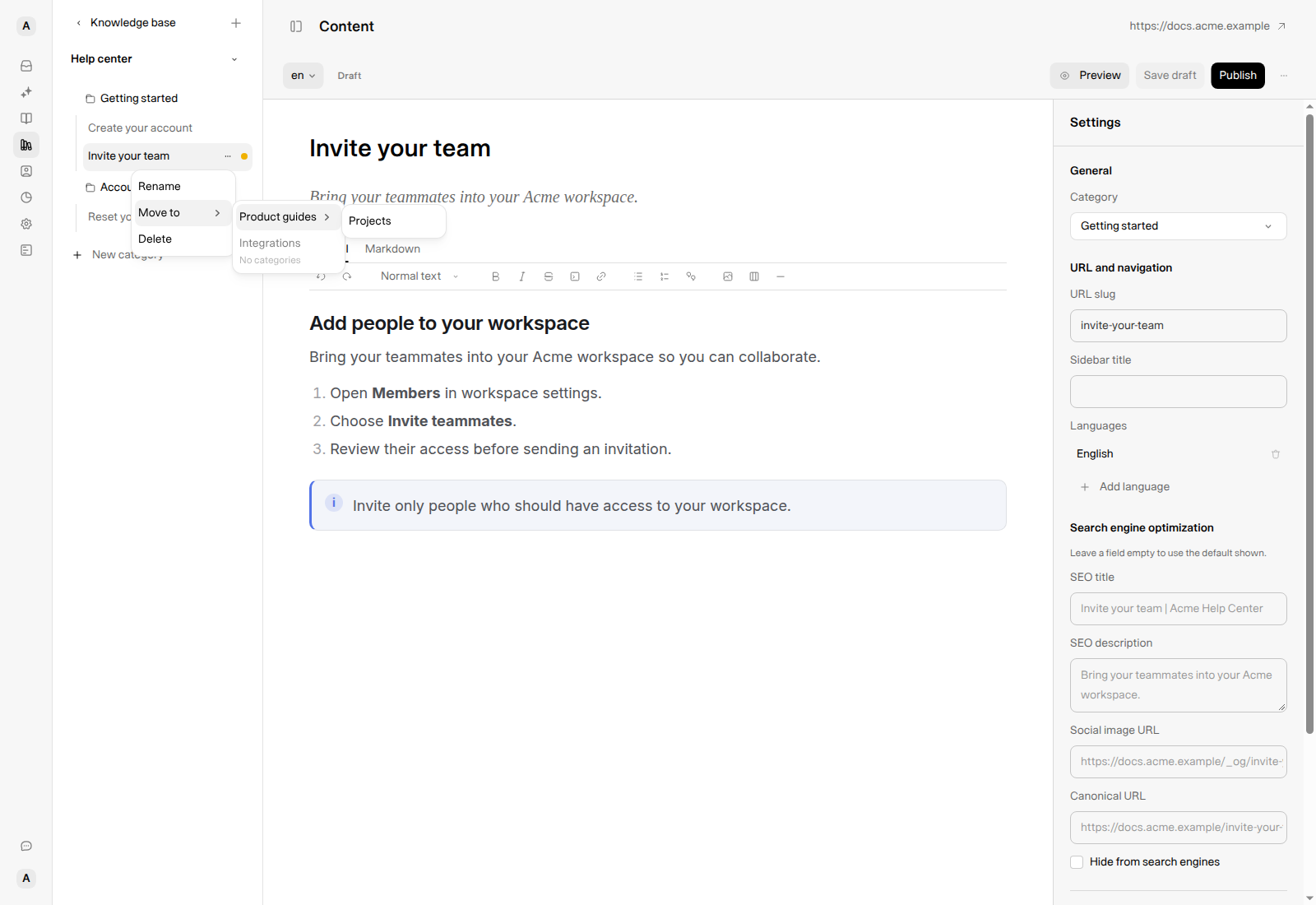
- Hover over the article and open Article actions (
···). - Choose Move to.
- Choose the destination section, then a category inside it. If the section has no categories, choose the section itself.
- Wait for the confirmation, such as Moved to Product guides › Projects.
The article is appended to the destination category. Switch to that section if you want to place it at a more specific position afterward.
Things to know:
- The menu lists every section and its categories, except the article's current category. Move to may not appear if there is no other destination.
- A section without categories can be selected directly. The article moves into that section's Uncategorized category, and the confirmation reads, for example, Moved to Product guides › Uncategorized.
- After a successful menu move, the sidebar stays on the section you were viewing, even if you moved the open article. Opening another article lets the sidebar follow that article's section again.
- A move is not a publication action: a draft remains a draft and a published article remains published.
Check public links when changing sections. An article's own slug can stay the same while its section-based public path changes. Reordering is different from changing the content structure. Review the resulting addresses, navigation, and shared links rather than assuming every old address will continue to work.
Rename an article or shorten its sidebar label
To change an article title:
- Open Article actions → Rename.
- Enter the new title in Rename article.
- Select Save changes.
The article's existing URL slug stays the same. Empty titles are rejected; select Cancel to keep the existing title.
A custom Sidebar title can override the label shown in navigation. To change only that shorter label, open the article's Settings and edit Sidebar title instead. If a renamed article still shows its old navigation label, check that field.
Create, reorder, and manage sections
If your Knowledge Base has no sections yet, select the + button at the top of the Content sidebar and choose New article or New section. After you create a section, Weav opens it in the Content sidebar.
Once you have sections, open the section picker above the content tree:
- Choose New section, enter its name, and create it to add another top-level area.
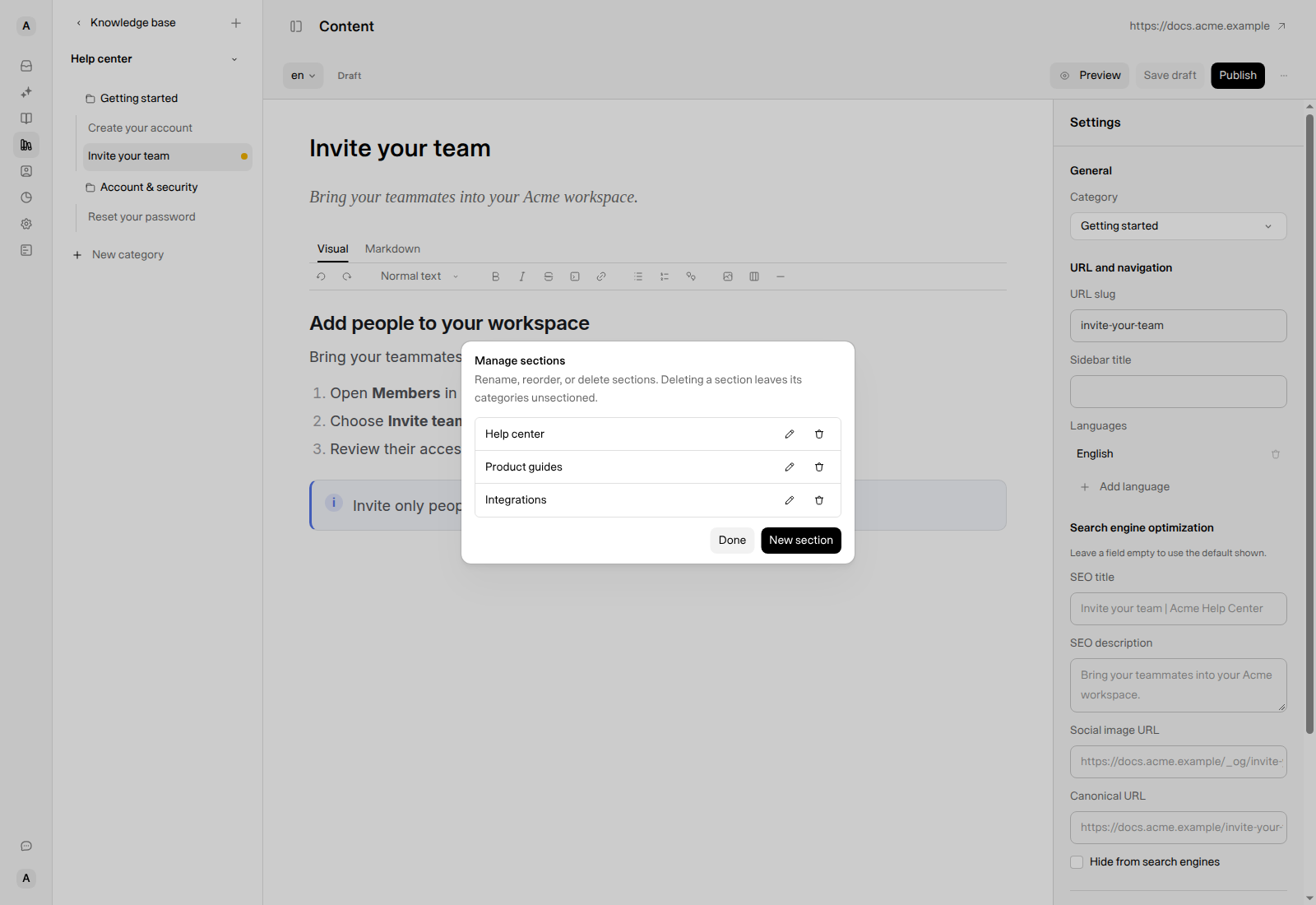
- Choose Manage sections to see the full section list.
Once sections exist, the + button at the top creates a new article directly.
In Manage sections:
- Reorder: drag a section row into the desired position. The new order saves when dropped.
- Rename: select its pencil control, edit the name, then press Enter or leave the field to save. Press Esc to cancel. You can type spaces in the name, such as "Reference Hub". A display-name change does not regenerate the existing section slug.
- Delete: select its delete control and review the confirmation before proceeding.
- Done: close the dialog. This is not a separate Save all action; completed operations have already been submitted.
- New section: open the new-section dialog.
Delete containers without losing track of articles
Use deletion carefully. Removing a container and removing an article have different results:
| Action | Result |
|---|---|
| Delete a category | Its articles become Uncategorized. The articles themselves are not deleted. Review pending suggestions that used the category before publishing them. |
| Delete a section | Its categories appear in the first remaining section. Their articles remain in those categories. |
| Delete an article | The article is removed. Its confirmation warns that the action cannot be undone in this workflow. |
Deleting a section or category does not unpublish its articles or make their content private. Reorganize useful content before deleting containers, and treat article deletion as a removal decision—not a shortcut for changing navigation.
Use names readers recognize. Put first-time tasks near the top, group related answers, and choose descriptive labels. After a substantial reorganization, check the public site on desktop and mobile, including links to moved articles.
Troubleshoot organization changes
Why is Move to missing?
The menu needs at least one destination: a section or a category other than the article's current one. Add the required section or category before trying again.
Why did an article disappear from the current section?
Check its destination category and the section picker. Moving an article to a category in another section, or deleting a section, can remove it from the section you were viewing. These actions do not necessarily delete the article.
Why did the order go back?
If the save fails, the sidebar can restore the previous arrangement. Check the error, reload to see the saved state, and retry once the issue is resolved. Generated API-reference articles are managed from their source and may prevent manual reordering of their group.
Why does public navigation look different?
Check article and translation publication states, the selected language, and whether the Knowledge Base is live. Reordering does not publish drafts. See Go live with your Knowledge Base.
If you maintain documentation through GitHub, coordinate structural changes with that workflow and review any resulting repository changes. See Connect GitHub to your Knowledge Base.