> ## Documentation Index
> Fetch the complete documentation index at: https://docs.weav.com/llms.txt
> Use this file to discover all available pages before exploring further.
# Set up product scans for your Knowledge Base
> Let Weav explore your product, capture screenshots, and suggest new or updated articles. Set up a safe test account, follow scan progress, and review the results.
Product scans help your Knowledge Base stay aligned with the app your customers use. Weav signs in with a test account, explores your product, takes screenshots, and drafts new articles or updates to existing guidance.
That supports both **self-improvement** (filling missing content) and **self-healing** (identifying guidance that no longer matches your product). Your team stays in control of what readers see.
**Product scans create suggestions, not automatic publications.** Review, edit, and publish the resulting articles in **Suggestions**. A scan does not publish them for you.
## Before you start
You need:
- An **owner or admin** role in your Weav organization. Other teammates do not see Product scans in the sidebar.
- Your product's **HTTPS sign-in URL**, such as `https://app.example.com/login`.
- A dedicated **test account** with an email address, password, and realistic sample data.
- The exact sign-in and dependency hostnames your app needs, if it uses a hosted authentication provider.
**Use a test account, not a real customer's account.** Weav interacts with your app and may create, edit, or delete data. Give the account only the permissions and sample data you are comfortable letting a scan use. Avoid personal information and live billing data.
## Set up your first product scan
1. Open **Knowledge Base → AI & sources → Product scans**.
2. Under **Sign-in page URL**, enter your product's own sign-in page. Do not start from an authentication provider's login URL.
3. Under **Test account**, enter the account's email address and password.
4. Complete **Authentication** if your app signs in or loads required resources through other hosts. See [Configure hosted sign-in](#configure-hosted-sign-in) below.
5. Optionally add **Anything to focus on?** instructions. For example: “Focus on reports and automations. Skip developer settings.”
6. Select **Scan**. This saves your settings and starts the first scan.
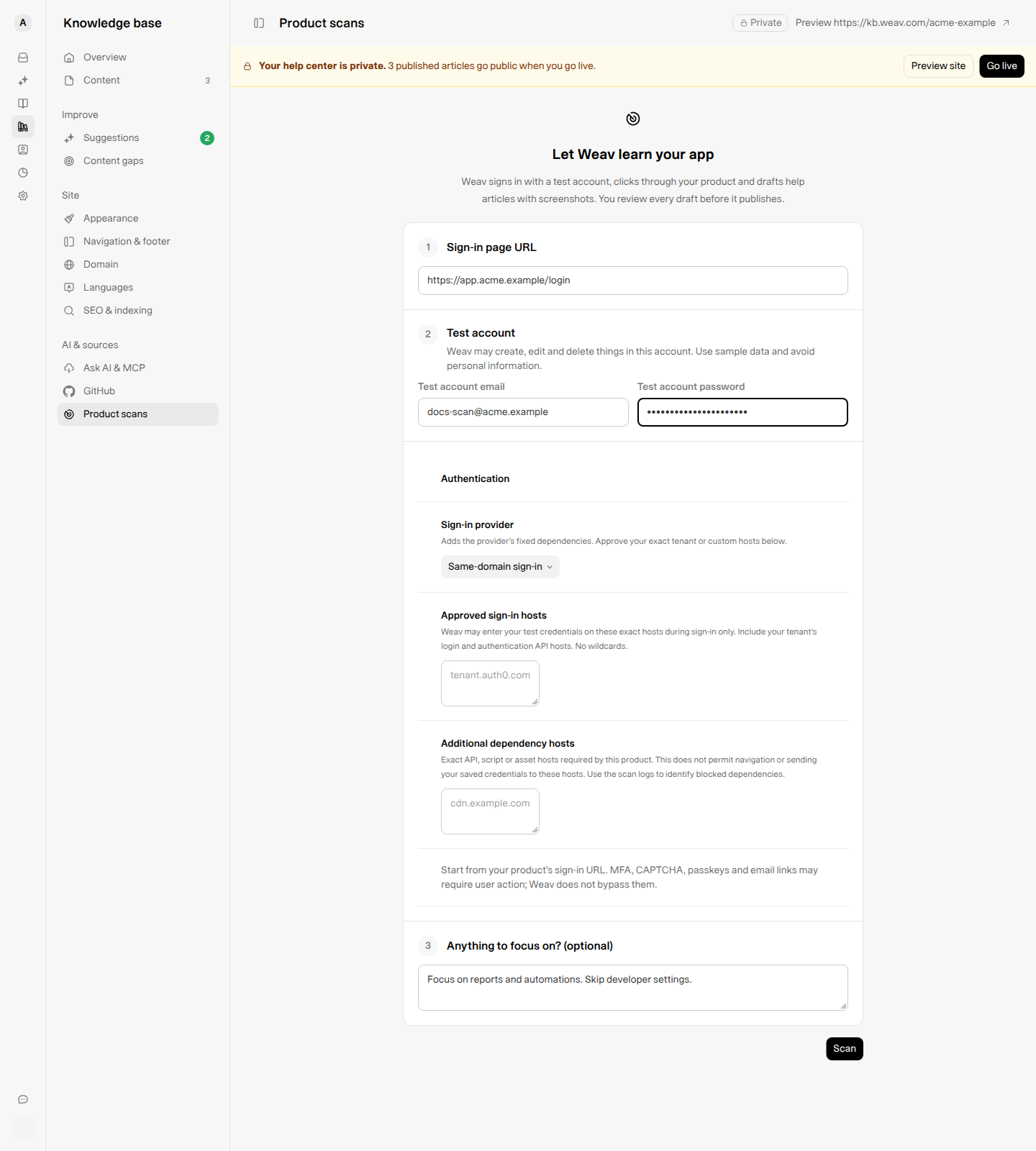
*First-time setup in a fictional Acme workspace. The Scan button saves the configuration and starts a scan.*
Start with one useful customer workflow and sample data that makes it easy to understand. You can expand coverage with **Scan further** after reviewing the first results.
## Configure hosted sign-in
Keep **Same-domain sign-in** when your app handles sign-in on its own domain. If it uses a service such as Clerk, WorkOS / AuthKit, Auth0, Okta, Firebase, or Supabase, choose the matching **Sign-in provider**.
Choosing a provider adds its fixed dependencies. It does **not** approve every tenant or custom domain operated by that provider.
| Setting | What to enter | What it permits |
| ------------------------------- | ------------------------------------------------------------------------------- | --------------------------------------------------------------------------------------------------------------------- |
| **Approved sign-in hosts** | Exact tenant login and authentication API hostnames, such as `tenant.auth0.com` | Weav may enter the test credentials on these hosts during sign-in only. |
| **Additional dependency hosts** | Required API, script, or asset hostnames, such as `cdn.example.com` | The scan may load those resources. This does not authorize navigation to the host or sending saved credentials to it. |
Use hostnames only: no `https://`, paths, ports, or wildcards. Separate entries with commas or new lines. You can add up to **10 sign-in hosts** and **15 dependency hosts**.
Only approve hosts you recognize and trust. If a required resource is blocked, use **View logs** to identify the exact hostname rather than broadly expanding access.
**Weav does not bypass sign-in protections.** MFA, CAPTCHA, passkeys, and email-link sign-in may require user action and can prevent a scan from signing in. Check that your dedicated test account supports the sign-in flow before starting.
## Edit scope, credentials, and scan depth
After setup, the page shows your saved configuration and scan history. Change the fields you need, then select **Save**. The confirmation is **Product scan settings saved.**
| Group | What you can change |
| ------------------ | -------------------------------------------------------------------------------------------------------------------------------------------------------------------------------------------------------------------------- |
| **Your app** | Update the sign-in page. Optionally set **Stay on** to your product's domain; the sign-in page must belong to that domain. Product navigation uses that domain and its subdomains, with sign-in hosts approved separately. |
| **Test account** | Update the email or replace the password. A saved password is not displayed; leave the password field blank to keep it. |
| **Authentication** | Change the provider, approved sign-in hosts, or additional dependency hosts. |
| **What to scan** | Adjust **Focus** and **Never complete** keywords. |
Under **Never complete**, add comma-separated keywords for actions the scan should not finish. The built-in list covers sign out, password and email changes, account deletion, billing, and invites. These safeguards do not replace a restricted test account.
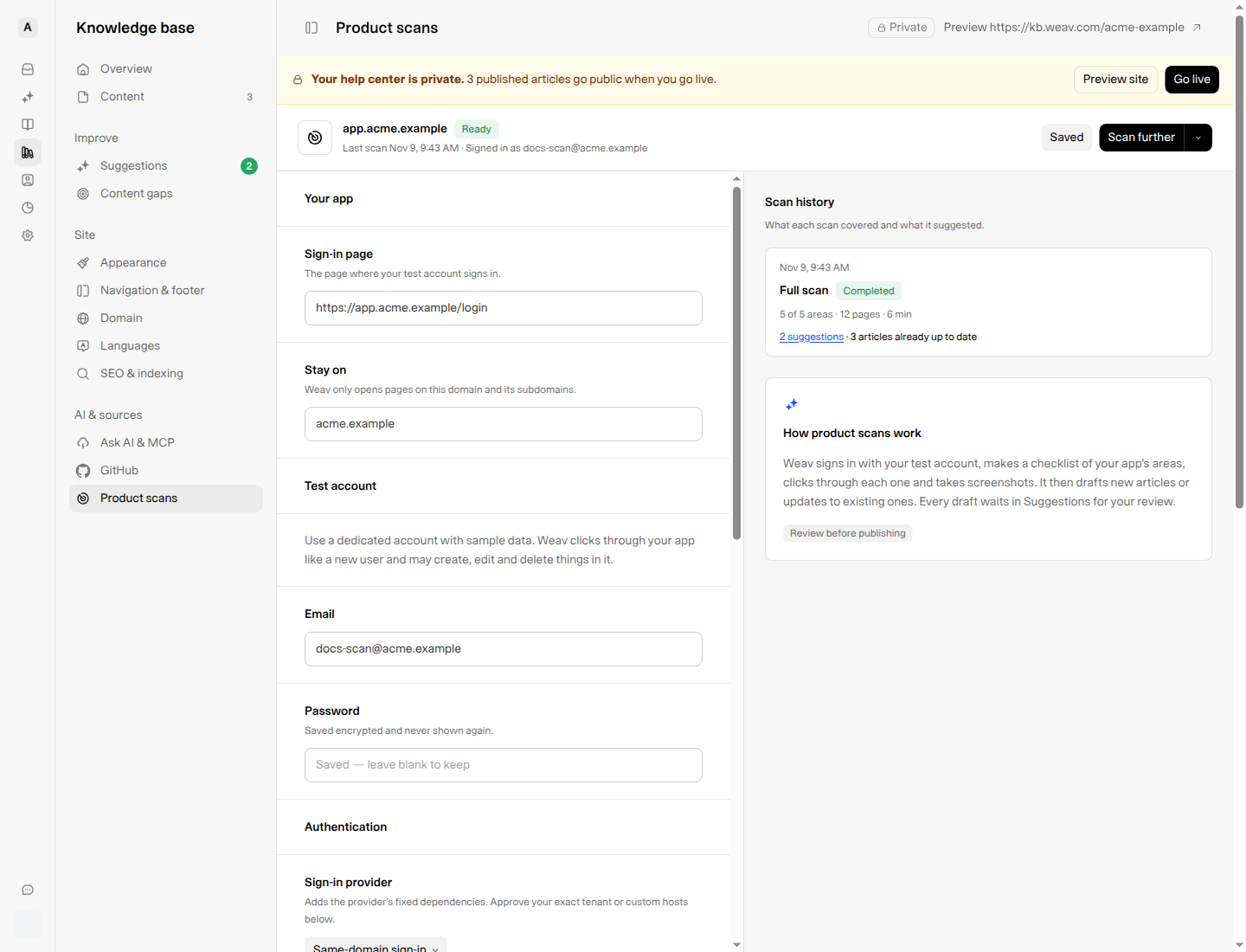
*Saved configuration and example results. Scan history shows coverage, suggestions, and articles already up to date.*
## Start, continue, restart, or stop a scan
| Control | When to use it |
| ---------------------------------- | ----------------------------------------------------------------------------------------------------------------------------------------------- |
| **Start scan** | Start when settings are saved but there is no scan history yet. |
| **Scan further** | Continue exploring and deepen coverage using what earlier scans learned. |
| **More scan options → Start over** | Explore from the beginning instead of using earlier scan learning. Confirm **Start over?** to proceed. Earlier suggestions stay in Suggestions. |
| **Stop scan** | Request that a running scan stop after its current step. Confirm **Stop this scan?** to proceed. Suggestions already sent remain available. |
Save or discard unsaved settings before starting another scan. The start controls are disabled while changes are unsaved, and only one scan can run for the app at a time.
## Follow live progress
During a scan, the **Live progress** card updates automatically. It shows:
- The current phase: starting the browser, signing in, exploring your app, or writing suggestions.
- The action count and latest activity.
- A checklist of product areas, including completed, skipped, and in-progress items.
- The latest screenshot, when one is available. Select it to open the full-size image.
The card also remains visible while a stopped scan finishes its current step. Automatic refreshes do not reset unsaved form changes.
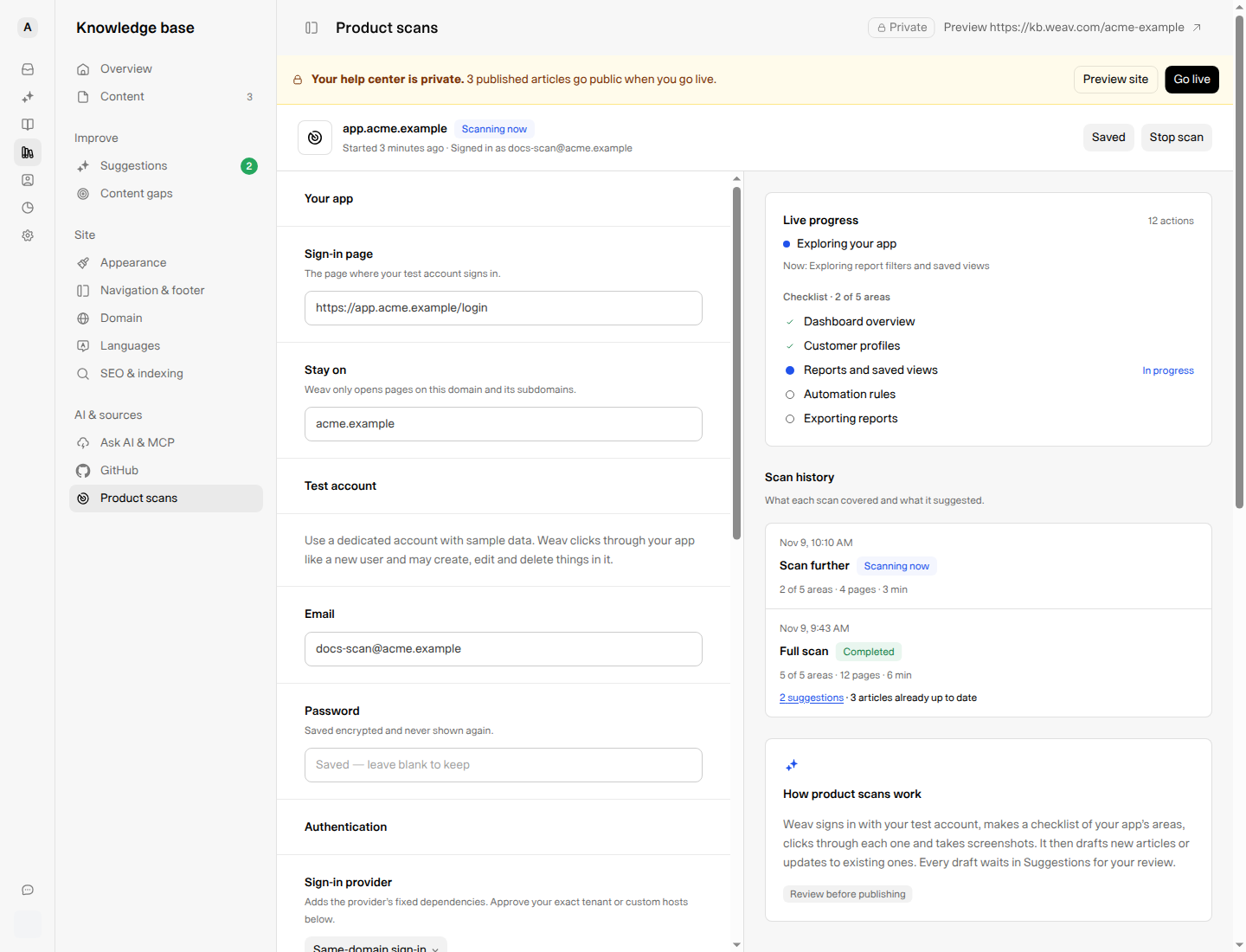
*An example scan exploring reports. Live progress helps you see what has been covered and what is still in progress.*
## Review the suggested articles
Use **Scan history** to see what a scan covered, how many suggestions it created, and which articles were already up to date.
Then open **Knowledge Base → Suggestions**. Review proposed new articles and updates, check their instructions and screenshots, choose the right category, and publish only what is ready.
For the complete review workflow, see [Review, edit, and publish Knowledge Base suggestions](https://docs.weav.com/knowledge-bases/review-edit-and-publish-knowledge-base-suggestions).
Check suggestions from one pass before expanding coverage. If something important was missed, update **Focus**, save the change, and select **Scan further**.
## Troubleshoot a failed or incomplete scan
When a scan fails, select **View logs** beside that run in **Scan history**. The **Scan logs** dialog shows **Why the scan failed** and any recorded browser steps. Credentials and typed text are hidden.
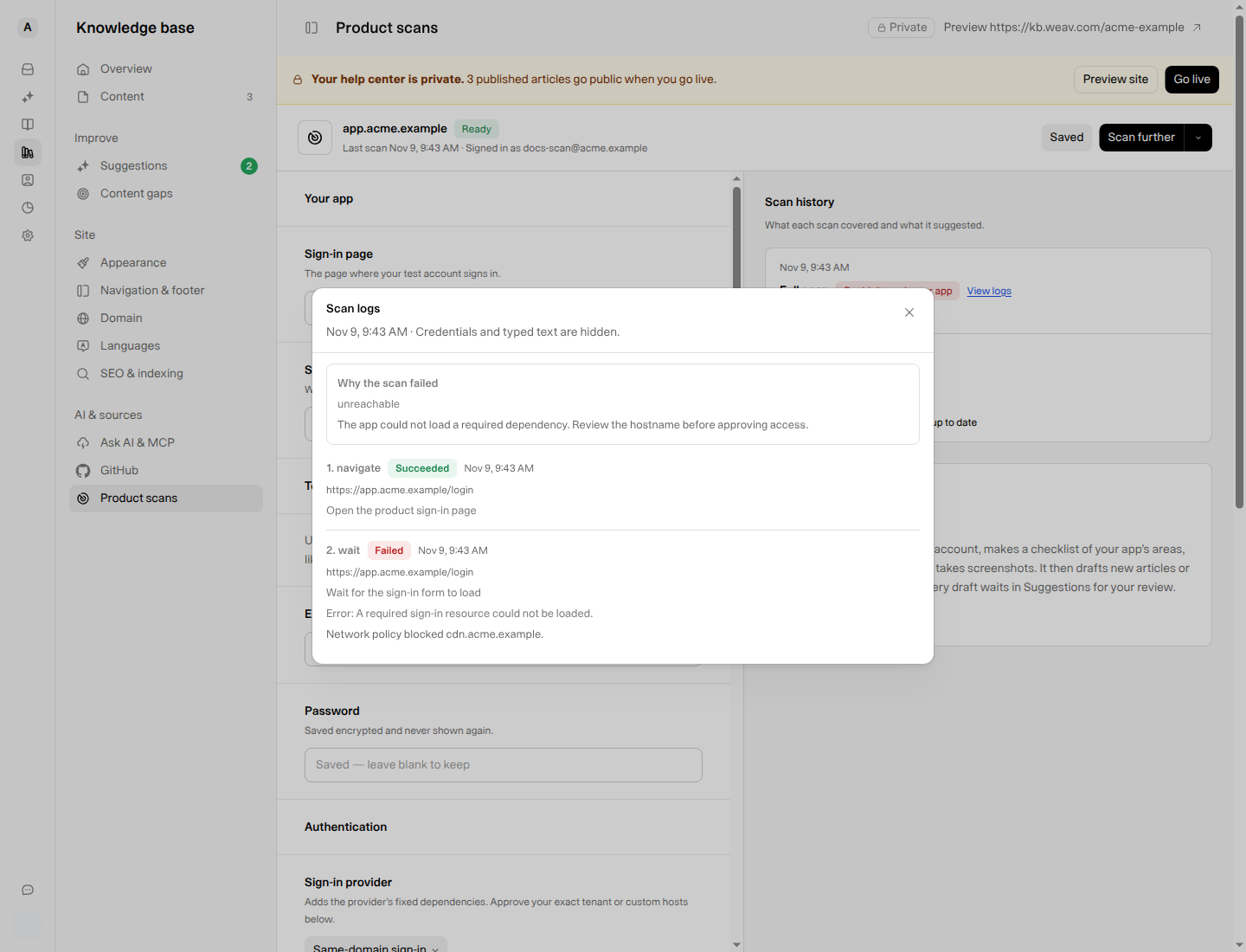
*Example troubleshooting data—not a real scan failure. Review the hostname and approve it only if your product genuinely requires it.*
| What you see | What to check |
| ----------------------------------------------- | --------------------------------------------------------------------------------------------------------------------------------------------------------------------------------- |
| **Product scans is missing** | Confirm that you are an owner or admin in the correct Weav organization. |
| **Couldn't sign in** | Check the test email and password, approved sign-in hosts, and whether MFA, CAPTCHA, passkeys, or email links require user action. |
| A blocked host or failed dependency in the logs | Identify what the host does. Add a trusted login host under **Approved sign-in hosts**, or a required asset/API host under **Additional dependency hosts**. Do not add wildcards. |
| **Couldn't reach your app** or **Blocked** | Check that the HTTPS URL is reachable and that network or bot protections are not preventing access. Do not disable protections broadly. |
| **No browser steps were recorded** | The scan failed before taking an action. Check the failure explanation and sign-in configuration first. |
| **Stopped at limit** | The scan reached its configured limit. Review what it produced, then use **Scan further** for additional coverage. |
| Start controls are disabled | Save or discard unsaved changes, or wait for the active scan to finish stopping. |
If a scan cannot start after you have checked the settings, try again in a few minutes. Contact support if it continues, with the failure message and relevant log details—not the account password.
## Frequently asked questions
### Will a product scan publish articles automatically?
No. It creates suggestions that wait for review. [GitHub documentation sync](https://docs.weav.com/knowledge-bases/connect-github-to-your-knowledge-base) is a separate workflow that can update published articles directly.
### Does saving settings start another scan?
The first-time **Scan** button saves and starts the initial scan. On the configured page, **Save** only saves settings; use **Start scan** or **Scan further** to run a scan.
### Will stopping or restarting remove earlier suggestions?
No. Stopping leaves suggestions already sent in Suggestions. **Start over** resets what the scanner uses from earlier exploration, not the suggestions already created.
For an overview of setup and the other ways Weav keeps documentation useful, see the [Knowledge Base getting-started guide](https://docs.weav.com/knowledge-bases/getting-started).
---
This knowledge base is built and hosted on [Weav](https://weav.com).