

Knowledge base get started guide
Create a help center that answers customer questions and gets better as your team learns and your product changes.
Weav’s self-improving knowledge base
Weav helps you create a knowledge base that does more than store and display help articles. It helps customers find answers and helps your team keep those answers useful as your product changes.
Start with your website, an existing help center, documentation in GitHub, or a few details about your product. Then connect the sources that help Weav spot missing answers and outdated guidance.
The result is a self-improving, self-healing knowledge base: one that can grow from what your team learns and stay aligned with the product your customers use.
What makes a knowledge base self-improving and self-healing?
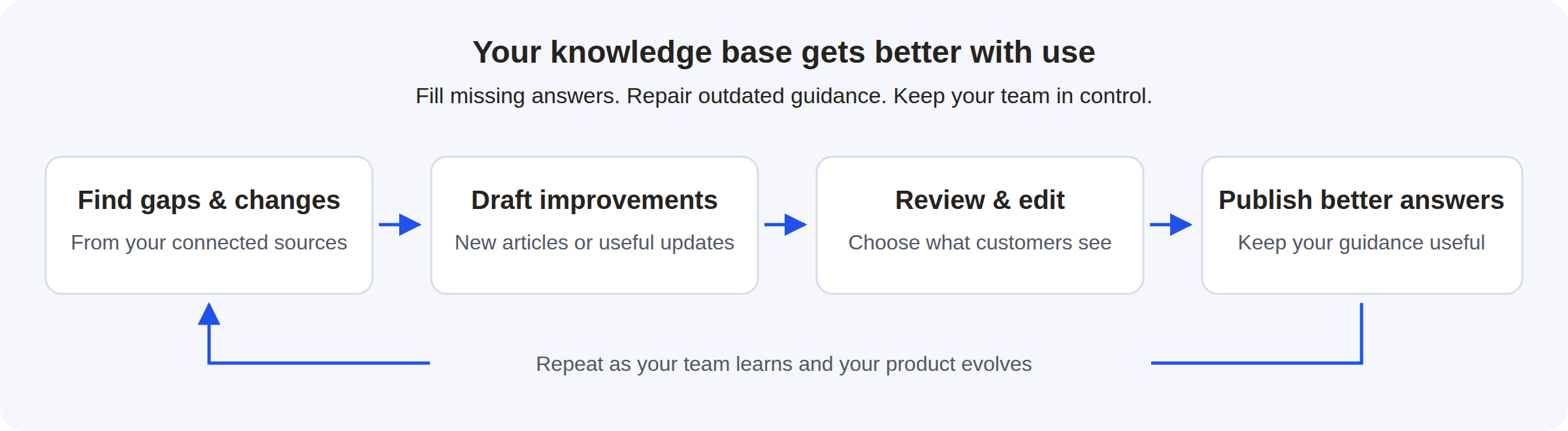
Most help centers rely on someone remembering to write a new article or update an old one. Weav helps turn those jobs into an ongoing workflow powered by Weav's managed AI agents.
- Self-improving means filling the gaps. Reusable answers from support conversations, reader questions, and product findings can help you identify topics that need better documentation.
- Self-healing means repairing outdated guidance. When connected sources reveal that instructions no longer match your product, Weav can propose changes to an existing article instead of leaving customers with stale steps.
For example, imagine you rename People to Team in your product. An old article still tells customers to open People. A relevant support correction or product finding can become a suggested update to that article.
You stay in control. Weav helps you find and fix outdated guidance; your team decides which suggested changes to publish.
1. Choose how to create your knowledge base
Open Knowledge base in Weav. During setup, answer the questions about your existing help center and website, or choose Skip, show me all options to see the available starting points.
Choose the option closest to where your content lives today:
| Starting point | When to use it |
|---|---|
| Move my help center | You already have help articles and want to bring them into Weav rather than start again. |
| Start from my website | You have a product website and want Weav to draft your first articles from it. |
| Start from scratch | You do not have a website or existing help center. Answer a few questions so Weav can draft a starting point. |
| My docs are in GitHub | Your documentation lives in a repository and you want to import it into Weav. |
Follow the setup prompts and review the resulting content. Treat generated articles as a first draft: check the facts, fill in missing details, and make sure the instructions match your product.
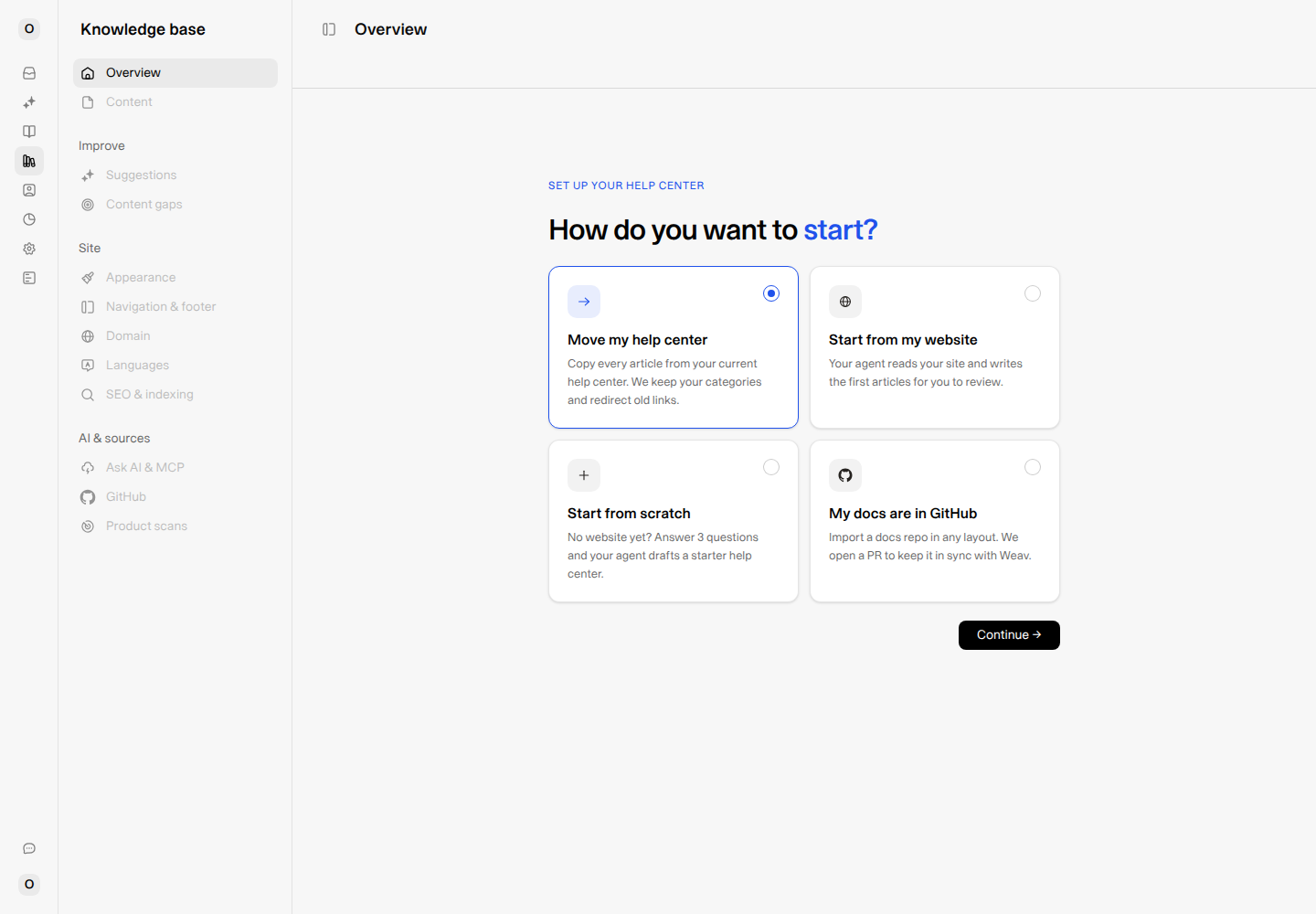
Choose the starting point that matches your existing content.
2. Review and organize your first articles
Go to Content to work on your articles. Use sections for broad areas, categories for related topics, and articles for individual answers.
For a simple starting structure, try:
- Getting started: the first tasks a new customer needs to complete.
- Using your product: common workflows and feature guides.
- Account and billing: access, workspace settings, and payment questions.
You can write in the visual editor or Markdown. Add screenshots where they make a step easier to follow, and use headings, short paragraphs, and numbered instructions.
Before publishing an article, check that it answers one clear question, explains any prerequisites, and tells the reader what should happen next.
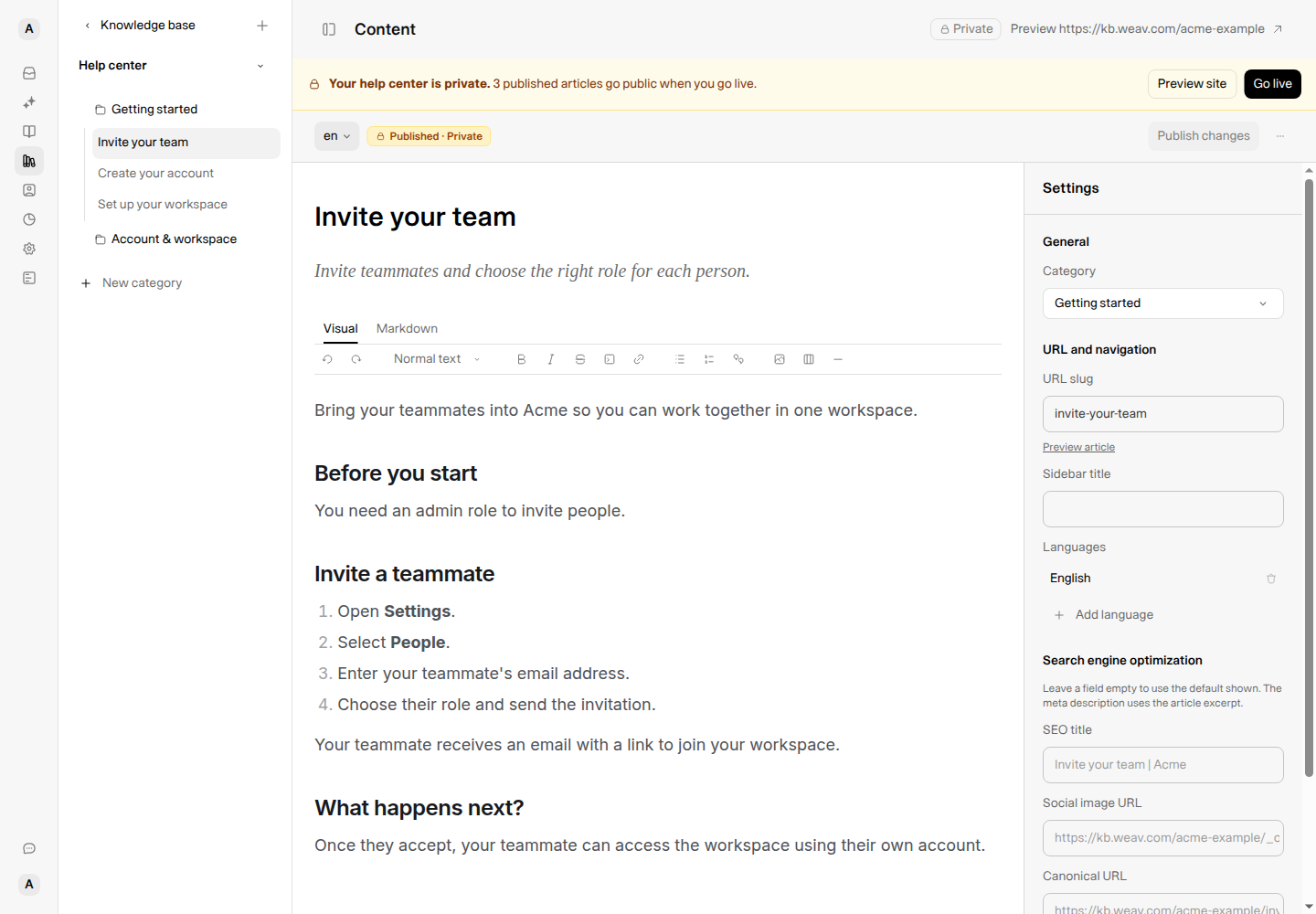
Organize content around what customers want to do, not just your product’s menus. This screenshot uses an example workspace.
3. Make it yours and go live
Once your first articles are ready, use the site settings to shape the reader experience:
- Appearance: add your branding and choose the look of your help center.
- Navigation & footer: give readers useful links and clear paths through your site.
- Domain: use your hosted address or configure a custom domain or website subpath.
- SEO & indexing: review how search engines and AI crawlers can discover your content.
Preview the site before you share it. Check article titles, links, screenshots, and navigation from a customer’s point of view.
Publishing an article and going live are separate steps. Your help center stays private until you choose Go live. When you go live, published articles become publicly accessible; drafts stay drafts.
You do not need every possible article on day one. Start with the answers your customers need most, then improve from real questions and product changes.
4. Connect the sources that keep answers current
A knowledge base becomes more useful when it is connected to the work happening around it. Use the sources relevant to your team:
- Support conversations: when a teammate corrects an AI draft or answers an escalated conversation, Weav can turn reusable information into an article suggestion.
- GitHub product repositories: connect product code so relevant merged pull requests can lead to documentation suggestions for review.
- Product scans: run scans of your product to help find missing or outdated instructions.
- Content gaps: review questions your knowledge base could not answer through search, Ask AI, or MCP feedback, then choose what to cover next.
These sources are not interchangeable. Set up the ones that reflect how your team supports customers and ships changes; connecting a source does not mean every event needs a new article.
> GitHub has two different workflows. Product-code monitoring creates suggestions for review. Documentation sync keeps your connected documentation files and Weav content in sync, and changes from the connected documentation branch can update published articles directly. Use that branch’s review process accordingly.
5. Review suggestions and close content gaps
Open Suggestions to review proposed new articles and updates. For an update, compare the proposed changes with the current article and check the supporting context.
Then choose:
- Publish if the suggestion is accurate and ready.
- Edit if it needs changes. Save your edits, then publish when you are happy with them.
- Discard if it is not useful or should not be added.
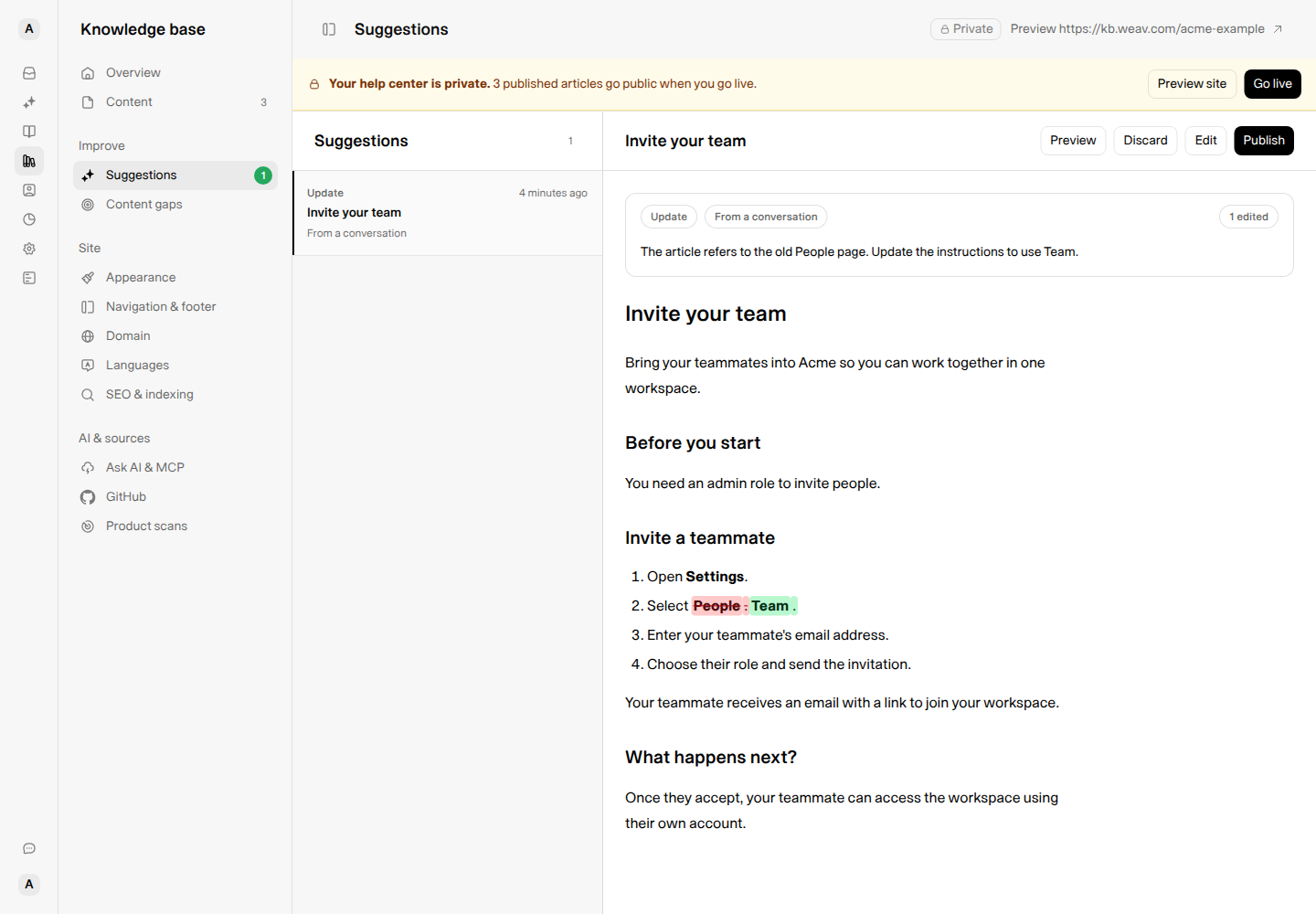
A self-healing update in practice: correct an outdated instruction without rewriting the whole article. The content shown is an illustrative example.
Visit Content gaps alongside Suggestions. Gaps tell you where readers still need help; suggestions give you proposed content to review. Together, they help you decide what to improve next.
What else can you do with Weav Knowledge Base?
As your help center grows, you can:
- Help readers find answers: offer search and, when enabled, Ask AI answers from your documentation.
- Support AI tools: enable MCP so compatible tools can use your knowledge base.
- Serve more languages: add languages, generate translation drafts, and review translations before publishing them.
- Improve discoverability: manage article SEO titles, descriptions, social-sharing details, and indexing controls.
- Understand what is useful: review the analytics and content gaps to see how people find and use your content.
You can add these capabilities as you need them. You do not have to configure everything before publishing your first useful answers.
Frequently asked questions
Do I need an existing help center?
No. Start from your website or choose start from scratch. If you already have help articles or GitHub documentation, you can import them instead.
Will Weav publish AI suggestions automatically?
Suggestions wait for your review. You choose whether to edit, publish, or discard them. GitHub documentation sync is a separate workflow that can update published content directly.
Can I keep my knowledge base private while I work?
Yes. Preview it while it is private and choose Go live when you are ready to make published articles public.
Does self-improvement work without connecting sources?
You can write and publish articles yourself, but ongoing improvement depends on the sources and support workflows you use. Connect relevant sources and review reader gaps to give Weav useful signals to work from.
Start with your customers’ most common questions
Open your knowledge base, choose your starting point, and review your first articles. Then connect your sources and make suggestions and content gaps part of your documentation routine.
You are not just launching a help center. You are building one that can get better as your team learns and your product evolves.