


Stripe tools require customer verification before they run in customer conversations. This helps protect billing and account data.
When to use the Stripe integration
Use Stripe when your agents need to help customers with billing questions or subscription workflows. Good use cases include:- Looking up a customer in Stripe
- Checking subscription status
- Finding recent invoices
- Sharing a secure billing portal link
- Helping a customer update billing details
- Canceling or updating a subscription after confirmation
Before you start
You will need:- Admin access in Weav
- Permission to connect your Stripe account
- A clear policy for what agents are allowed to do with billing data
- Decide which agents should have Stripe access
- Start with read-only tools before enabling update or cancellation tools
- Add billing rules to your agent Context
Connect Stripe
Path: Settings -> Integrations -> Stripe- Open Settings.
- Go to Integrations.
- Select Stripe.
- Click Connect.
- Complete the Stripe authorization flow.
- Return to Weav.
Give agents access
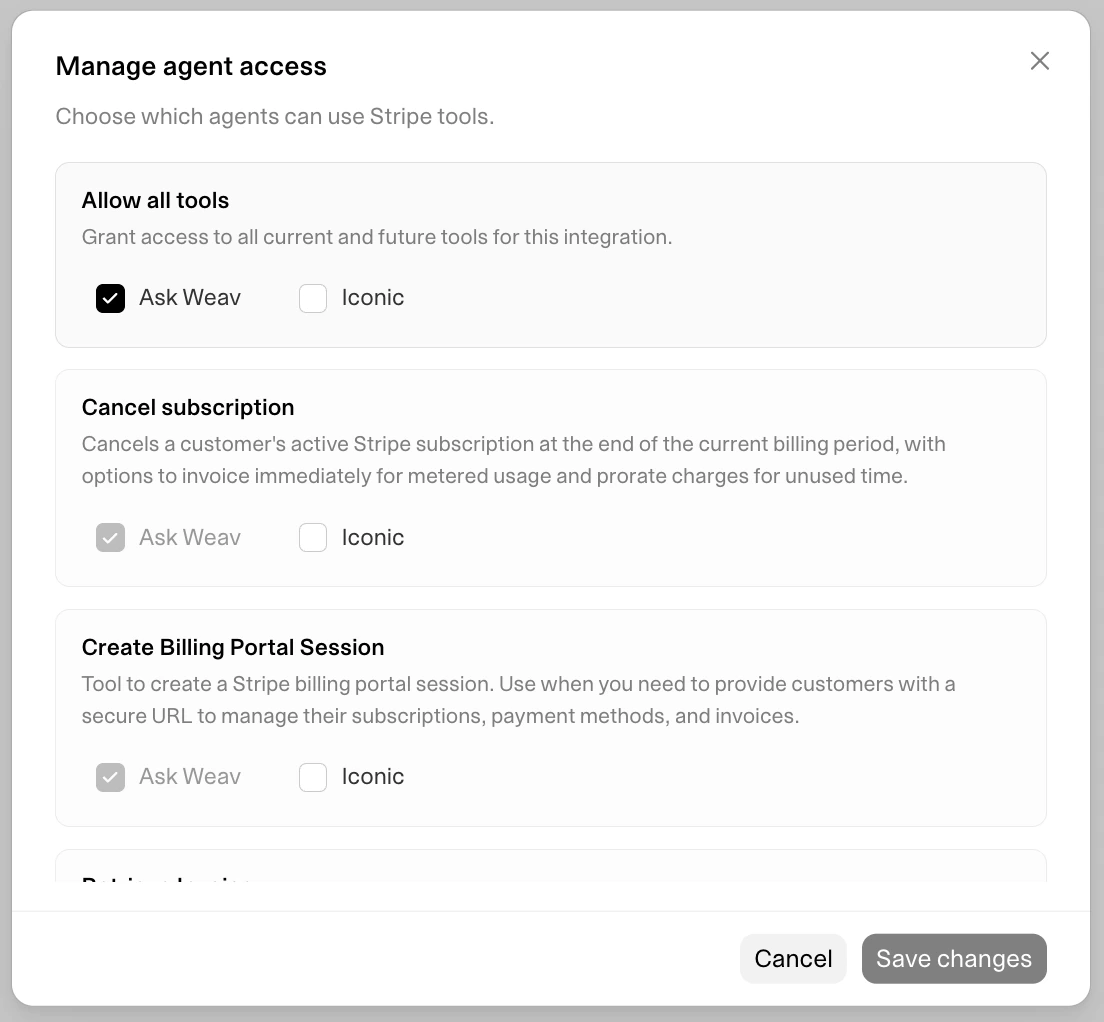
- Open Settings -> Integrations.
- Select Stripe.
- Click Manage access.
- Choose the agents that should use Stripe.
- Grant access to all Stripe tools or select specific tools.
- Click Save changes.
Allow all tools
Use Allow all tools when an agent should have access to every current and future Stripe tool. This is useful for a dedicated billing agent.Select specific tools
Use specific tool access when an agent should only handle certain workflows. Examples:- A general support agent can search customers and retrieve invoices.
- A billing agent can retrieve and update subscriptions.
- A retention agent can create billing portal sessions and cancel subscriptions.
Supported Stripe tools
The Stripe integration currently supports the following agent tools.How agents use Stripe tools
Agents decide when to use Stripe based on the customer’s request, the tools they have access to, and the guidance you provide in the agent’s settings. At generation time, the agent can:- Identify that the customer is asking about billing or subscriptions.
- Ask for any required information, such as an email address, customer ID, subscription ID, or invoice ID.
- Trigger customer verification when required.
- Call the appropriate Stripe tool.
- Use the result to answer the customer.
Customer verification
All supported Stripe tools require verification in customer conversations. When a Stripe tool is needed, Weav asks the customer to verify by email before the action runs. After verification succeeds, the agent can continue with the Stripe request. Use verification for Stripe because the tools can access sensitive billing data, including:- Customer records
- Invoices
- Subscription details
- Payment-related settings
- Account and billing updates
Verification protects customer data, but it does not replace your internal billing policies. Add clear instructions to your agent about what it should and should not do.
Read-only vs update tools
Stripe tools fall into two practical groups.Read-only tools
Read-only tools look up information without changing Stripe data. Read-only tools include:- Search Stripe customers
- Retrieve customer
- List subscriptions
- Retrieve subscription
- List Invoices
- Retrieve Invoice
- Create Billing Portal Session
Update tools
Update tools can change Stripe data or start a billing workflow. Update tools include:- Update Customer
- Update Subscription
- Cancel subscription
Example: Send a billing portal link
A customer asks:Can I update my payment method?The agent can:
- Search for the Stripe customer.
- Verify the customer.
- Create a Billing Portal Session.
- Send the secure Stripe portal URL to the customer.
Example: Check subscription status
A customer asks:Is my subscription still active?The agent can:
- Search for the Stripe customer by email.
- List subscriptions for that customer.
- Retrieve the relevant subscription if more detail is needed.
- Explain the subscription status and renewal date.
Your subscription is active and renews on May 15. Your current plan is Pro Monthly.
Best practices
Start with lookup tools
Begin with tools that search, retrieve, and list Stripe records. Add update tools later once your team is confident in the agent’s behavior.Prefer the billing portal for customer-managed changes
For payment methods, invoice downloads, and some subscription changes, the billing portal is often the safest option.Keep billing policies in Context
Tell the agent what it can do, what it should escalate, and when it must ask for confirmation. Include rules for:- Refund requests
- Subscription changes
- Cancellation offers
- Plan upgrades or downgrades
- Account ownership questions
- Failed payments or disputes
Limit access by agent role
Not every agent needs every Stripe tool. Give each agent the minimum access it needs for its job.Review sensitive workflows
Be extra careful with tools that update customers, update subscriptions, or cancel subscriptions.Troubleshooting
Stripe is not available to an agent
Check that:- Stripe is connected
- The agent is active
- The agent has access to Stripe tools
- The specific tool is enabled for that agent
The agent cannot complete a Stripe request
Check that:- The customer completed verification
- The agent has the required Stripe tool
- The customer provided enough information
- The Stripe customer, subscription, or invoice ID exists
- Your Stripe account allows the requested action
The agent is using the wrong Stripe tool
Update the agent Context. Add clear instructions for when to use each tool. For example, tell the agent to use the billing portal for payment method updates, and to use invoice tools only for invoice questions.The agent should not make billing changes
Remove access to update tools:- Update Customer
- Update Subscription
- Cancel subscription