

Overview
The Email settings page controls how your agent handles inbound email conversations for your workspace. For most teams, the two most important settings are:- Assignment (which agent is in charge of responding to emails)
- Auto-send threshold (how confident the agent must be before sending automatically)
How email assignment works

What “Assignment” does
When you click Assign to email on an agent:- That agent becomes the workspace’s active email agent
- Any previously assigned email agent is automatically unassigned
- Only one agent can be assigned to email at a time
Think of this as selecting your workspace’s “primary AI email teammate.”
What happens to conversations after assignment
Assignment mainly affects new inbound email conversations and conversations that don’t already have an agent attached. For incoming email conversations, Weav assigns the active email agent to the conversationImportant nuance (where confusion usually happens)
Changing assignment does not mass-migrate every existing conversation automatically. So if a conversation is already assigned elsewhere, that existing assignment will stay as-is until reassigned by your team.How auto-send threshold works
This setting decides whether the AI response should be:- escalated (no AI reply sent),
- saved as a draft for human user review,
- or auto-sent reply.
The mental model (simple version)
For each eligible customer email:- The AI generates a draft and confidence score
- Weav compares confidence against routing thresholds
- Weav chooses one path: escalate, draft, or auto-send
Confidence levels in the UI
Your slider options map to stricter or looser auto-send behavior.
Exactly when each outcome happens
1) AI does not auto-respond (human path / escalation)
This happens when confidence is too low (below the safety floor) or escalation conditions are met. Typical result:- Conversation is routed toward a human
- AI draft is not used as the final response path
2) AI creates a draft for review
This happens when confidence is acceptable but not high enough for auto-send. Typical result:- Draft appears for a teammate to review/edit/send
- Human stays in control of final outbound message
3) AI auto-sends
This happens when confidence meets/exceeds your selected threshold and auto-send is allowed. Typical result:- Response is treated as safe enough to send automatically
- Faster response times with less manual effort
When the agent won’t reply automatically (common reasons)
Even with assignment configured, auto-replies may not occur for specific messages:- Conversation is not assigned to an agent workflow path
- Message is classified as notification/system-style email
- Message is internal/non-customer
- Billing/trial access for AI resolution is unavailable
- Confidence falls into escalate-or-review paths instead of auto-send
Recommended rollout (to build team confidence)
If your team is new to AI email automation:- Start with High or Very high
- Review draft quality for a week
- Add/adjust escalation rules and assignees
- Move to Medium only after quality is consistently strong
Additional email settings
Escalation assignee
Who receives conversations when escalation is needed.Escalation rules
Specific triggers that force handoff to a human teammate.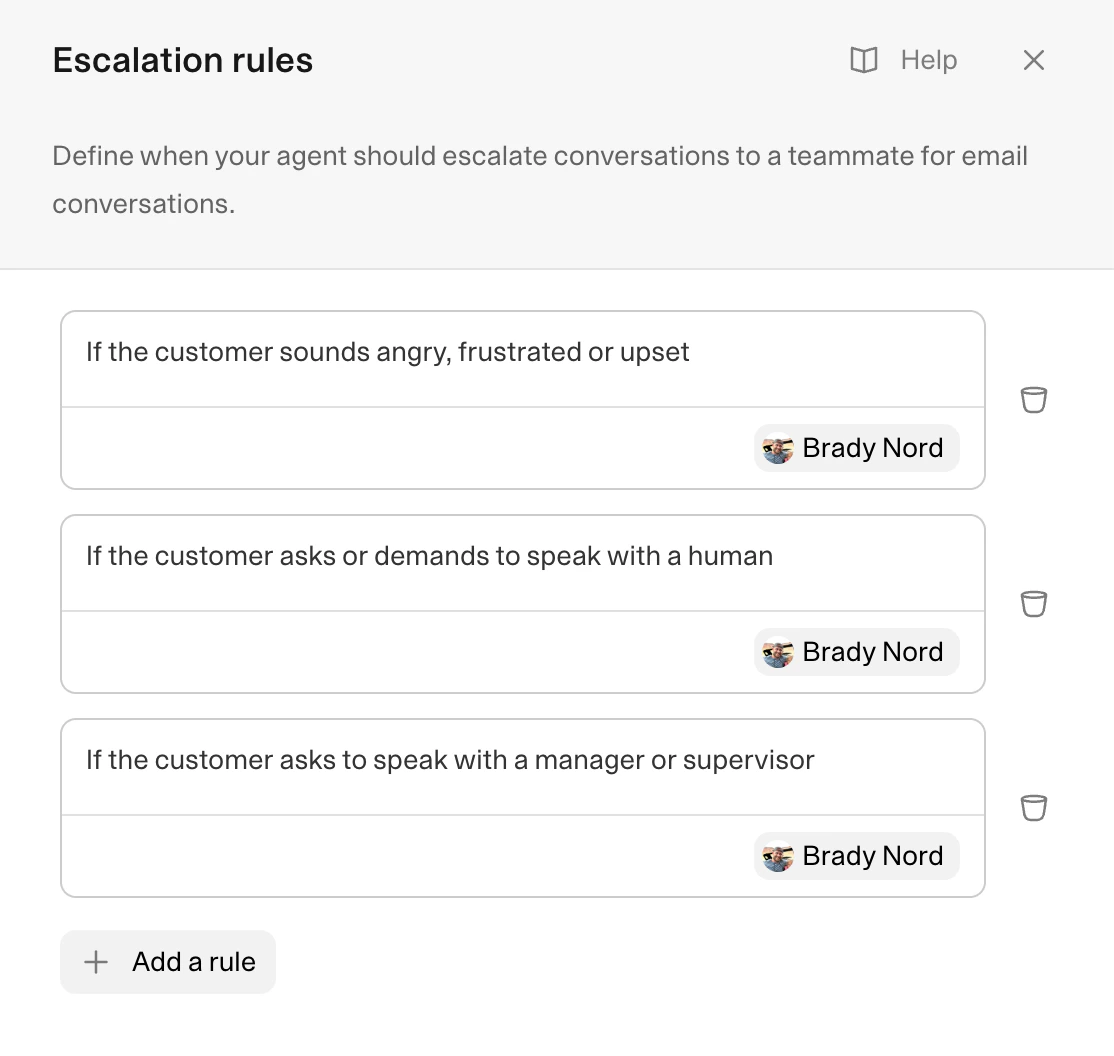
Signature
Appended signature format for agent-generated email content (supports using{agent_name} as a variable which gets replaced by the name of the agent in the signature).
Notice
Optional banner text shown at the top of agent emails (hidden, first email only, or all emails). This is helpful for instances when you want emails to always show a notice so you don’t have to repeat yourself. This is helpful for things like holiday promotions or communicating that you’re aware of an outage happening.Best practices
- Keep exactly one clear owner for email assignment
- Use conservative thresholds first, then loosen gradually
- Treat drafts as a training signal: edit patterns tell you what to improve
- Pair auto-send with strong escalation coverage for sensitive topics
- Revisit threshold monthly as your agent quality improves