

What are custom actions?
Custom actions let your Weav agents call your own HTTPS APIs during a conversation. Instead of stopping at “Here’s what I found,” your agent can:- Fetch live data from your systems
- Perform approved actions on behalf of the customer
- Return structured results and use them to generate a complete answer
When to use custom actions
Use a custom action when the agent needs to call an external API during a conversation. Strong use cases:- Looking up order status from your ecommerce system
- Checking subscription, invoice, or billing information
- Creating a support ticket in an internal tool
- Updating a booking or appointment
- Fetching account details from your backend
- Starting a return, exchange, or cancellation flow
If the answer lives outside Weav, use a custom action. Custom actions work best when your API:
- Has a clear, single purpose
- Returns structured JSON
- Requires defined inputs (like order ID or email)
Before you start
You’ll need:- An HTTPS API endpoint
- A JSON response from that endpoint
- Any required request headers (like authorization)
- A clear idea of when the agent should use the action
- The inputs the agent must collect before calling it
Custom action URLs must start with
https://. The API response must be valid JSON.Create a custom action
Path: Settings → Integrations → Custom Action- Open Settings
- Go to Integrations
- Select Custom Action
- Click Create custom action
General settings
Name
A short, internal name that clearly describes the action. Good examples:Look up order statusCreate return requestCheck subscriptionUpdate appointment
- Use action-oriented language
- Be specific about what the action does
- Avoid vague names like
API call
When to use
This is the most important field. It tells the agent:- When to call the action
- What to collect first
- How to use the response
Use this action when a customer asks about the status of an order, shipment, or delivery. Before calling the action, collect the customer’s order ID and email address. Use the response to explain the current order status, estimated delivery date, and tracking link if available.Bad example:
Use this to get order info.
API request
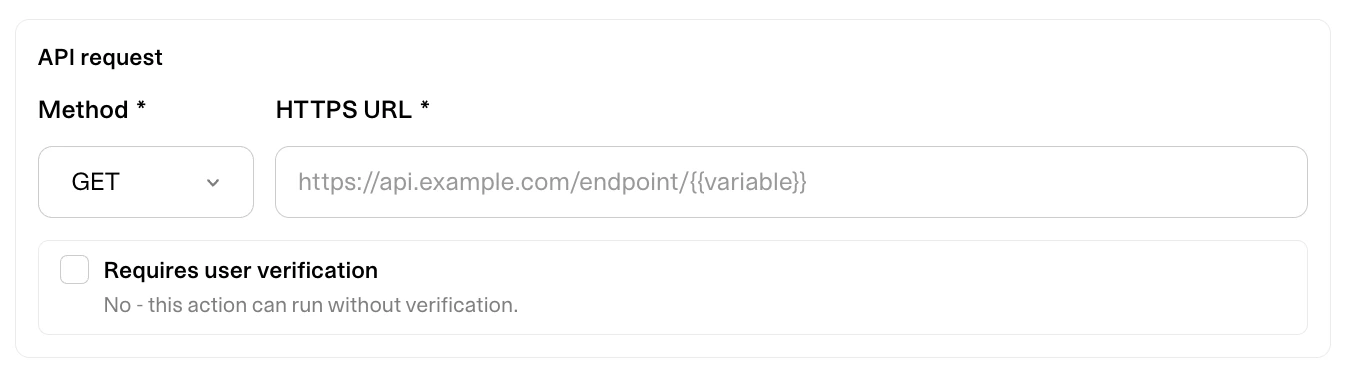
Method
Choose the HTTP method your API expects:GET→ read dataPOST,PUT,PATCH,DELETE→ change data or trigger workflows
HTTPS URL
Enter the endpoint Weav should call.Request parameters

Request headers

Request body
ForPOST, PUT, or PATCH:
Input variables
Input variables are values the agent can or should collect and pass into the API request. If a variable is required, the agent will try to collect the information from the customer.User verification
Enable Requires user verification when the action should only run after the customer verifies their identity. Use verification for actions that expose or change sensitive information, such as:- Billing details
- Subscription changes
- Account updates
- Personal customer data
- Order changes or cancellations
Data access
Data access controls how much of the API response the agent can use.Full
The agent can use the full JSON response. Use this when:- The response is small
- The response does not include sensitive fields
- All returned data is safe and useful for the agent
Limited
The agent can only use selected response paths. Use this when:- The API returns sensitive data
- The response is large
- The agent only needs a few fields
- You want more control over what can be used in replies
- data.status
- data.tracking_url
- data.estimated_delivery
Action status
Action status controls whether agents can use the custom action.- Active actions can be used by assigned agents
- Inactive actions cannot be used by agents
Assign the action to agents
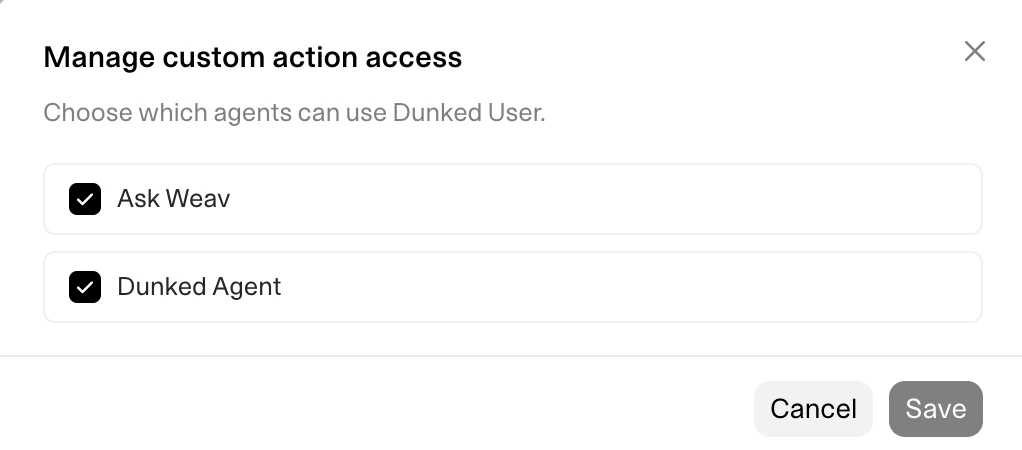
- Open Settings → Integrations.
- Select Custom Action.
- Find the action.
- Click Manage access.
- Select the agents that should be allowed to use it.
- Save your changes.
Troubleshooting
The action is not being used
Check that:- The action is active
- The action is assigned to the correct agent
- The “When to use” instructions are specific enough
- The agent has enough required inputs to call the action
The API request fails
Check that:- The URL starts with
https:// - The endpoint is reachable from the internet
- Required headers are configured
- Required input variables are present
- The request body is valid JSON
- The API returns a JSON response
The response is too large
Custom action responses should be small and focused. If your API returns too much data:- Use Limited data access
- Return fewer fields from your API
- Create a dedicated endpoint for the agent
- Avoid returning large arrays or full customer records