

- Let customers start a conversation with your business on WhatsApp
- Have your AI agent answer WhatsApp messages using your training data
- Escalate WhatsApp conversations to a teammate when a customer asks for a person
- Keep a full WhatsApp conversation history next to your chat and email conversations
- Add internal notes on WhatsApp conversations so your team can collaborate behind the scenes
Before you start
You will need:- Admin access in Weav
- At least one active AI agent in your workspace
- A Meta Business Manager account
- A WhatsApp Business phone number, or a phone number that isn’t currently active in the regular WhatsApp Business app
- Access to that phone number to receive a verification code by SMS or voice call
Connecting WhatsApp uses Meta’s Embedded Signup flow, so parts of the setup (such as verifying your business with Meta) happen inside a Meta popup rather than inside Weav. Depending on your Meta Business Manager account, Meta may ask you to complete business verification before your number can send messages.
Connect WhatsApp
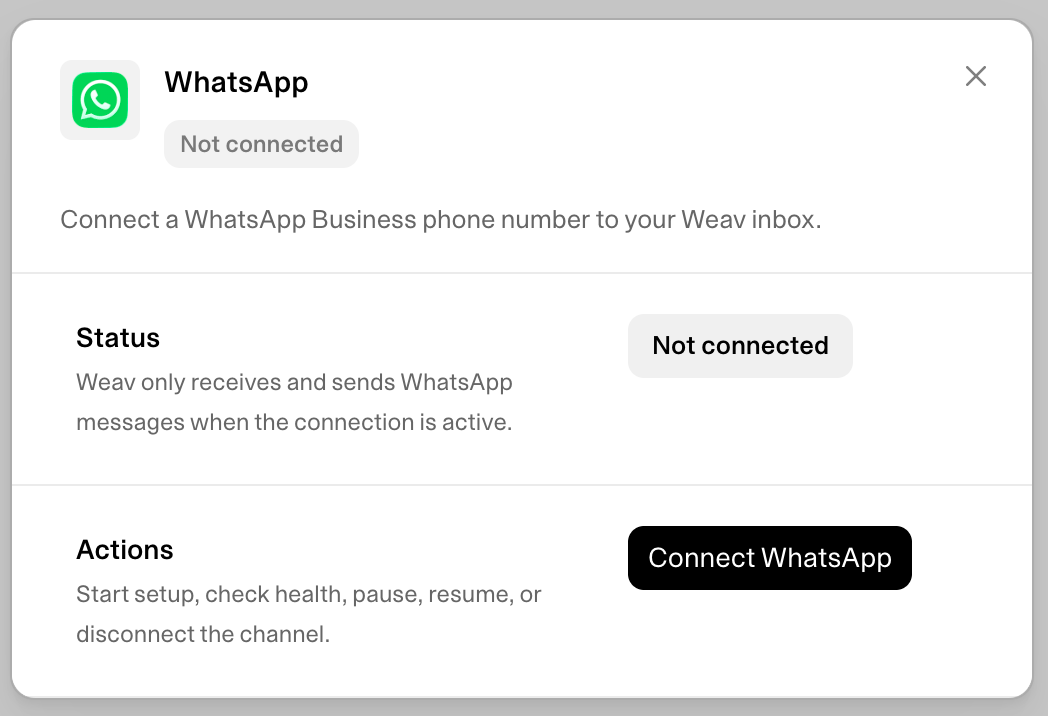
- Open Settings.
- Go to Integrations.
- Select WhatsApp.
- Click Connect WhatsApp.
- Complete Meta’s Embedded Signup flow in the popup window: sign in to your Meta Business Manager account, and either select an existing WhatsApp Business Account and phone number or create new ones.
- Once the popup closes, return to Weav.
Weav handles the Meta webhook configuration for you. You will never need to paste a webhook URL, API key, or access token into Weav.
Register your phone number
Some phone numbers need to be registered with Meta’s Cloud API before Weav can send outbound WhatsApp messages. If this step is needed, Weav will show a Phone registration prompt on the WhatsApp integration page after you connect.- Open Settings -> Integrations -> WhatsApp.
- Find the Phone registration section.
- If this number already has two-step verification enabled in WhatsApp Manager, enter its existing 6-digit PIN. Otherwise, leave the PIN field blank.
- Click Register phone number.
Inbound WhatsApp messages still arrive in your inbox while registration is pending. Outbound replies (including AI-generated ones) are blocked until the number is registered.
Assign an agent to WhatsApp
WhatsApp is a workspace-level channel, and one AI agent is assigned to handle it at a time.- Open the agent you want to handle WhatsApp conversations.
- Go to its WhatsApp tab.
- Click Assign to WhatsApp.
Configure agent behavior
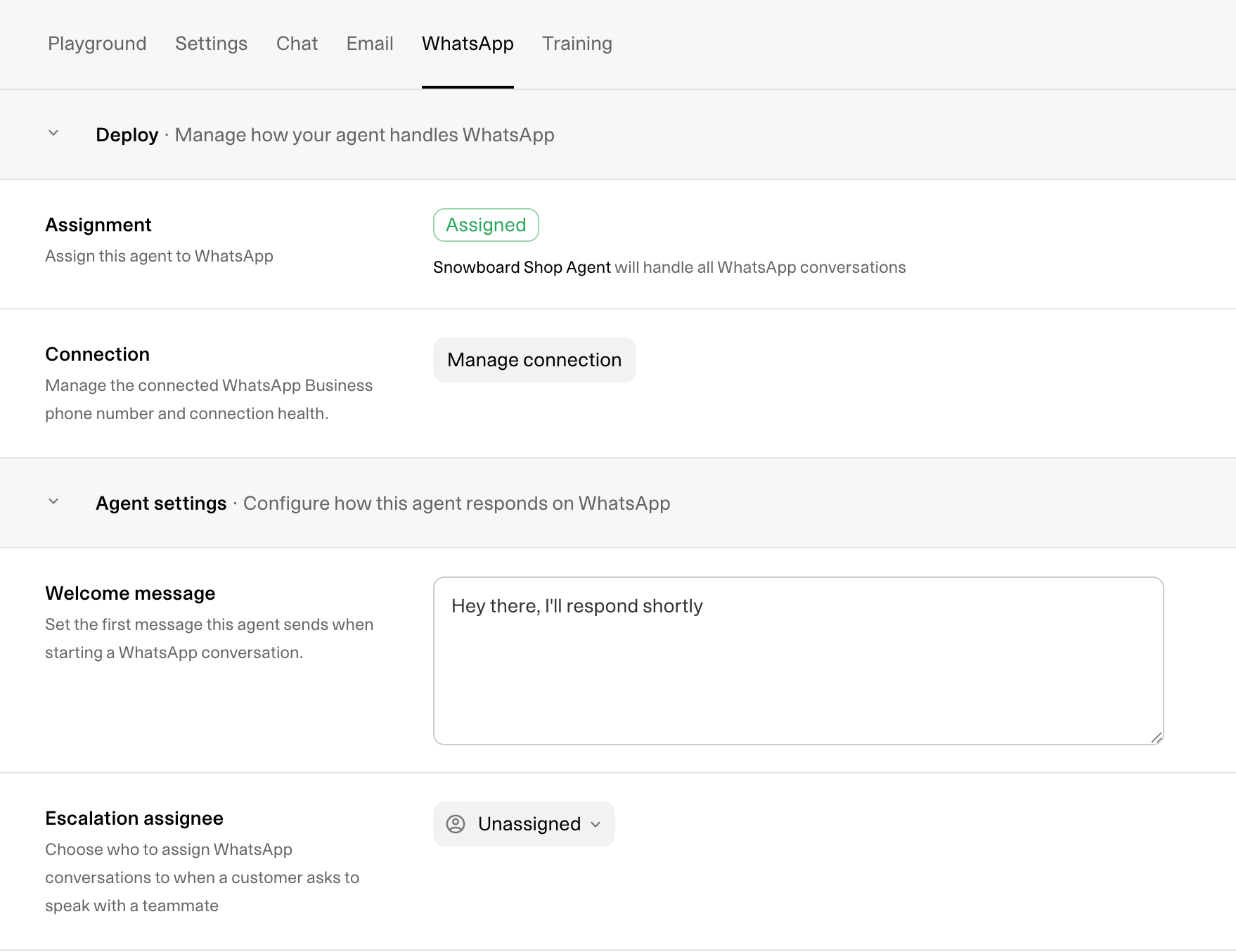
- Welcome message — the first message this agent sends when it starts a new WhatsApp conversation.
- Escalation assignee — the teammate WhatsApp conversations are assigned to when a customer asks to speak with a person.
How WhatsApp conversations work
- WhatsApp conversations appear in your unified inbox alongside chat and email, with their own channel indicator.
- Your assigned AI agent answers using your training data, the same way it does on chat and email.
- Meta only allows outbound WhatsApp messages within a 24-hour customer service window, starting from the customer’s most recent message. Once that window closes, you and your AI agent can no longer send a reply until the customer messages again, but you can still add internal notes to keep track of the conversation internally.
- Customers can ask to speak with a person at any time, which hands the conversation to the escalation assignee configured on the agent’s WhatsApp tab.
Manage the connection
Path: Settings -> Integrations -> WhatsApp- Check health — verifies the connection is still valid with Meta and refreshes its status.
- Pause — temporarily stops sending and receiving WhatsApp messages without disconnecting your number. Use this if you need to pause support without losing your setup.
- Resume — turns a paused connection back on.
- Disconnect — removes the WhatsApp connection from Weav entirely. You’ll need to complete Embedded Signup again to reconnect.
Good to know
- Only one AI agent can be assigned to WhatsApp per workspace at a time.
- Weav does not currently support Meta message templates, so all outbound messages are regular freeform replies sent within the 24-hour window.
- WhatsApp is available on all Weav plans at no extra cost.
Troubleshooting
I can’t finish connecting WhatsApp
Check that:- You’re signed in to Weav with admin access.
- You completed the Meta popup fully, closing it early cancels the connection.
- Your Meta Business Manager account has permission to manage the WhatsApp Business Account and phone number you selected.
- Your phone number isn’t already active in the regular WhatsApp Business app. If it is, migrate it to the WhatsApp Business Platform in Meta’s flow, or choose a different number.
The connection shows “Setup incomplete” or “Error”
Click Check health on the WhatsApp integration page to refresh the connection status and see the latest detail message. If the issue persists, try disconnecting and reconnecting through Embedded Signup.Outbound messages aren’t sending
Check that:- Your phone number is registered with Meta (see Register your phone number above).
- The conversation’s 24-hour reply window hasn’t expired. If it has, you can still add an internal note, but you’ll need to wait for the customer to message again before replying.
- The WhatsApp connection status is Active, not Paused.
The wrong agent is responding on WhatsApp
Go to the agent that should handle WhatsApp and click Assign to WhatsApp on its WhatsApp tab. Assigning a new agent immediately takes over future WhatsApp conversations.I registered my phone number but it still won’t send messages
Double-check the PIN you entered matches the existing two-step verification PIN configured in Meta’s WhatsApp Manager. If this number has never had two-step verification enabled, leave the PIN field blank and try again.Customers say messages aren’t reaching my inbox
Check that:- The WhatsApp connection status is Active, not Paused or Disconnected.
- You didn’t recently disconnect and forget to reconnect Weav in Meta Business Manager.