
Shopify
Learn how to connect Shopify with your AI Agents
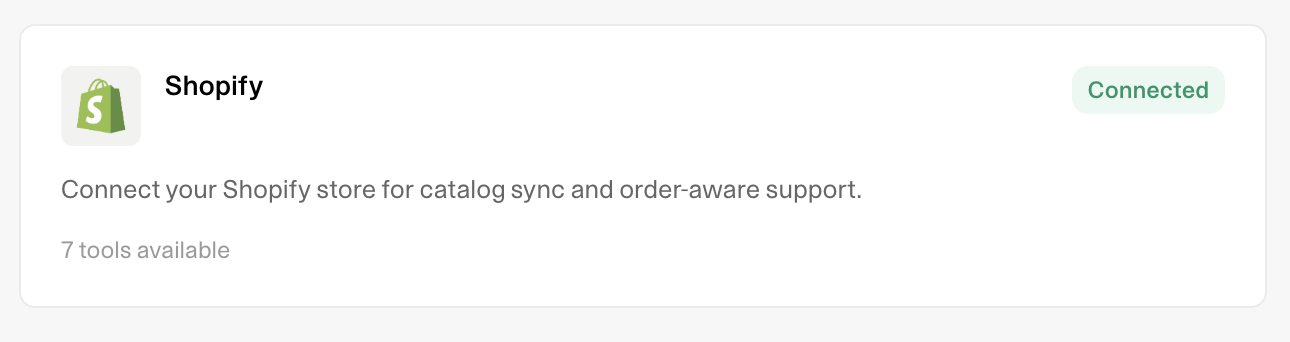
The Shopify integration connects your Weav workspace to a Shopify store so your AI agents can help shoppers with product questions, order status, and common order changes.
After Shopify is connected, agents can search your live catalog, check inventory, look up orders, cancel orders, update shipping addresses, or edit line items. Product catalog data can sync into Training, and the Weav chat widget can be added to your storefront through the Shopify app.
Order tools require customer email verification before they run in shopper conversations. This helps protect order and account data.
When to use the Shopify integration
Use Shopify when your agents need to help customers with store-specific questions or order workflows.
Good use cases include:
- Recommending products from your catalog
- Checking whether a variant is in stock
- Looking up order status or tracking
- Helping a customer cancel an order
- Updating a shipping address before fulfillment
- Swapping a size or color, or changing quantity on an existing order line
- Answering questions using synced product training data and store policies
Shopify works best for agents that handle pre-purchase shopping, post-purchase support, or both on your storefront chat widget.
Connect Shopify
You can connect from the Shopify App Store or directly in Weav.
Option A: Install from the Shopify App Store
- Install Weav — AI customer service from the Shopify App Store.
- Open the app in Shopify admin.
- Choose Sign up for Weav (new account) or Connect your Weav account (existing workspace).
- Sign in or create your Weav account.
- Complete the Shopify authorization flow in Weav.
- Return to the Shopify app — the connection should show as Connected.
After connecting, use the embedded app to pick your storefront agent, add training, and activate the chat widget on your theme.
Option B: Connect from Weav
Path: Settings → Integrations → Shopify
- Open Settings.
- Go to Integrations.
- Select Shopify.
- Enter your store domain (for example
your-store.myshopify.com). - Click Connect.
- Complete the Shopify authorization flow.
- Return to Weav.
After Shopify is connected, the integration shows as Connected. Product sync and storefront policy discovery start automatically in the background.
If you installed the Shopify app first, Weav can pre-fill your store domain when you open Settings → Integrations from the embedded app.
Configure Shopify settings
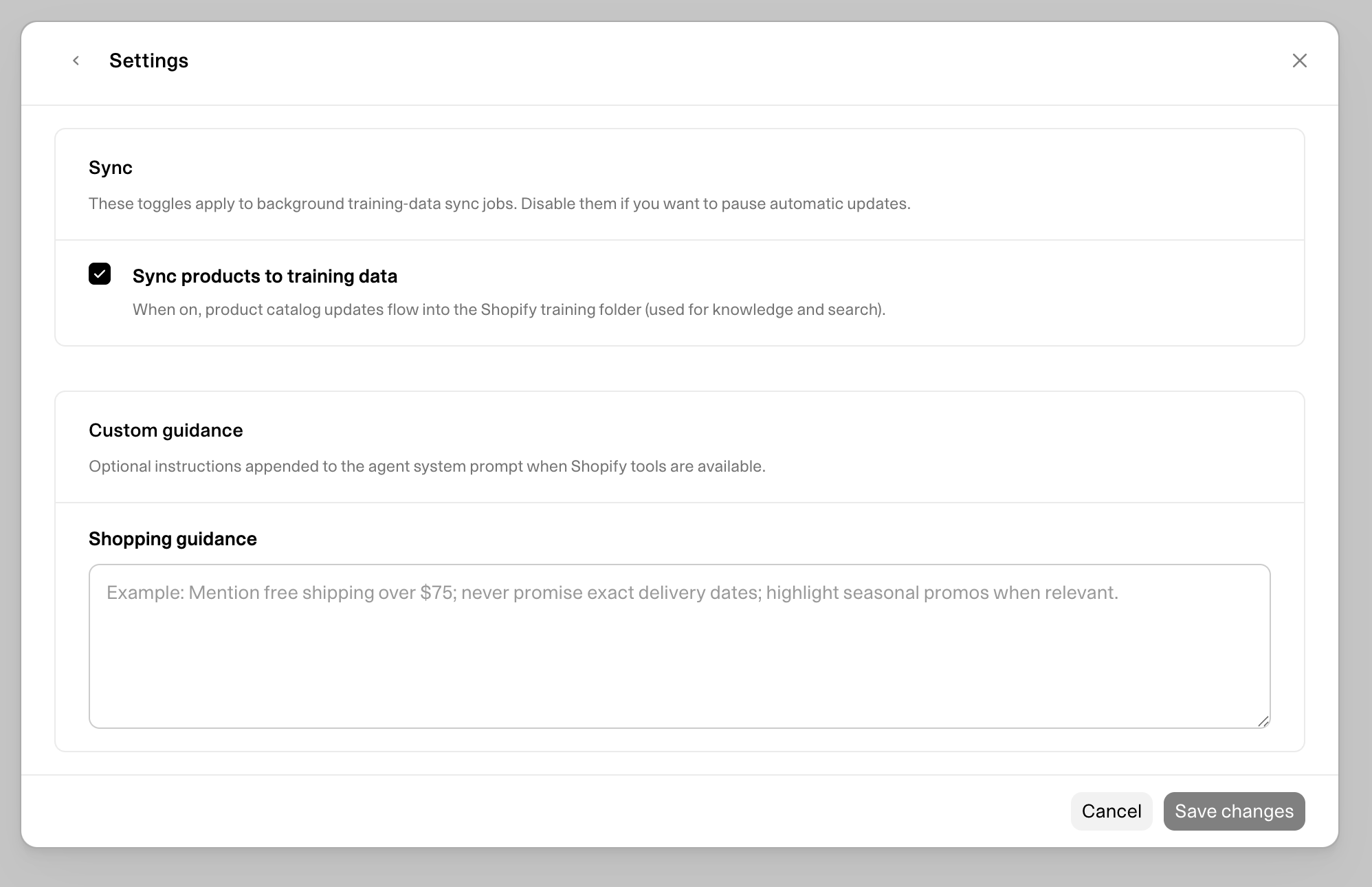
Path: Settings → Integrations → Shopify → Settings
Sync products to training data
When enabled, product catalog updates flow into the Shopify folder in Training. This keeps agent knowledge aligned with your catalog.
- Turned on by default after connect
- Updated when products change in Shopify (via webhooks) and on a daily sync
- Turn off if you want to pause automatic product updates
Custom shopping guidance
Optional instructions appended to the agent system prompt when Shopify tools are available.
Use this for store-specific rules such as:
- Free-shipping thresholds
- Seasonal promotions
- What agents should never promise (for example exact delivery dates)
- How to handle out-of-stock items
Activate the storefront chat widget
The Weav chat widget is added to your Shopify theme through a Theme App Extension, not a manual script tag.
From the Shopify app (after your store is connected):
- Open the Weav app in Shopify admin.
- If you have multiple agents, select Agent shoppers see and click Save agent.
- Click Activate on storefront to open the theme editor.
- Enable the Weav Chat Widget app embed.
- Click Save in the theme editor.
You only need to activate the app embed once per theme. To turn the widget off, disable the Weav Chat Widget app embed in your theme editor.
Give agents access
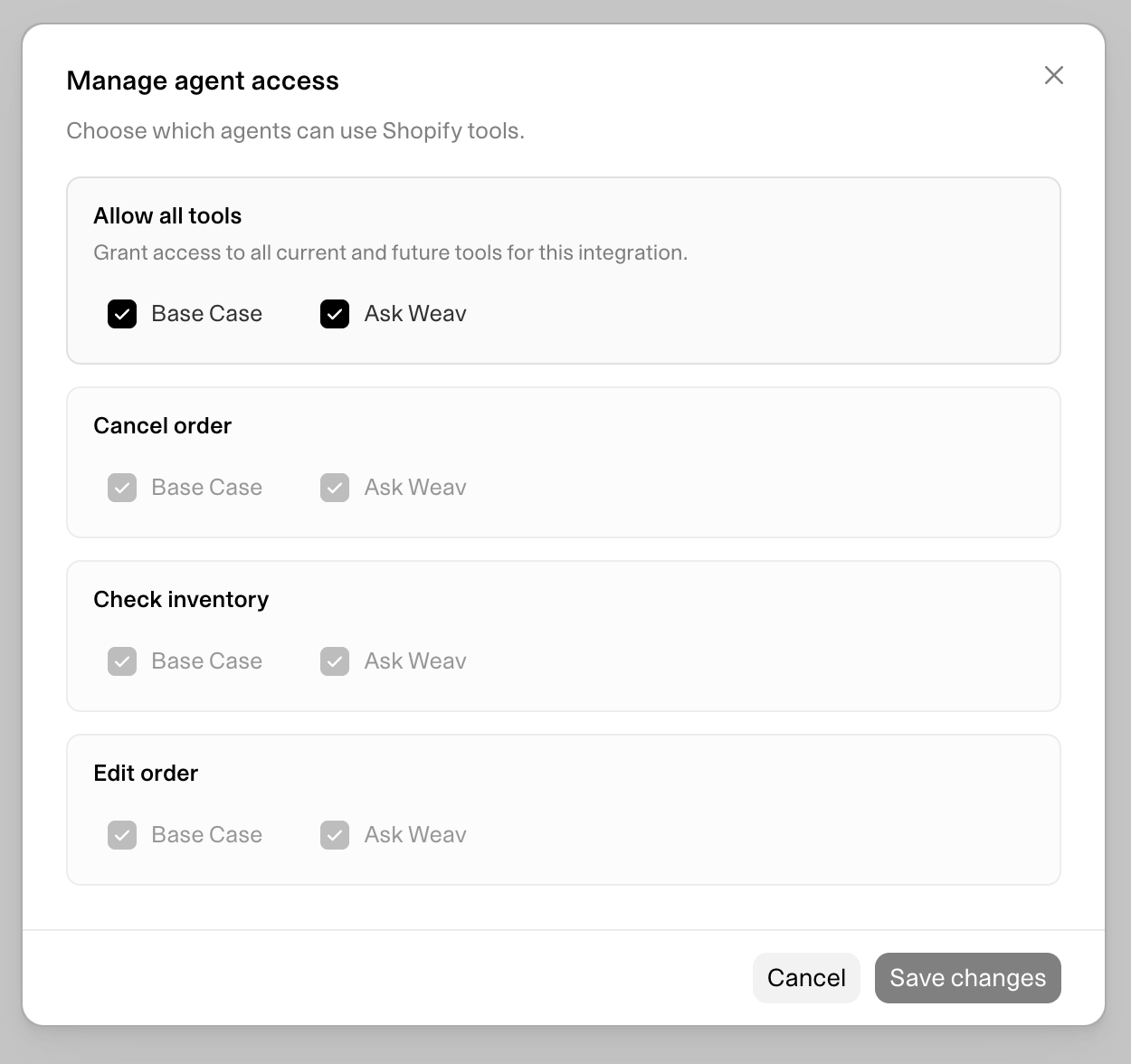
Shopify tools are not automatically available to every agent. You choose which agents can use them.
- Open Settings → Integrations.
- Select Shopify.
- Click Manage access.
- Choose the agents that should use Shopify.
- Grant access to all Shopify tools or select specific tools.
- Click Save changes.
On first connect, entitled tools are granted to active agents based on your workspace's AI actions limit. You can refine access afterward.
Allow all tools
Use Allow all tools when an agent should have access to every current and future Shopify tool.
This is useful for a dedicated shopping and support agent on your storefront.
Select specific tools
Use specific tool access when an agent should only handle certain workflows.
Examples:
- A pre-purchase agent can search products and check inventory only.
- A post-purchase agent can look up orders and get order details.
- A fulfillment agent can update shipping addresses and edit orders.
For most teams, start with specific tool access. Add update tools once you are confident the agent follows your support policies.
Supported Shopify tools
The Shopify integration currently supports the following agent tools.
| Tool | What it does | Verification | Best for |
|---|---|---|---|
| Search products | Searches your live Shopify catalog by keywords (titles, variants, handles). Only returns products with at least one purchasable variant. | None | Product recommendations, browsing, and discovery |
| Check inventory | Returns live availability and quantity for a specific product variant. | None | "Is this in stock?" and variant-level availability |
| Look up customer orders | Lists the shopper's recent orders (newest first, up to 20). | Required | "Where is my order?" and order history |
| Get order details | Fetches one order — line items, status, totals, fulfillment, tracking, and sibling variants for swaps. | Required | Order status, tracking, and preparing order edits |
| Cancel order | Cancels an eligible order with configurable reason, restock, customer notification, and refund options. | Required | Confirmed cancellation requests |
| Update shipping address | Updates the shipping address on an order before fulfillment locks it in. | Required | Address changes before shipment |
| Edit order | Swaps a line item's variant (size, color, etc.) and/or changes quantity on existing lines. Cannot add or remove line items. Blocks edits that raise the order total. | Required | Size/color swaps and quantity changes |
Product cards in chat
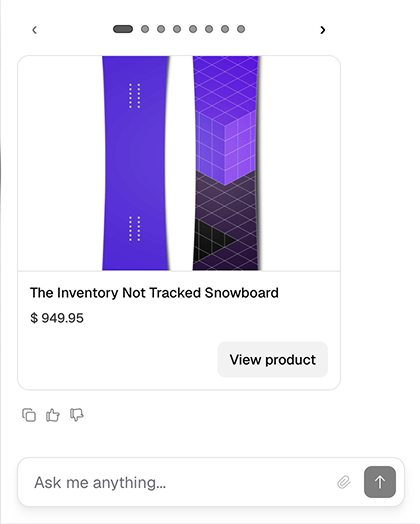
When an agent searches products in a chat conversation, Weav can show interactive product cards in the widget so shoppers can browse results visually. Product cards are not shown in email conversations.
How agents use Shopify tools
Agents decide when to use Shopify based on the customer's request, the tools they have access to, and the guidance you provide in the agent's settings.
Catalog and inventory (no verification)
For product questions, the agent can:
- Identify that the shopper is asking about products or availability.
- Call Search products or Check inventory.
- Use the result to answer or recommend items from your store.
Product search only surfaces items that are available for sale. Agents will recommend products from your catalog or training data, not competitors or external sites.
Order workflows (verification required)
For order questions, the agent can:
- Identify that the shopper is asking about their order.
- Call the relevant order tool.
- Weav prompts the shopper to verify their email before the tool runs.
- After verification, the agent continues with the order request.
For example, if a customer asks "Where is my order?", the agent calls Look up customer orders, the shopper verifies their email in chat, and the agent explains order status and tracking.
For order changes, the agent typically calls Get order details first, confirms the change with the shopper, then calls Cancel order, Update shipping address, or Edit order.
Customer verification
Order tools require verification in shopper conversations:
- Look up customer orders
- Get order details
- Cancel order
- Update shipping address
- Edit order
Search products and Check inventory do not require verification.
Chat widget
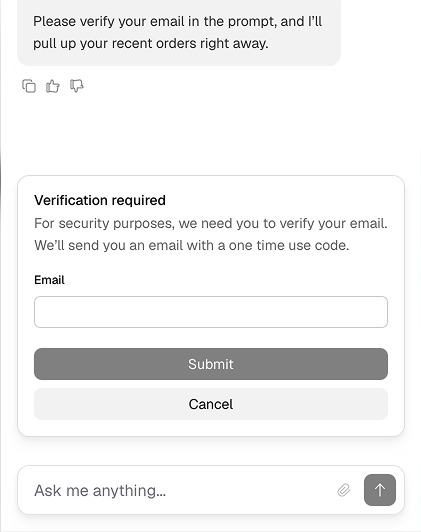
When an order tool is needed in chat, Weav shows an in-chat verification card. The shopper enters their email, receives a one-time code, and verifies. After verification succeeds, the agent can continue with the order request.
Once verified, the shopper can use additional order tools in the same conversation for about 30 minutes without verifying again.
The verified email must match an email on file for the order. If an order has no email on file, the agent should escalate to your team.
In email conversations, verification works differently. The agent asks the customer for their email, sends a verification code, and waits for the customer to reply with the code before the order tool runs.
Verification protects customer data, but it does not replace your internal support policies. Add clear instructions to your agent about what it should and should not do.
Read-only vs update tools
Shopify tools fall into two practical groups.
Read-only tools
Read-only tools look up information without changing Shopify data.
Read-only tools include:
- Search products
- Check inventory
- Look up customer orders
- Get order details
Use these first when setting up a new Shopify-enabled agent.
Update tools
Update tools can change Shopify data.
Update tools include:
- Cancel order
- Update shipping address
- Edit order
For update tools, the agent should summarize what will change and ask the customer to confirm before continuing.
Edit order limitations:
- Can only modify existing line items (variant swap and/or quantity change)
- Cannot add or remove products from an order
- Cannot change the shipping address (use Update shipping address instead)
- Cannot apply discounts
- Blocks edits that would increase the order total
Only give update tools to agents that have clear support instructions and are allowed to make order changes.
Training data and catalog sync
Connecting Shopify can populate your agent's knowledge in two ways.
Product catalog
When Sync products to training data is enabled:
- Products are stored in the Shopify folder in Training
- Updates flow in when products are created, updated, or deleted in Shopify
- A daily sync also keeps the catalog current
Agents use this training data alongside live catalog search.
Store policies and pages
After connect, Weav can discover your storefront's /policies/* and /pages/* URLs and ingest them as website training data. This helps agents answer questions about shipping, returns, and store policies.
If you already added your store URL during onboarding, Weav skips duplicate policy ingestion for the same domain.
What is not synced
Orders and customer records are not stored in training data. Order tools query Shopify live at conversation time.
Shopify context in the inbox
When Shopify is connected, human agents see a Shopify section in the conversation sidebar.
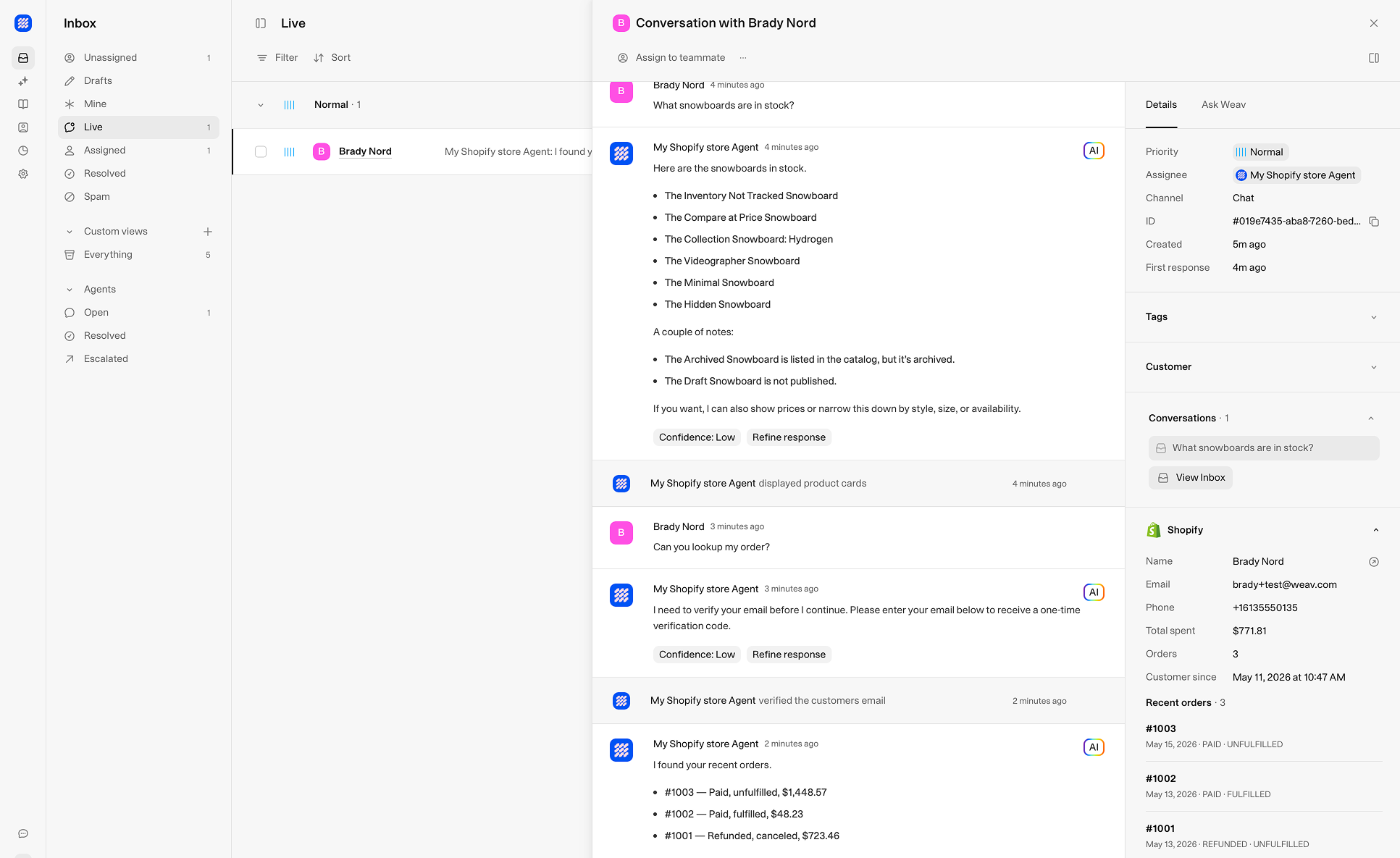
This section helps your team:
- See whether a conversation's customer matches a Shopify customer
- Search for and link a Shopify customer profile
- View recent orders and open the customer in Shopify admin
Searching Shopify customers in the inbox may require Protected Customer Data approval from Shopify. Without approval, customer search can be restricted.
Example: Recommend a product
A customer asks:
Do you have wireless earbuds under $100?
The agent can:
- Call Search products with keywords like "wireless earbuds".
- Filter results to in-stock, purchasable variants.
- Recommend matching products from your store.
- Show product cards in the chat widget (if on chat).
Example: Check order status
A customer asks:
Where is my order?
The agent can:
- Call Look up customer orders.
- Prompt the shopper to verify their email.
- List recent orders for that email.
- Call Get order details if more information is needed.
- Explain fulfillment status and tracking.
Good response:
Your order #1042 shipped yesterday. Tracking number: 1Z999AA10123456784. It should arrive by Friday.
Example: Swap a size on an order
A customer asks:
Can I change the snowboard on order #1003 from size 150 to size 160?
The agent can:
- Call Get order details for order #1003.
- Find the line item and matching variant in
sibling_variants. - Confirm the change with the shopper.
- After verification, call Edit order to swap the variant.
If the swap would raise the order total, the edit is blocked and the agent should explain the limitation.
Best practices
Start with lookup tools
Begin with Search products, Check inventory, Look up customer orders, and Get order details. Add update tools later once your team is confident in the agent's behavior.
Use custom guidance for store rules
Add promos, shipping thresholds, and escalation rules in Settings → Integrations → Shopify → Settings → Shopping guidance. Keep broader support policies in the agent's Context.
Keep support policies in Context
Tell the agent what it can do, what it should escalate, and when it must ask for confirmation.
Include rules for:
- Refund requests
- Returns and exchanges
- Cancellations after fulfillment
- Address changes after shipment
- Out-of-stock alternatives
- When to hand off to a human
Limit access by agent role
Not every agent needs every Shopify tool. Give each agent the minimum access it needs.
- Storefront shopping agent: product search and inventory
- Post-purchase agent: order lookup and details
- Fulfillment agent: address updates and order edits
Review sensitive workflows
Be extra careful with Cancel order, Update shipping address, and Edit order.
Sync products for better answers
Keep Sync products to training data enabled so agents have stable product knowledge even when live search is not needed.
Disconnect and reinstall
Disconnect in Weav or from the Shopify embedded app turns off the storefront widget configuration in Weav. The Shopify app remains installed so you can reconnect later.
Uninstalling the app in Shopify fully disconnects the store in Weav.
Troubleshooting
Shopify is not available to an agent
Check that:
- Shopify is connected
- The agent is active
- The agent has access to Shopify tools
- The specific tool is enabled for that agent
- Your workspace has available AI actions entitlement for integration tools
The agent cannot complete an order request
Check that:
- The customer completed email verification
- The agent has the required Shopify tool
- The verified email matches an email on the order
- The order exists in Shopify
- The order is eligible for the requested action (for example not already fulfilled for address changes)
The agent cannot find a product option for an order edit
Order variant swaps use Get order details, not product search. The agent should match the shopper's request (for example "size 160") against sibling_variants on the order line — not search the catalog by option value.
An order edit was rejected
Common reasons:
- The change would increase the order total
- The line item is not merchant-editable in Shopify
- The order is no longer editable
- Shopify rejected the address or mutation
Have the agent explain the outcome in plain language and escalate if needed.
Product sync is not updating
Check that:
- Sync products to training data is enabled in Shopify settings
- The Shopify connection is active
- Your queue worker is running (sync jobs run in the background)
The storefront chat widget is not showing
Check that:
- Shopify is connected in Weav
- An agent is selected in the Shopify app
- The Weav Chat Widget app embed is enabled in your theme editor
- You saved the theme after enabling the embed
Customer search is restricted in the inbox
Your Shopify app may need Protected Customer Data access approved by Shopify. Until approved, inbox customer search can return restricted errors.
The agent is using the wrong Shopify tool
Update the agent Context. Add clear instructions for when to use each tool. For example, tell the agent to use product search for shopping questions and order tools only for post-purchase requests.
The agent should not make order changes
Remove access to update tools:
- Cancel order
- Update shipping address
- Edit order
Keep read-only tools enabled so the agent can still answer product and order status questions.