> ## Documentation Index
> Fetch the complete documentation index at: https://docs.weav.com/llms.txt
> Use this file to discover all available pages before exploring further.
# Review, edit, and publish Knowledge Base suggestions
> Turn customer questions and product changes into better documentation. Review new articles and updates, make edits, and publish only what is ready.
Your Knowledge Base should get better as customers ask questions and your product changes—not become another thing your team has to maintain by hand.
When Weav identifies a missing answer or outdated guidance, it can draft a suggestion for your team to review. You decide what to keep, what to change, and what to publish.
This is how you put a **self-improving, self-healing Knowledge Base** to work:
- **Self-improving:** Fill gaps with new articles that answer questions your documentation does not cover.
- **Self-healing:** Update existing articles when instructions become outdated or incorrect.
**Suggestions are drafts, not automatic publications.** Reviewing or saving a suggestion does not publish it. GitHub documentation sync is a separate workflow: changes from a connected documentation branch can update published articles directly.
## 1. Open your Knowledge Base suggestions
In Weav, open **Knowledge Base → Suggestions**. You will find **Suggestions** under **Improve** in the sidebar, along with a badge showing how many open suggestions need attention.
You can also open a suggestion from **Needs your review** on your Knowledge Base **Overview**.
Choose an item from the list to review it. Each item shows its title, type, and where it came from.
| Label | What it means |
| ------------------- | ---------------------------------------------------------------------------- |
| **Update** | A proposed change to an existing article. |
| **New article** | A draft that fills a missing answer. |
| **Needs your call** | Conflicting versions need a decision before the suggestion can be published. |
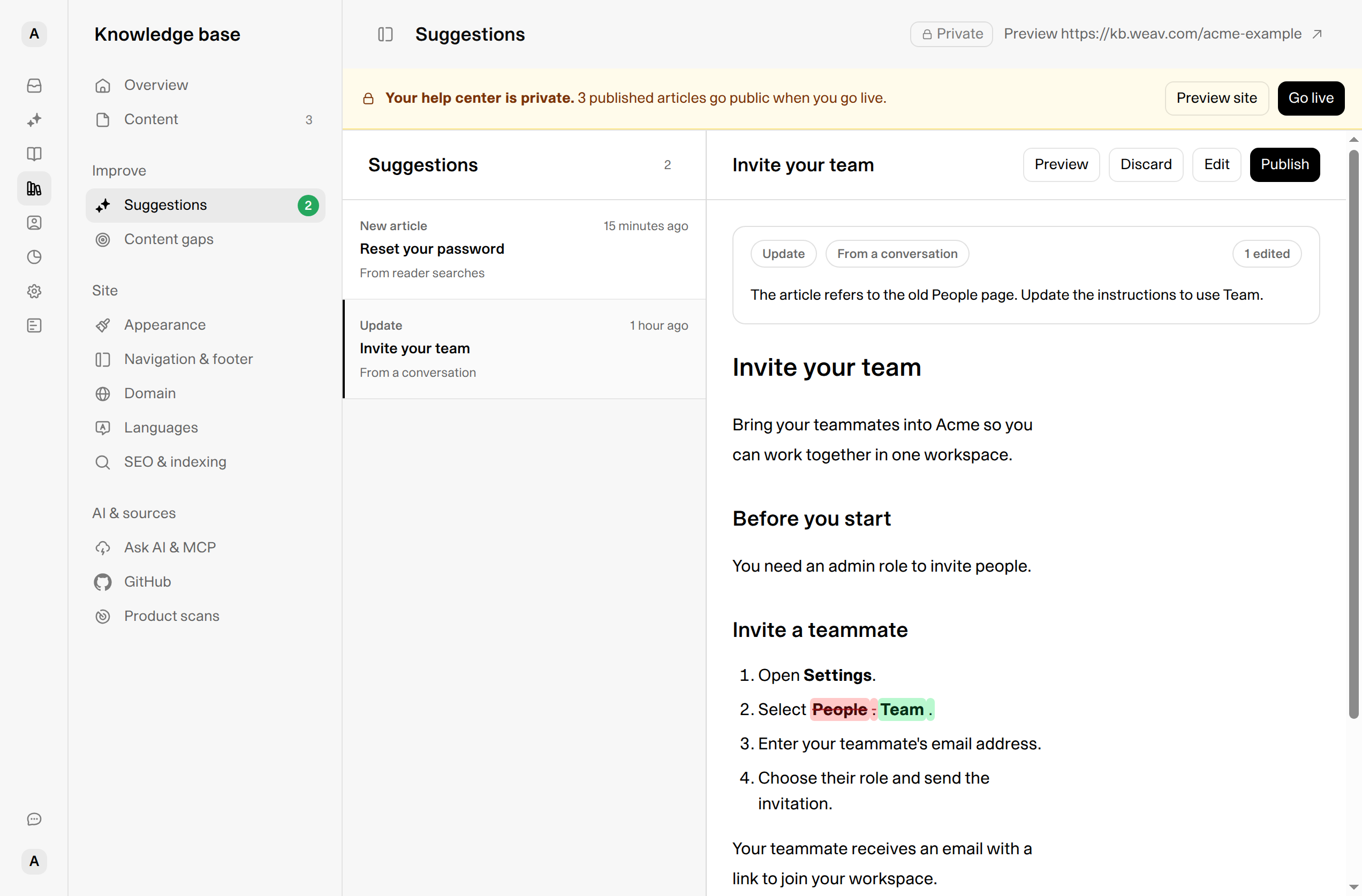
*The suggestions list and change comparison help you see what needs attention. Screenshots use a fictional Acme workspace and example content.*
## 2. Understand why Weav suggested a change
Start with the summary above the article. It shows the suggestion type, its source, and the reason for the change when one is available.
Depending on the sources you use, suggestions can come from conversations, draft corrections, GitHub product changes, product scans, reader searches, or MCP feedback.
When supporting details are available, check the **Source** panel. It may show a conversation link, a GitHub pull request and related files, reader questions, feedback, or scanned pages.
Ask yourself:
- Does this answer a real customer question or reflect a real product change?
- Is the information correct for the current product?
- Does an existing article already cover it?
- Are any links, screenshots, permissions, or prerequisites missing?
The source helps explain the suggestion. Your review makes sure the answer is ready for customers.
## 3. Review an update or a new article
### Review changes to an existing article
For an **Update**, Weav marks the proposed changes inside the article:
- **Green** shows added text or content.
- **Red, struck-through text** shows what would be removed.
- Rewritten passages show the old and new wording together.
The summary can also show change counts, such as **1 edited** or **2 added**. Read the surrounding instructions as well as the highlights—a correct sentence still needs to fit the rest of the article.
For example, if a setting moves from **People** to **Team**, check that the entire set of steps still takes the reader to the right place.
### Review a new article
For a **New article**, Weav shows the whole draft because there is no existing article to compare it with. An **Outline** and approximate word count help you scan its structure.
Check that the draft answers the question directly, uses headings readers can understand, and does not repeat an article you already have.
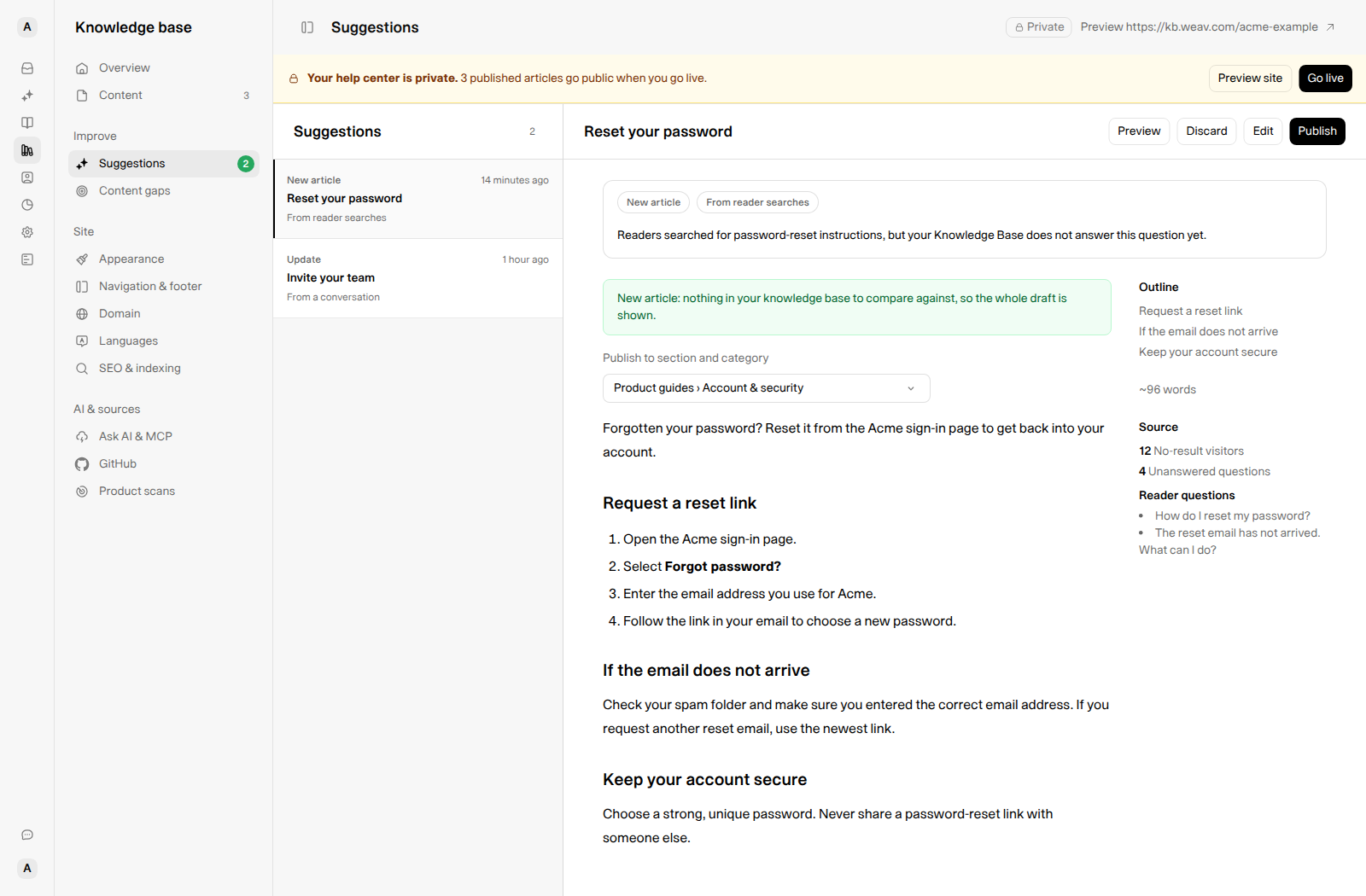
*A new-article suggestion brings the draft and the questions behind it into one review screen.*
### Choose a section and category for a new article
Use the picker above the draft to choose where the article belongs:
- With multiple sections, it is labeled **Publish to section and category**, with options such as `Product guides › Account & security`.
- Otherwise, it is labeled **Publish to category**.
- **Uncategorized** leaves the article without a category.
Your selection is saved to the suggestion and its draft. It does not publish the article.
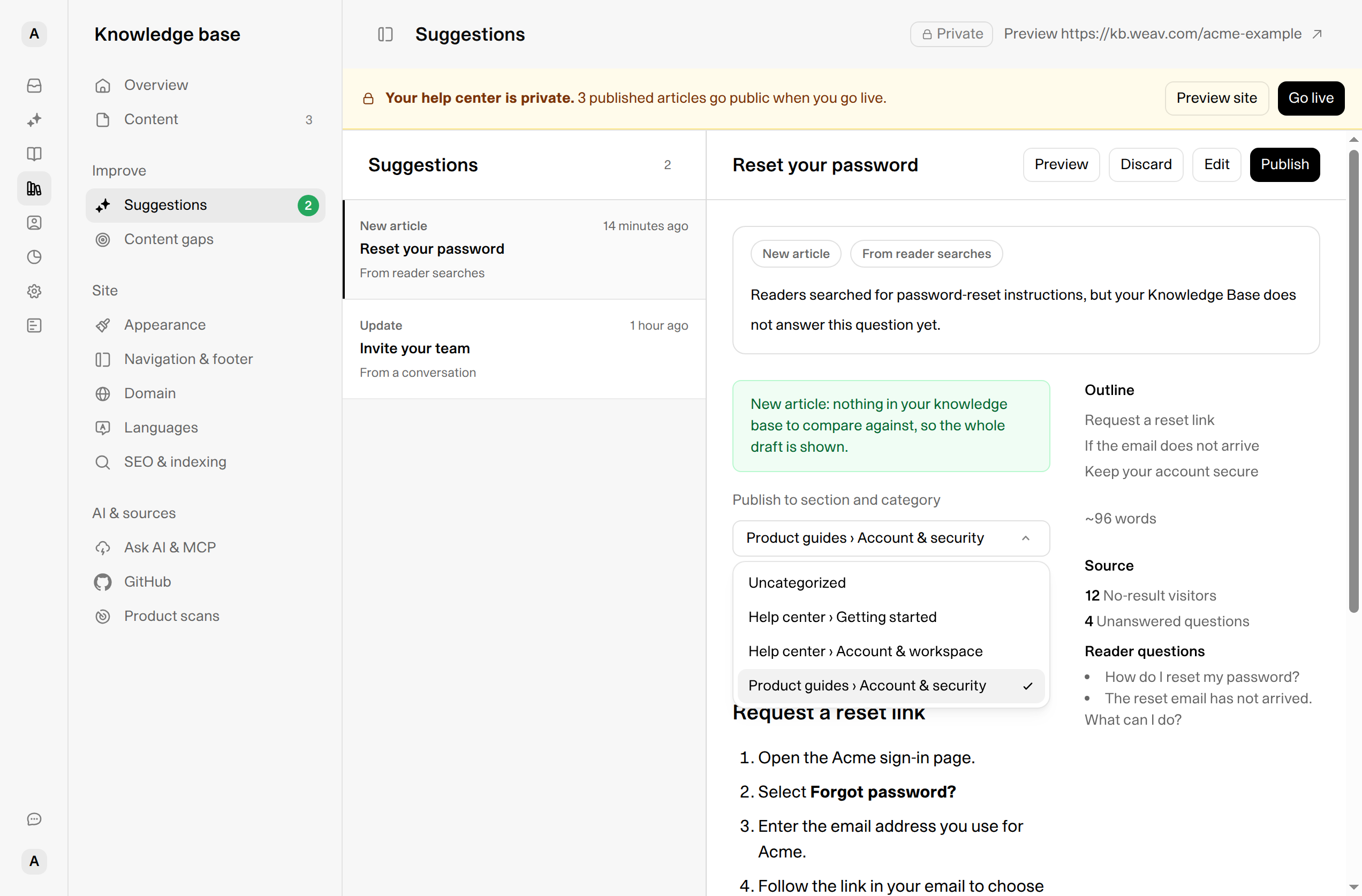
*Choose the location a reader would expect to find the answer—not just the source that generated it.*
## 4. Edit the suggestion before publishing
If the suggestion is useful but needs changes:
1. Select **Edit** at the top of the suggestion.
2. Update the **Title** and **Content**. Use the visual editor or switch to Markdown.
3. Select **Save** to keep your edits and return to the review view.
4. Review the saved version before publishing it.
While you edit, the header shows **Cancel** and **Save** instead of **Publish**. Use **Cancel** to leave edit mode without saving.
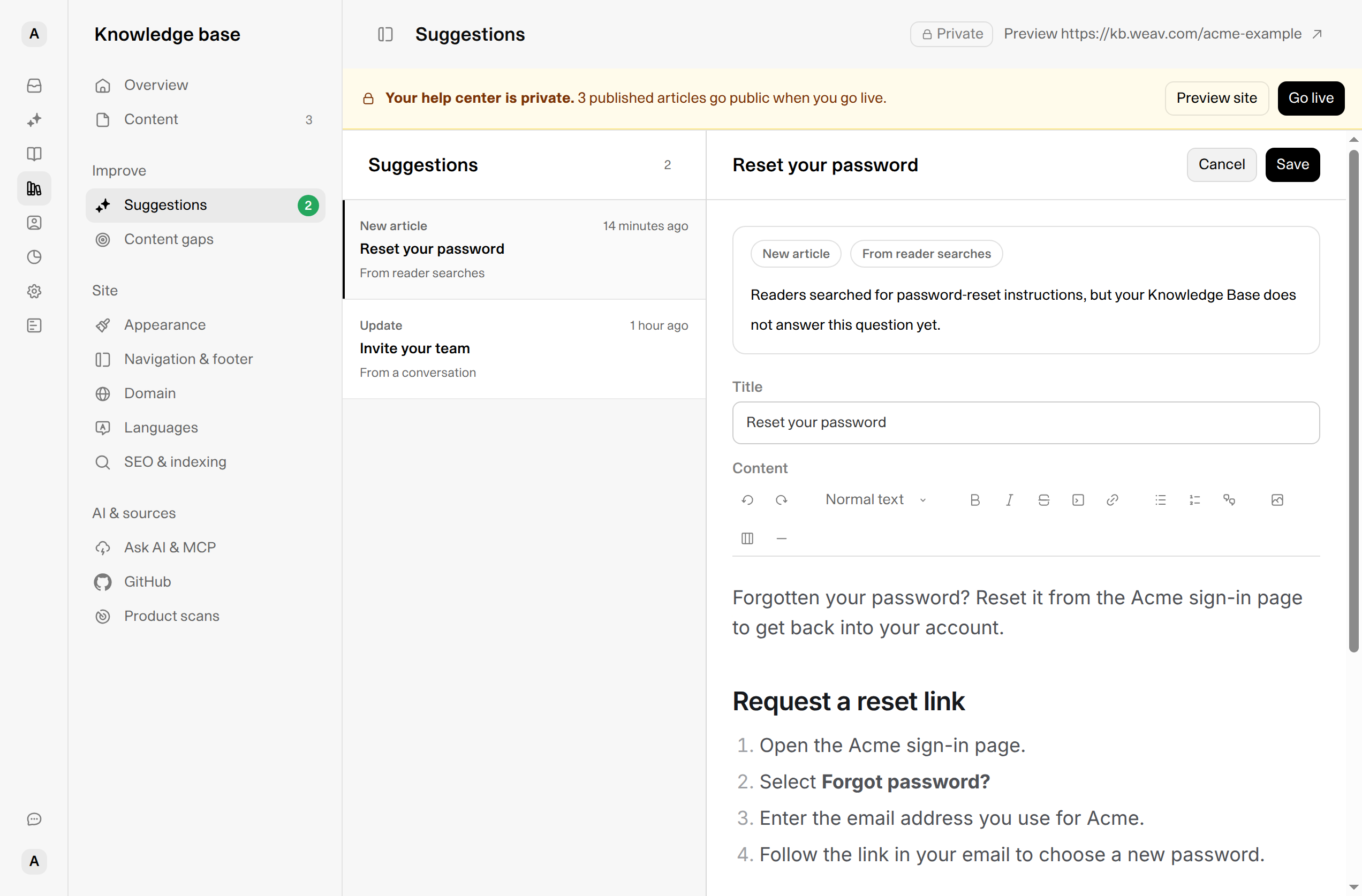
*Save your changes first, then review and publish. Saving alone does not change the live article.*
Make the article useful on its own. Use a clear, task-based title; explain any prerequisites; add screenshots where they help; and check that each instruction matches the current product.
## 5. Publish it or discard it
### Publish when the answer is ready
Select **Publish** to apply the suggestion:
- An **Update** changes the existing article.
- A **New article** becomes a published article in the location you selected.
Weav confirms **Suggestion published.** and moves to the next open suggestion. Select **View in Content** in the confirmation to open the published article.
**Published does not always mean public.** If your Knowledge Base is still private, publishing a suggestion does not make the site public. Customers can read it once you go live.
### Discard a suggestion you do not need
Select **Discard** if a suggestion is incorrect, duplicates an existing answer, or is not useful to your readers. Weav closes it without applying the proposed change and moves to the next open suggestion.
Discarding an update leaves the existing article unchanged.
**Keep any draft content you need before discarding a new-article suggestion.** Discarding can delete its associated unpublished draft, including changes saved through the suggestion editor.
## If a suggestion needs extra attention
### The existing article changed during review
If someone edited the article after the suggestion was created, publishing may be blocked with this message:
“The article changed after this suggestion was made, so it can't be published as is.”
Compare the suggestion with the latest article before making another change. If the useful correction is still needed, apply it to the current article through **Content**, then discard the stale suggestion once its useful content has been accounted for.
### The suggestion is marked Needs your call
This means two versions conflict. The app offers **Preview** and **Discard**, but not **Edit** or **Publish**. Follow the prompt to choose a version in Slack, or discard the suggestion if neither version is needed.
### The draft was deleted
If the draft behind a new-article suggestion was deleted, you cannot preview, edit, or publish it. Select **Discard** to clear the remaining suggestion from the list.
## Frequently asked questions
### Does saving a suggestion update my live article?
No. **Save** keeps your edits for review. **Publish** applies them to the article.
### Why is a suggested new article missing from Content?
New-article drafts stay in **Suggestions** while they are awaiting a decision. After publication, the article appears in **Content** like your other articles.
### Does discarding an update delete the existing article?
No. Discarding an update closes the suggestion without changing the existing article. New-article suggestions are different: discarding can delete the associated unpublished draft.
### Why is my Suggestions list empty?
When there are no open suggestions, Weav shows **You're all caught up**. There is nothing waiting for a decision in this queue.
### Why can't I edit or publish a suggestion?
A suggestion that was already published or discarded is no longer open for editing. **Needs your call** requires a conflict decision, and a deleted draft cannot be edited or published. An update also needs its existing article to remain published; if that article was unpublished, review its current state in **Content** before proceeding.
## Make review part of your documentation routine
Treat Suggestions as a short review queue, not another writing project. Check the evidence, keep the useful changes, and publish answers you trust.
That is the loop that keeps your Knowledge Base improving: new questions become better answers, and product changes become accurate guidance.
---
This knowledge base is built and hosted on [Weav](https://weav.com).