> ## Documentation Index
> Fetch the complete documentation index at: https://docs.weav.com/llms.txt
> Use this file to discover all available pages before exploring further.
# Find and fill content gaps in your Knowledge Base
> Turn unanswered searches and reader feedback into better documentation. Prioritize content gaps, review the evidence, and write or approve the answers readers need.
Content gaps show where readers are looking for answers your Knowledge Base is not providing. Use them to prioritize missing topics, clarify confusing guidance, and turn real questions into useful articles.
This is part of Weav's **self-improving Knowledge Base**: reader demand helps identify what to write next. Feedback can also reveal guidance that needs attention, supporting the **self-healing** review loop.
**Finding a gap does not publish an answer.** Weav can prepare a suggestion for review, or you can write a draft yourself. Your team decides what to publish.
## Where content gaps come from
Weav groups related reader questions and feedback into topics, so you can address the underlying need rather than create an article for every wording variation.
| Signal | What it tells you |
| --- | --- |
| **Search** | A reader searched the Knowledge Base and received no results. |
| **Ask AI** | A reader asked a question that Ask AI could not answer. |
| **Not helpful** | A reader marked an Ask AI answer as not helpful. |
| **MCP** | Feedback was submitted through the public Knowledge Base MCP server's **Report a problem** tool. |
These are signals to investigate, not proof that an entirely new article is always needed. A clearer title, an improved explanation, or an update to an existing article may be the better answer.
## Open Content gaps and choose a priority
Go to **Knowledge Base → Improve → Content gaps**. The sidebar badge shows the number of open gaps.
The page has three tabs:
- **Open**: topics being watched, topics that need an article, and topics with a draft waiting in Suggestions.
- **Covered**: topics with a linked article that has been published.
- **Dismissed**: topics your team has set aside.
Four cards summarize your work:
| Card | What it means |
| --- | --- |
| **Open gaps** | The number of topics still in the Open workflow, including drafts awaiting review. |
| **Readers affected** | The sum of reader counts across open topics. |
| **Needs an article** | Topics currently marked as needing your input. |
| **Covered in the last 30 days** | Topics moved to Covered during the last 30 days. |
The list puts topics with the most affected readers first. For each topic, check **Readers**, **Where they asked**, **Status**, and the available **Action**.
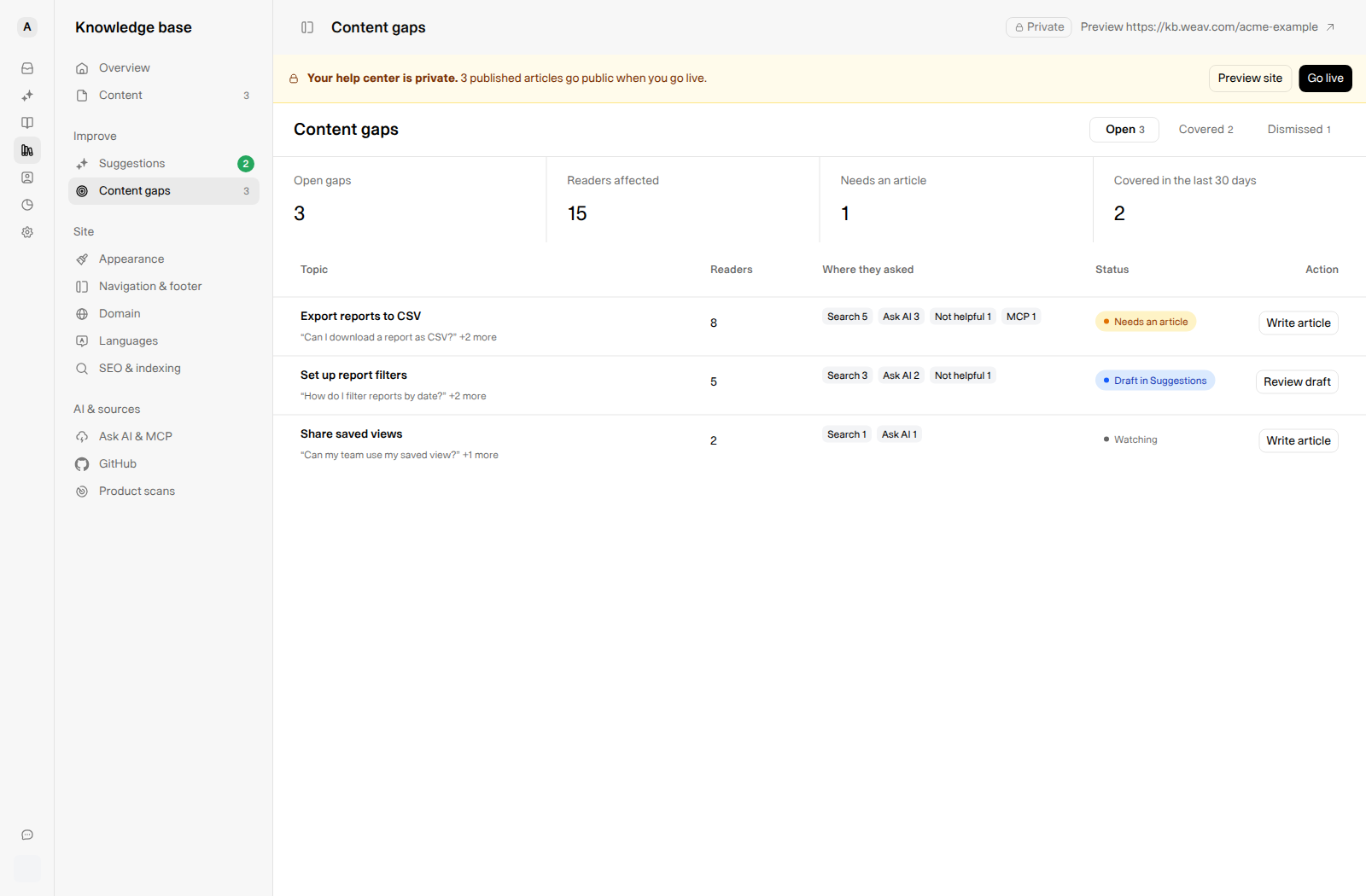
*Example topics in a fictional Acme workspace. Start with repeated questions that have a clear impact on customers.*
Use the counts to prioritize—not as a unique-customer report. The same reader can contribute to more than one topic or source, and source counts can overlap.
## Understand the statuses
| Status | What to do next |
| --- | --- |
| **Watching** | Weav is monitoring reader demand. You can select **Write article** without waiting for an automatic draft. |
| **Needs an article** | Read the expanded explanation. Weav may lack source facts, or an earlier draft may have been discarded or become unavailable. Write the answer yourself or improve the available source material. |
| **Draft in Suggestions** | Select **Review draft** to inspect the proposed new article or update. |
| **Covered** | Select **View article** to open the linked published article in the editor. |
| **Dismissed** | The gap has been set aside and is listed under Dismissed. |
For repeated Search and Ask AI demand, automatic drafting normally waits for at least **three readers**. MCP problem reports are handled separately. Reaching a reader count does not guarantee an immediate draft: drafting happens during scheduled improvement processing and needs supported facts.
## Read the evidence before writing
Select a topic row to expand it. **What readers asked** shows up to 10 different recent questions and their sources. Select the row again to collapse it.
The **Why there's no draft** panel explains the current outcome. Read this alongside the questions: it can tell you whether Weav is still watching demand, could not find source facts, or already prepared a suggestion.
Before taking action, ask:
1. Are these questions about the same customer need?
2. Is the answer missing, or is an existing article difficult to find or understand?
3. Do you have verified facts that answer the questions?
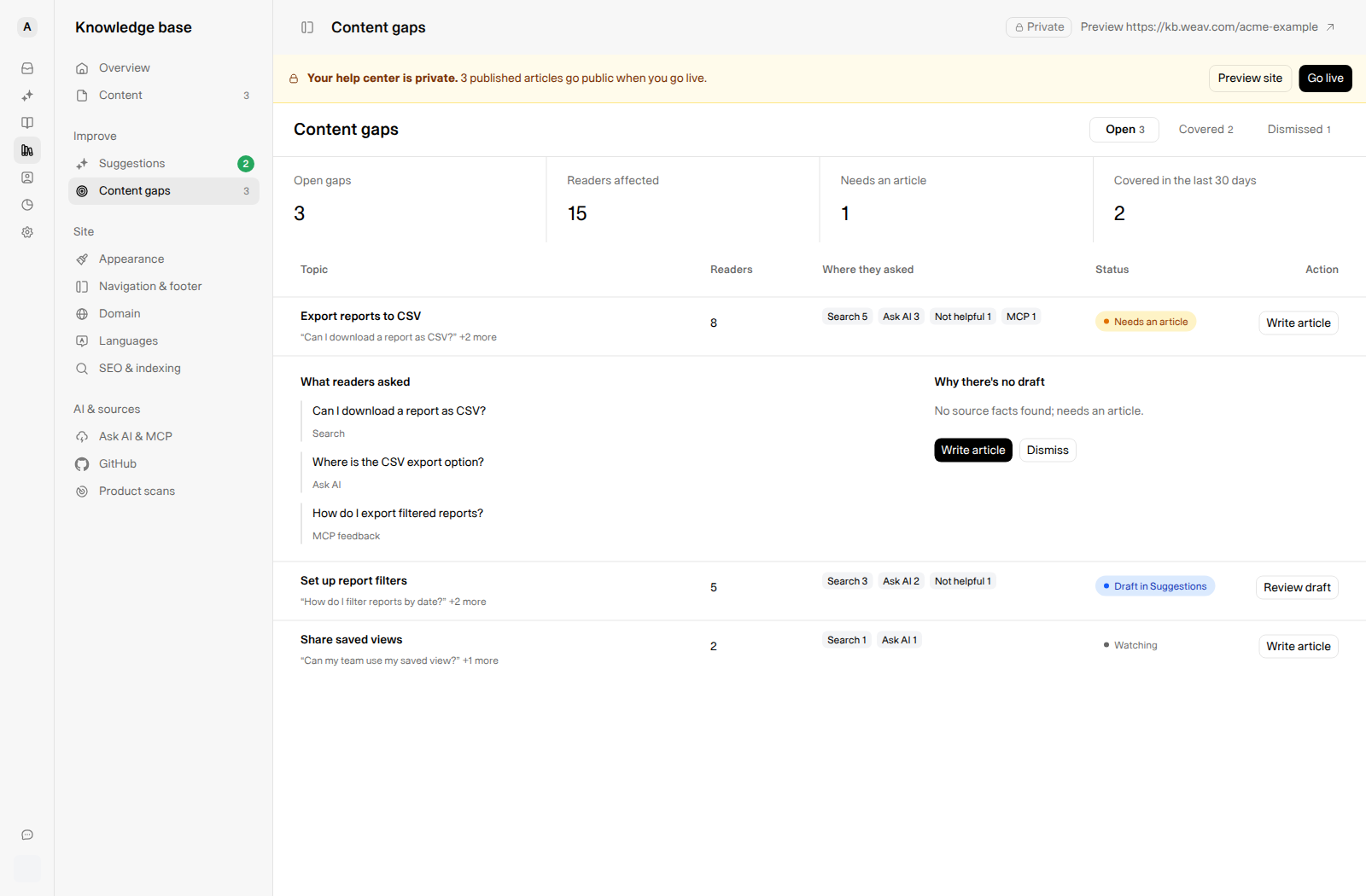
*Read the actual questions before deciding whether to write new guidance or clarify existing content.*
### When Weav cannot find enough facts
Automatic drafts use facts from the **agent training data** available to the Knowledge Base's answering agent. If the relevant facts are missing, you can write the answer yourself or add a verified source for that agent so future drafting attempts have better material.
**Agent training data and public Knowledge Base articles are different.** Adding a training source does not publish an article in your help center. A suggested article still needs review and publication.
Refreshing Content gaps does not force a new AI draft. Use **Write article** when you want to work on the answer immediately.
## Choose how to fill the gap
### Review a suggestion Weav prepared
For **Draft in Suggestions**, select **Review draft**. Check the instructions against your product, review any proposed changes, choose the correct category, and publish only when the content is ready.
The suggestion may improve an existing article rather than create a competing one. For the full workflow, see [Review, edit, and publish Knowledge Base suggestions](https://docs.weav.com/knowledge-bases/review-edit-and-publish-knowledge-base-suggestions).
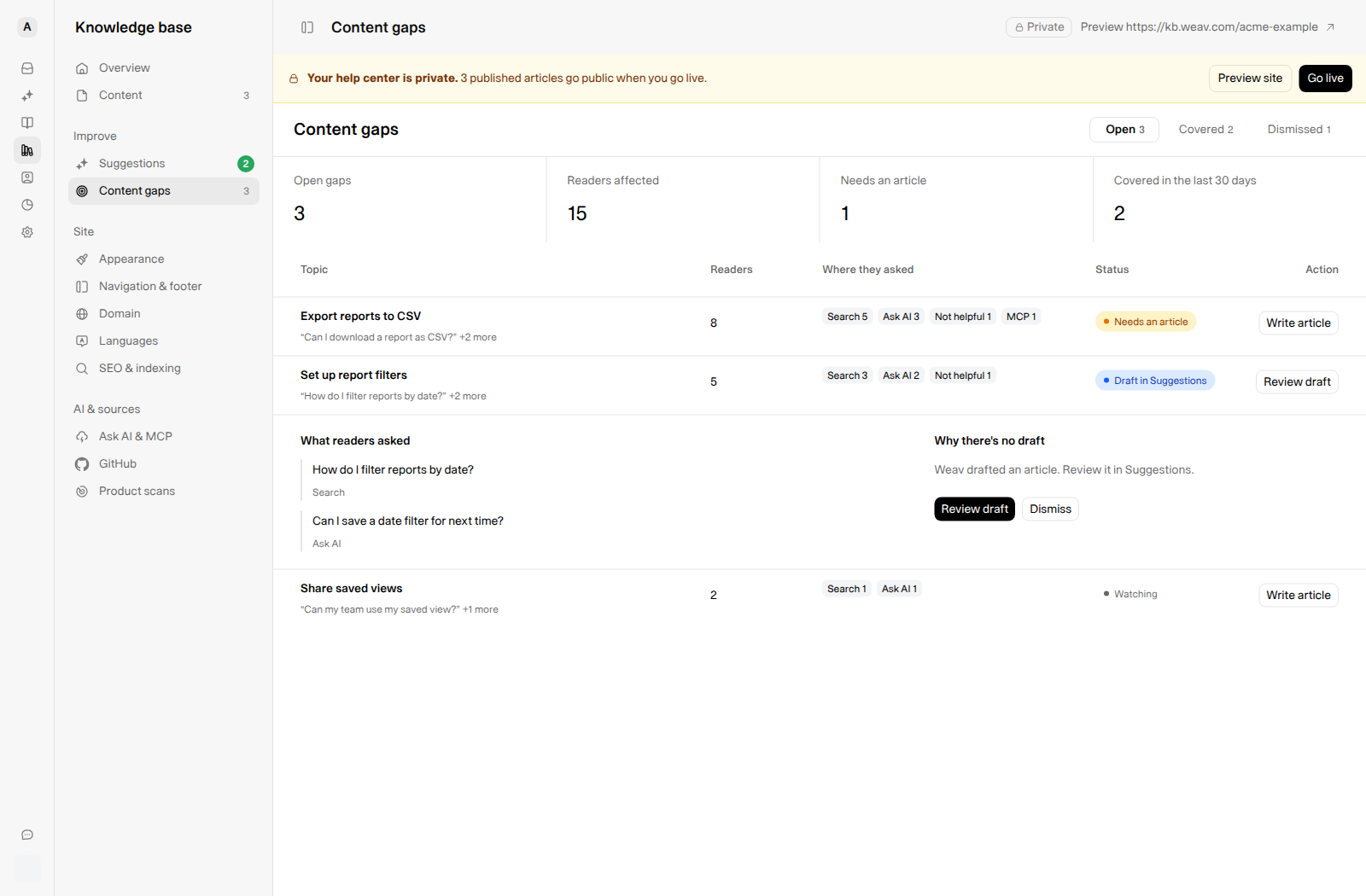
*Review draft opens the linked suggestion. It does not publish it.*
### Write the answer yourself
For a gap marked **Watching** or **Needs an article**:
1. Select **Write article**.
2. Weav opens an **unpublished draft in the article editor**, using the gap's topic as the title.
3. The draft starts with **What readers asked** and up to 10 reader questions. Use these as your writing brief, not as a finished article.
4. Write a clear answer with verified steps, useful headings, and screenshots where needed. Choose an appropriate category and review the article's metadata.
5. Save the draft while you work. Publish only after reviewing it.
If you already started an article through this gap, **Write article** reopens that linked article instead of creating another one.
**Check reader questions for private information before publishing.** Remove personal details, account identifiers, and any other customer-specific information from the writing brief or final article. Do not publish the seed question list unchanged as a substitute for an answer.
## Confirm that the topic is covered
After you publish the linked suggestion or article, open Content gaps again. Weav synchronizes the outcome and moves the topic to **Covered**. Use **View article** to revisit the answer.
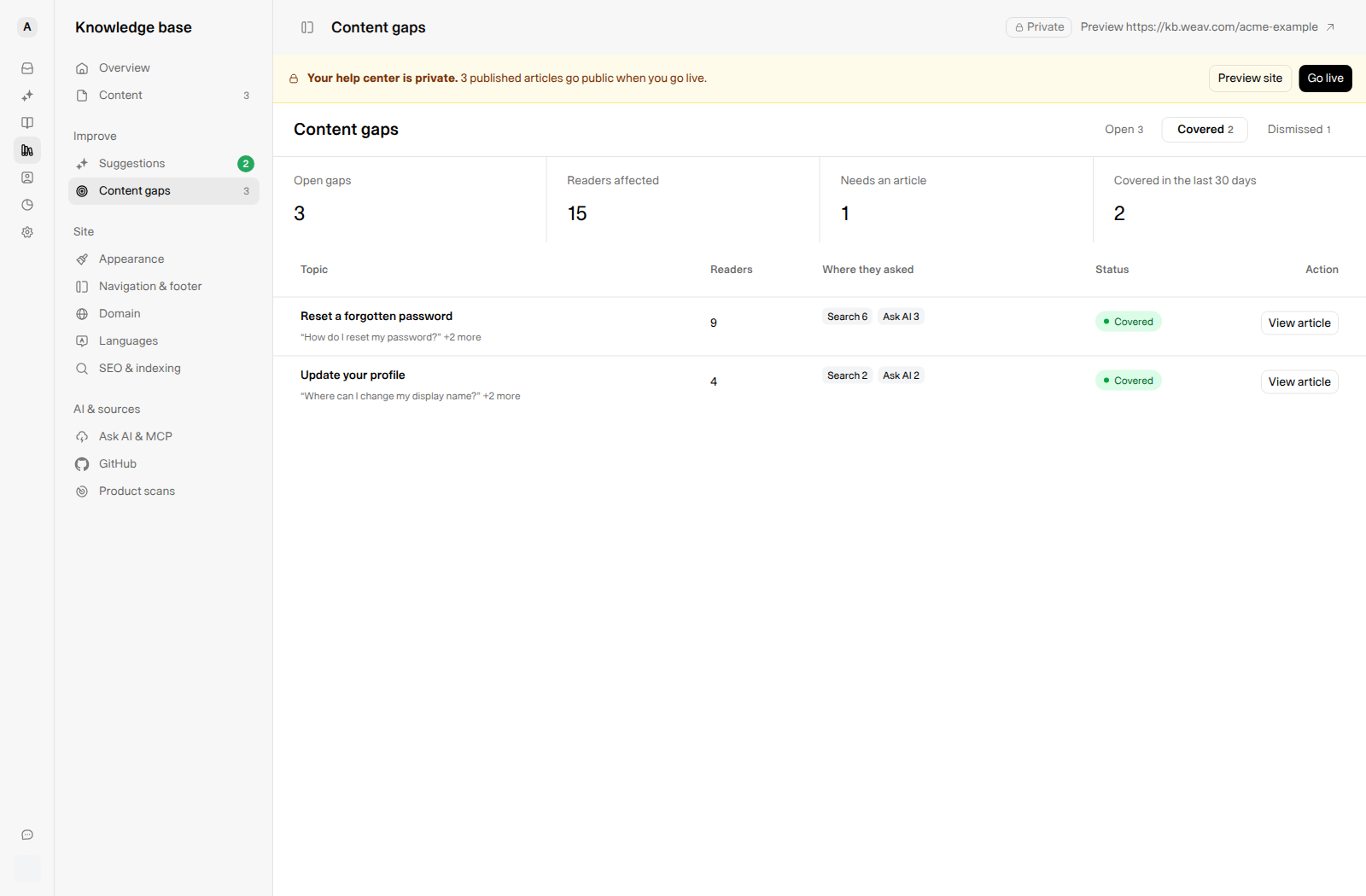
*Covered records the linked article's publication. Keep checking feedback to see whether the guidance is useful.*
Covered is not a guarantee that every reader's question has been answered. It also does not take a private Knowledge Base live. Continue checking the quality and discoverability of your published guidance.
## Dismiss a topic you do not need to address
Expand an open gap and select **Dismiss**. The confirmation is **Gap dismissed.**, and the topic moves to **Dismissed**.
Use this for irrelevant or out-of-scope requests—not simply because the answer needs research. Dismissing a gap is separate from discarding an article suggestion.
## Frequently asked questions
### Why is Content gaps empty?
If no gaps have been recorded yet, you will see **No content gaps yet**. The cards and tabs appear once the Knowledge Base has a gap in any of the three tabs.
Reader signals are processed in the background, so a new search or question does not necessarily create a row immediately. Related wording may also join an existing topic rather than create another one.
### Why does a gap remain open after I start writing?
Starting or saving a draft is not publication. A manually started article can remain linked to a Watching or Needs an article gap while you work. The gap is synchronized to Covered after its linked article is published.
### What happens if I discard the suggested draft?
Discarding a suggestion does not dismiss the reader need itself. On synchronization, the gap can return to **Needs an article**, with an explanation that the draft was dismissed. Write the answer manually, or dismiss the gap separately if you do not want to address it.
### Does Content gaps check every article for outdated guidance?
No. This page focuses on reader demand and feedback. For complementary ways to find guidance affected by product changes, use [Product scans](https://docs.weav.com/knowledge-bases/set-up-product-scans-for-your-knowledge-base) and [GitHub product monitoring](https://docs.weav.com/knowledge-bases/connect-github-to-your-knowledge-base).
For the broader overview, see the [Knowledge Base getting-started guide](https://docs.weav.com/knowledge-bases/getting-started).
---
This knowledge base is built and hosted on [Weav](https://weav.com).