> ## Documentation Index
> Fetch the complete documentation index at: https://docs.weav.com/llms.txt
> Use this file to discover all available pages before exploring further.
# Languages overview
> Serve customers in their own language. Add languages, review AI translations, track coverage, and keep localized documentation current without automatic publishing.
Help customers find answers in their own language without maintaining a separate Knowledge Base for every audience. In Weav, you can add languages, prepare AI translations, review localized articles, and keep translations current as your source content changes.
Go to **Knowledge Base → Site → Languages** to manage the languages offered on your public site.
**AI translation does not mean automatic publishing.** Weav prepares translation drafts for review. Readers see a translation only after it is published on a published article in a live Knowledge Base. Publishing a translation does not publish a draft source article or take the site live.
## Understand the language list
Each language row shows its name, public address prefix, and translation coverage:
- **Default**: the language served without a language prefix in the address.
- **Live**: at least one published article has a saved translation in this language.
- **Not live yet**: no published article has a saved translation in this language.
- **No prefix: /**: the default language's address pattern.
- **Prefix: /fr**: an example non-default language prefix.
- **2 of 6 articles**: how many published articles have a saved translation in that language.
The default language appears first. Other languages are listed alphabetically. A **Live** tag describes language coverage; the Knowledge Base itself must also be live for the public site to be available.
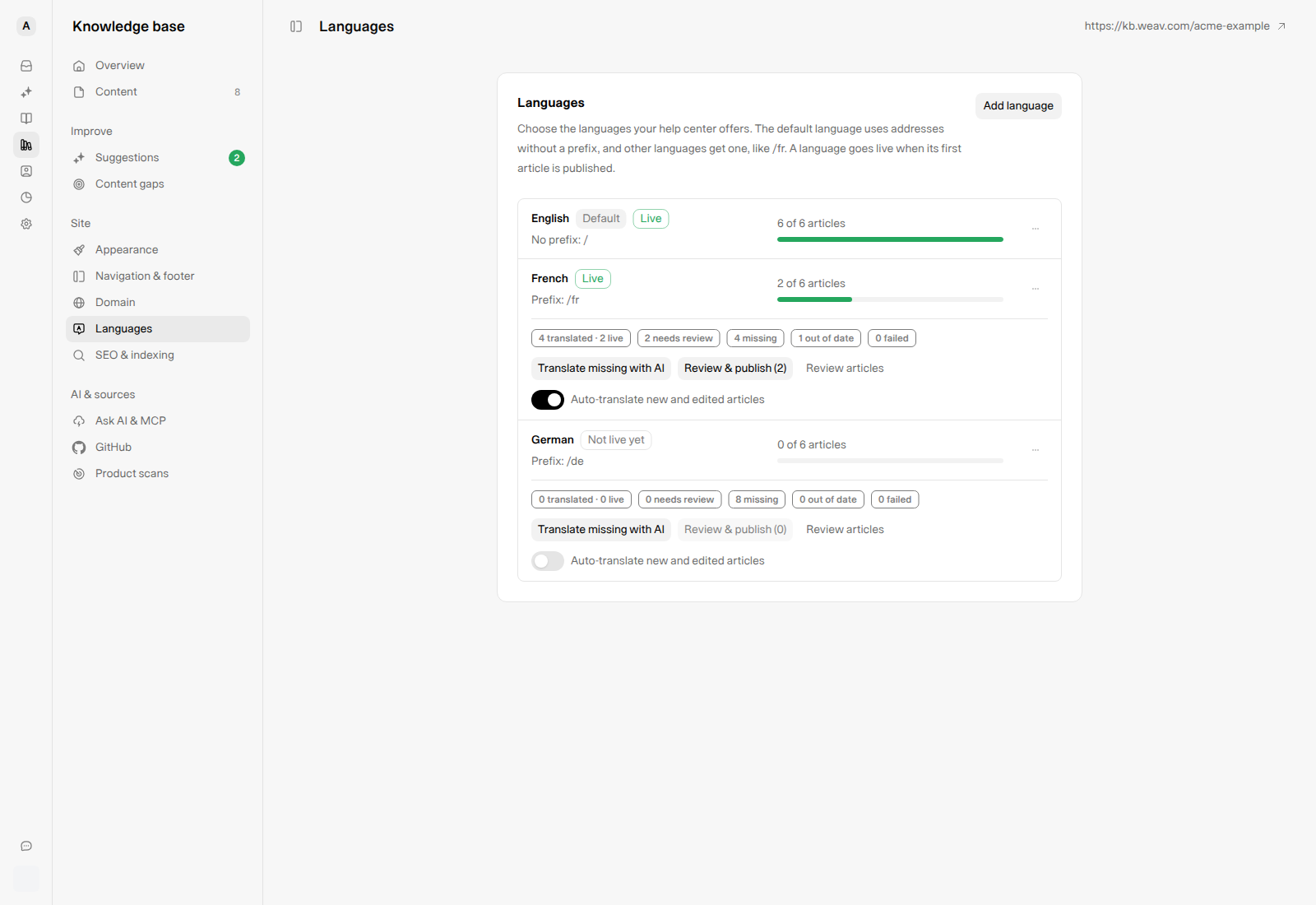
*A language can have live articles and newer AI drafts awaiting review at the same time.*
## Add a language
1. Select **Add language**.
2. In **Choose a language**, choose a language that is not already in your list.
3. Select **Add language** to save it, or **Cancel** to leave the list unchanged.
You can configure up to **50 languages**, including the default language. Adding a language alone does not translate articles or make that language public.
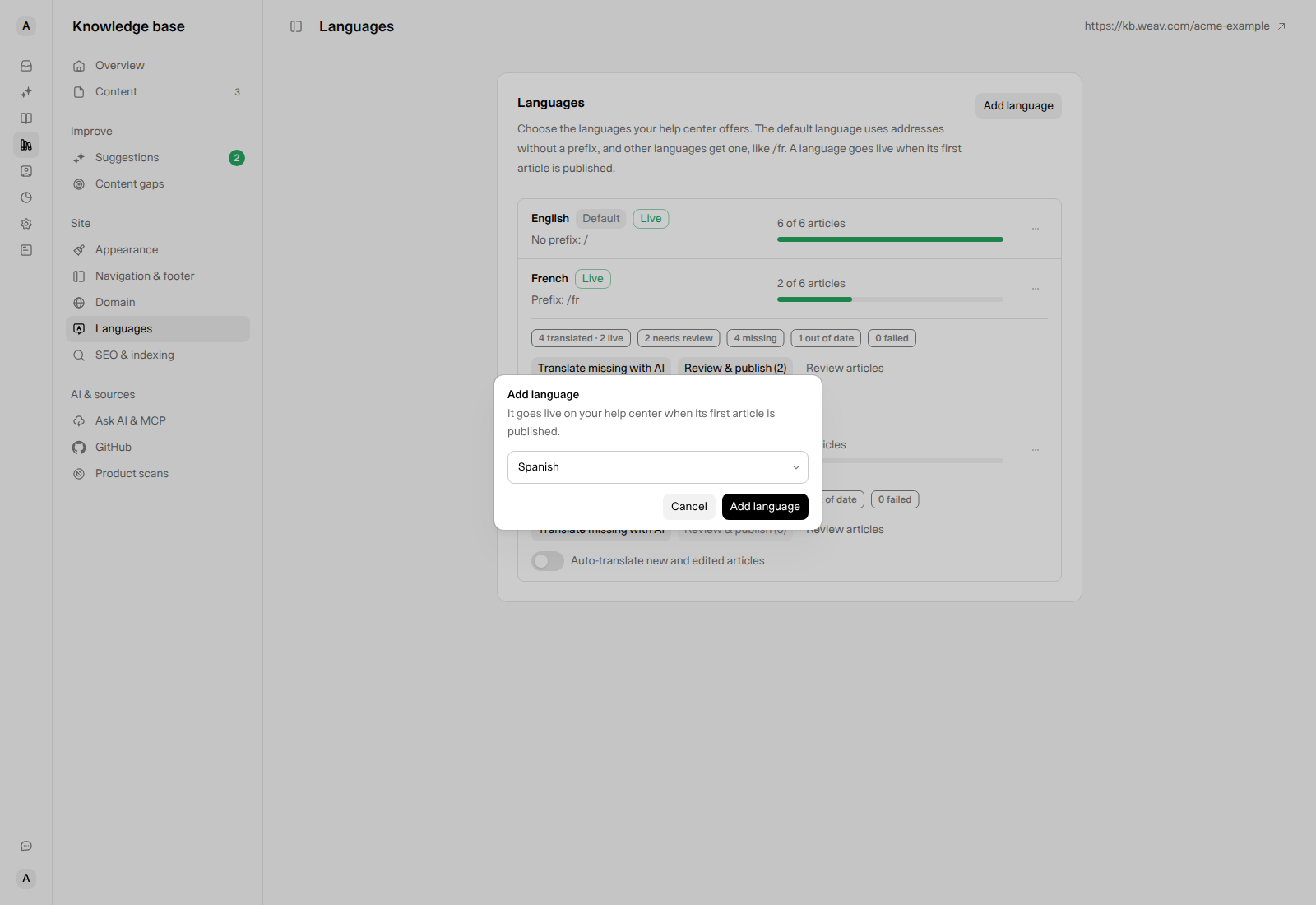
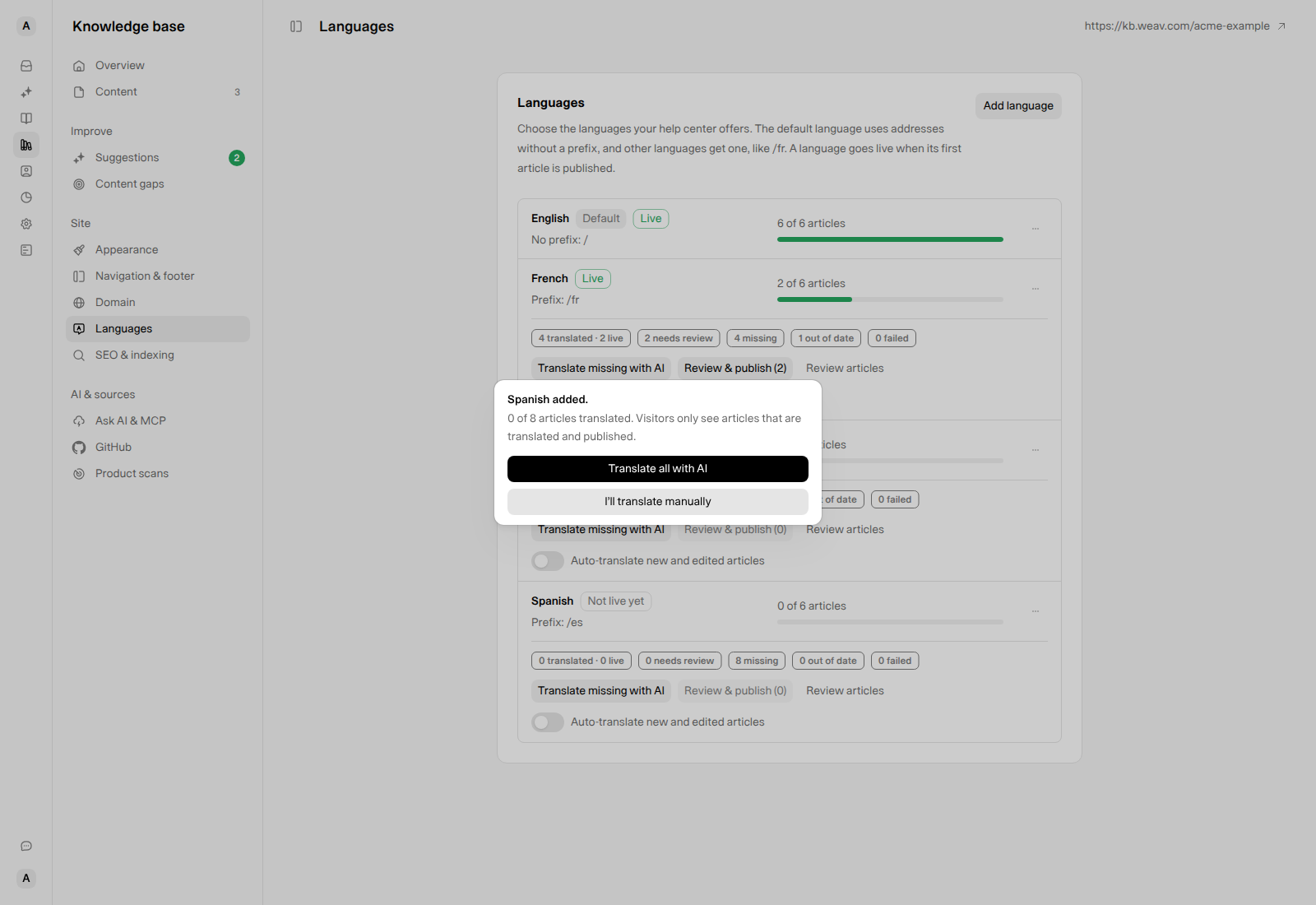
After saving, a second dialog—for example, **Spanish added.**—offers two ways to continue:
- **Translate all with AI**: start preparing eligible translations from your default-language articles.
- **I’ll translate manually**: open Content for that language and work article by article.
The dialog also shows translation coverage and reminds you that visitors only see translated, published articles.
## Generate translations with AI
For an existing non-default language, select **Translate missing with AI** on its row.
Weav uses the Knowledge Base's **default-language version** as the source. The bulk action prepares translations that are missing or detected as out of date, while skipping current translations and current drafts already generating or ready for review. Articles need a source-language version and must be writable.
Progress appears while the run is working. When drafts are ready, the **needs review** count increases. If nothing needs translating, Weav shows **No articles need translating.**
You can also generate one translation from an article's language view using **Translate from English with AI**, for example. The source-language name changes with your Knowledge Base's default.
### Read the translation badges
| Badge | What it tells you |
| --- | --- |
| **translated · live** | Saved translations across source articles, followed by how many belong to published articles. Saved translations on draft articles can be translated without being live. |
| **needs review** | AI drafts are ready for a person to check and publish. |
| **missing** | An article has a source-language version but no saved translation in this language yet. |
| **out of date** | Weav detected that a tracked translation's source content has changed. |
| **failed** | Translation generation failed and needs attention. |
**The numbers describe different things.** The coverage bar counts published articles with saved translations. AI summary badges can also include draft articles. Badges can overlap: an article with a ready AI draft can still be **missing** a saved translation, or its existing live translation can still be **out of date**. Do not add the badges together as separate articles.
## Review and publish individual translations
1. On the language row, select **Review articles** to open Content for that language.
2. Open an article with a **Needs review** translation.
3. Check the **Translation title** and **Translation excerpt**.
4. Use **Preview translation** to read the rendered content. Choose **Edit Markdown** to correct wording, formatting, or links.
5. Review the **Translation sidebar title**, **Translation SEO title**, and **Translation SEO description** as well.
6. When the translation is ready, select **Publish translation** in its review form.
The localized URL slug is generated from the translation title when you publish. Check terminology, product labels, instructions, code samples, and article links rather than assuming a fluent translation is necessarily correct.
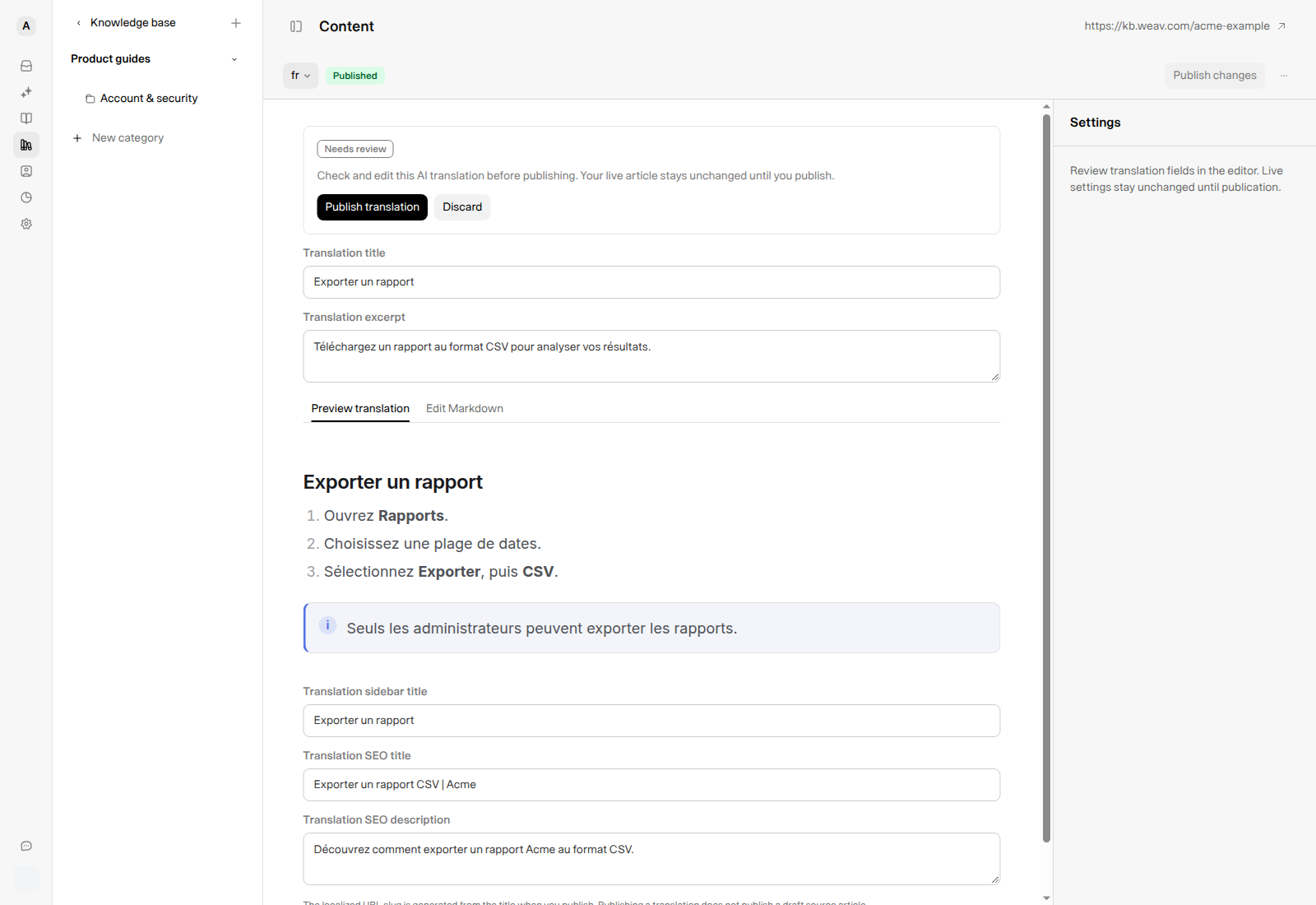
*The example uses fictional Acme documentation. No translation was generated or published to capture it.*
Your existing live translation stays unchanged until you publish its replacement. Review-form edits are submitted by **Publish translation**; do not expect unsaved edits to be applied by a later bulk action.
Select **Discard** if you do not want the AI draft. The confirmation removes that draft and its review edits, not the existing live translation.
If the source changed after an AI draft was generated, Weav shows a warning. Compare the draft with the latest source before publishing, or discard it and generate a fresh translation. The warning does not replace your review.
### Publish several reviewed translations together
The language row's **Review & publish (N)** button opens a confirmation to **Publish all** ready translations for that language. It is not an article-by-article review screen; use **Review articles** to inspect the content first.
**Publish all replaces existing live translations.** Use it only after checking every ready draft it will publish. It uses stored drafts, not unsaved edits in a review form. If you edited a draft, publish it from its own **Publish translation** form so your edits are included.
If some translations cannot be published, Weav reports the failures so you can review and retry them individually.
## Keep translations current automatically
Enable **Auto-translate new and edited articles** for each target language you want Weav to maintain.
When you create or edit a default-language source article, Weav can prepare new translation drafts in the background. **You still review and publish the results.** Enabling the toggle is not a bulk backfill; use **Translate missing with AI** for existing content that needs work.
This extends the self-improving, self-healing Knowledge Base workflow to localized documentation: as your source guidance improves, Weav helps prepare the corresponding language updates instead of leaving you to recreate them from scratch.
Use **out of date** badges as a review signal, not a guarantee that every manually written translation has been checked. Keep a review process for terminology and source changes in all languages you maintain.
## Translate manually or retry one article
From **Review articles**, open an article in the target language:
- If there is no translation yet, select **Start blank** to write it yourself, or use the AI translation action.
- If generation failed, select **Retry translation**. Check the displayed error before trying again.
- If an existing tracked translation is out of date and has no pending review draft, select **Re-translate** to prepare a replacement.
For manual writing, use the normal article editor controls: **Save draft** keeps a draft article unpublished; **Publish changes** applies edits to an already published article. The editor also has **Add language** for working on one article at a time.
Translation drafts are reviewed in **Content**, not through the ordinary new-article Suggestions list. For that separate workflow, see [Review, edit, and publish Knowledge Base suggestions](https://docs.weav.com/knowledge-bases/review-edit-and-publish-knowledge-base-suggestions).
## Change the default language
1. Open the language row's **···** menu.
2. Select **Make default**.
3. Read the confirmation, then select **Make default** only if the change is intended.
A language must have at least one published article before you can make it the default. Otherwise the menu explains that you need to publish an article in that language first.
Changing the default changes public URL patterns: the new default uses addresses without a language prefix, while the old default moves to its own prefix, such as `/en`. The confirmation warns that old links open the new default's version and that the AI switches to learning articles in the new default language.
Check important shared links after making this change. This setting does not change your workspace's interface language. For article addresses, metadata, and canonical URLs, see [SEO and discoverability](https://docs.weav.com/knowledge-bases/manage-seo-and-discoverability-for-your-knowledge-base).
## View or remove a language
Use **··· → View on site** to open a language that has published content. Check the actual public pages after publishing, including their navigation, localized links, and language switcher.
To stop offering a non-default language, select **··· → Remove** and confirm. Its article translations are kept; adding the language back makes its saved published translations available again. You cannot remove the current default language—make another eligible language the default first.
For the broader setup and capabilities overview, see [Getting started with your Knowledge Base](https://docs.weav.com/knowledge-bases/getting-started).
---
This knowledge base is built and hosted on [Weav](https://weav.com).