> ## Documentation Index
> Fetch the complete documentation index at: https://docs.weav.com/llms.txt
> Use this file to discover all available pages before exploring further.
# Email settings
> Learn how email assignment and auto-send threshold work, and when your AI agent drafts, auto-sends, or escalates for human review.
## Overview
The **Email** settings page controls how your agent handles inbound email conversations for your workspace.
For most teams, the two most important settings are:
1. **Assignment** (which agent is in charge of responding to emails)
2. **Auto-send threshold** (how confident the agent must be before sending automatically)
***
## How email assignment works
 ### What “Assignment” does
When you click **Assign to email** on an agent:
* That agent becomes the workspace’s **active email agent**
* Any previously assigned email agent is automatically unassigned
* Only **one** agent can be assigned to email at a time
Think of this as selecting your workspace’s “primary AI email teammate.”
### What happens to conversations after assignment
Assignment mainly affects **new inbound email conversations** and conversations that don’t already have an agent attached.
For incoming email conversations, Weav assigns the active email agent to the conversation
### Important nuance (where confusion usually happens)
Changing assignment does **not** mass-migrate every existing conversation automatically.
So if a conversation is already assigned elsewhere, that existing assignment will stay as-is until reassigned by your team.
***
## How auto-send threshold works
This setting decides whether the AI response should be:
* escalated (no AI reply sent),
* saved as a draft for human user review,
* or auto-sent reply.
### The mental model (simple version)
For each eligible customer email:
1. The AI generates a draft and confidence score
2. Weav compares confidence against routing thresholds
3. Weav chooses one path: **escalate**, **draft**, or **auto-send**
***
## Confidence levels in the UI
Your slider options map to stricter or looser auto-send behavior.
### What “Assignment” does
When you click **Assign to email** on an agent:
* That agent becomes the workspace’s **active email agent**
* Any previously assigned email agent is automatically unassigned
* Only **one** agent can be assigned to email at a time
Think of this as selecting your workspace’s “primary AI email teammate.”
### What happens to conversations after assignment
Assignment mainly affects **new inbound email conversations** and conversations that don’t already have an agent attached.
For incoming email conversations, Weav assigns the active email agent to the conversation
### Important nuance (where confusion usually happens)
Changing assignment does **not** mass-migrate every existing conversation automatically.
So if a conversation is already assigned elsewhere, that existing assignment will stay as-is until reassigned by your team.
***
## How auto-send threshold works
This setting decides whether the AI response should be:
* escalated (no AI reply sent),
* saved as a draft for human user review,
* or auto-sent reply.
### The mental model (simple version)
For each eligible customer email:
1. The AI generates a draft and confidence score
2. Weav compares confidence against routing thresholds
3. Weav chooses one path: **escalate**, **draft**, or **auto-send**
***
## Confidence levels in the UI
Your slider options map to stricter or looser auto-send behavior.
 | Setting | Meaning | Effect |
| -------------------- | ----------------------- | ----------------------------------------------- |
| Low confidence | Lower bar for auto-send | More replies auto-send; fewer drafts |
| Medium confidence | Balanced bar | Mix of auto-sent and reviewed drafts |
| High confidence | Conservative default | Only stronger replies auto-send |
| Very high confidence | Strictest bar | Most replies become drafts |
| Never auto-send | Auto-send is disabled | AI can prepare drafts, but will never auto-send |
***
## Exactly when each outcome happens
### 1) AI does **not** auto-respond (human path / escalation)
This happens when confidence is too low (below the safety floor) or escalation conditions are met.
Typical result:
* Conversation is routed toward a human
* AI draft is not used as the final response path
### 2) AI creates a **draft for review**
This happens when confidence is acceptable but not high enough for auto-send.
Typical result:
* Draft appears for a teammate to review/edit/send
* Human stays in control of final outbound message
### 3) AI **auto-sends**
This happens when confidence meets/exceeds your selected threshold and auto-send is allowed.
Typical result:
* Response is treated as safe enough to send automatically
* Faster response times with less manual effort
***
## When the agent won’t reply automatically (common reasons)
Even with assignment configured, auto-replies may not occur for specific messages:
* Conversation is not assigned to an agent workflow path
* Message is classified as notification/system-style email
* Message is internal/non-customer
* Billing/trial access for AI resolution is unavailable
* Confidence falls into escalate-or-review paths instead of auto-send
This is expected safety behavior, not failure.
***
## Recommended rollout (to build team confidence)
If your team is new to AI email automation:
1. Start with **High** or **Very high**
2. Review draft quality for a week
3. Add/adjust escalation rules and assignees
4. Move to **Medium** only after quality is consistently strong
A gradual rollout helps teams trust the system while protecting customer experience.
***
## Additional email settings
### Escalation assignee
Who receives conversations when escalation is needed.
### Escalation rules
Specific triggers that force handoff to a human teammate.
| Setting | Meaning | Effect |
| -------------------- | ----------------------- | ----------------------------------------------- |
| Low confidence | Lower bar for auto-send | More replies auto-send; fewer drafts |
| Medium confidence | Balanced bar | Mix of auto-sent and reviewed drafts |
| High confidence | Conservative default | Only stronger replies auto-send |
| Very high confidence | Strictest bar | Most replies become drafts |
| Never auto-send | Auto-send is disabled | AI can prepare drafts, but will never auto-send |
***
## Exactly when each outcome happens
### 1) AI does **not** auto-respond (human path / escalation)
This happens when confidence is too low (below the safety floor) or escalation conditions are met.
Typical result:
* Conversation is routed toward a human
* AI draft is not used as the final response path
### 2) AI creates a **draft for review**
This happens when confidence is acceptable but not high enough for auto-send.
Typical result:
* Draft appears for a teammate to review/edit/send
* Human stays in control of final outbound message
### 3) AI **auto-sends**
This happens when confidence meets/exceeds your selected threshold and auto-send is allowed.
Typical result:
* Response is treated as safe enough to send automatically
* Faster response times with less manual effort
***
## When the agent won’t reply automatically (common reasons)
Even with assignment configured, auto-replies may not occur for specific messages:
* Conversation is not assigned to an agent workflow path
* Message is classified as notification/system-style email
* Message is internal/non-customer
* Billing/trial access for AI resolution is unavailable
* Confidence falls into escalate-or-review paths instead of auto-send
This is expected safety behavior, not failure.
***
## Recommended rollout (to build team confidence)
If your team is new to AI email automation:
1. Start with **High** or **Very high**
2. Review draft quality for a week
3. Add/adjust escalation rules and assignees
4. Move to **Medium** only after quality is consistently strong
A gradual rollout helps teams trust the system while protecting customer experience.
***
## Additional email settings
### Escalation assignee
Who receives conversations when escalation is needed.
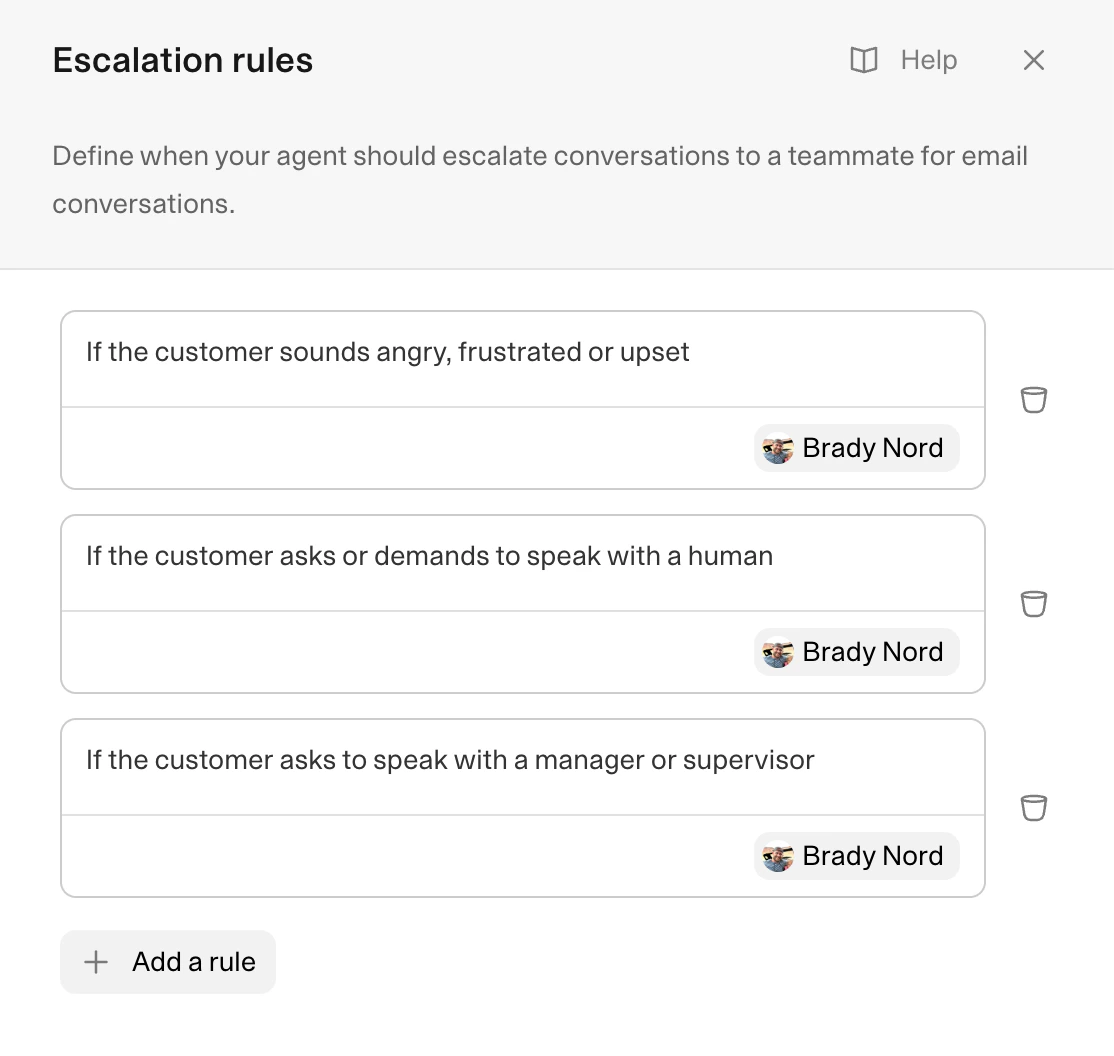
### Escalation rules
Specific triggers that force handoff to a human teammate.
 ### Signature
Appended signature format for agent-generated email content (supports using `{agent_name}` as a variable which gets replaced by the name of the agent in the signature).
### Notice
Optional banner text shown at the top of agent emails (hidden, first email only, or all emails). This is helpful for instances when you want emails to always show a notice so you don't have to repeat yourself. This is helpful for things like holiday promotions or communicating that you're aware of an outage happening.
***
## Best practices
* Keep exactly one clear owner for email assignment
* Use conservative thresholds first, then loosen gradually
* Treat drafts as a training signal: edit patterns tell you what to improve
* Pair auto-send with strong escalation coverage for sensitive topics
* Revisit threshold monthly as your agent quality improves
### Signature
Appended signature format for agent-generated email content (supports using `{agent_name}` as a variable which gets replaced by the name of the agent in the signature).
### Notice
Optional banner text shown at the top of agent emails (hidden, first email only, or all emails). This is helpful for instances when you want emails to always show a notice so you don't have to repeat yourself. This is helpful for things like holiday promotions or communicating that you're aware of an outage happening.
***
## Best practices
* Keep exactly one clear owner for email assignment
* Use conservative thresholds first, then loosen gradually
* Treat drafts as a training signal: edit patterns tell you what to improve
* Pair auto-send with strong escalation coverage for sensitive topics
* Revisit threshold monthly as your agent quality improves